Browse all articles
Timesheet Approval
An admin turns weekly approval on once for the whole company in Company Settings. After that, you submit a finished week from the Week view in the Time module, and your direct manager is notified by email. Managers and admins approve or reject each submission on the Approvals tab. An approved week is locked for editing, while a rejected week goes back to you to correct and resubmit.
This article covers how to turn the feature on, how employees submit a week, and how managers and admins review submissions. Approval is optional and off until an admin enables it for the company.
Enable weekly timesheet approval
Weekly approval is a company-wide setting, so an admin turns it on once for everyone.
- Open the Configurations module.
- Go to Company Settings → Company details.
- Scroll to the Settings section.
- Turn on Enable weekly timesheet approval.
- Click Update to save.
Note: When enabled, employees can submit their weekly timesheet for approval, their direct manager is notified by email, and can approve or reject it. Approved weeks become locked for editing.
Submit your week for approval
Once approval is enabled, a status bar appears at the top of your weekly timesheet in the Time module. A week that has not been sent yet shows as Not submitted, with a prompt to submit this week to send it to your manager for approval.
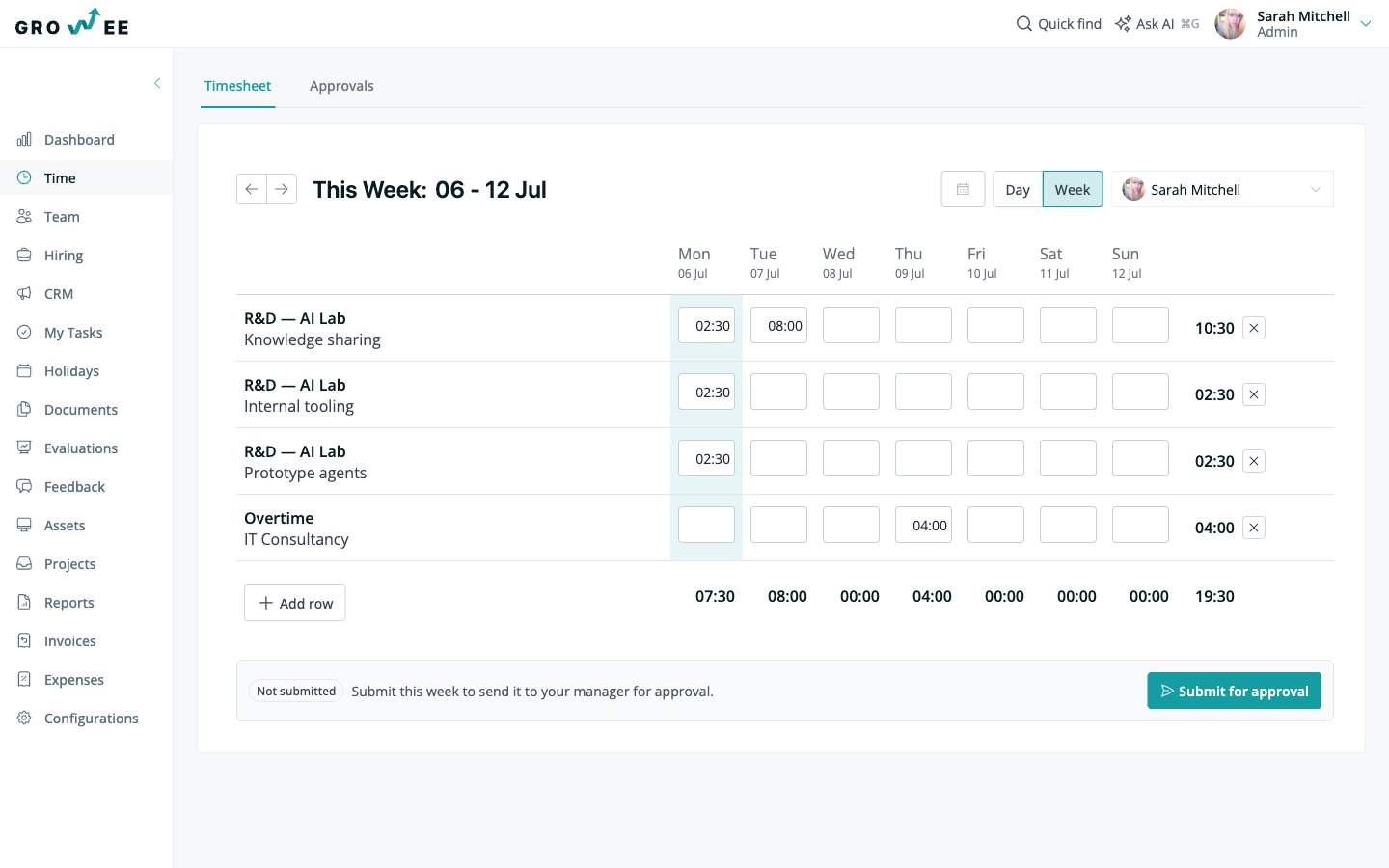
- Open the Time module and switch to the Week view.
- Log all your hours for the week and check the weekly total.
- Click Submit for approval.
Your manager is notified by email that the week is waiting for review. While the week is pending, keep an eye on its status in case it is sent back to you.
Tip: Fill in the whole week before you submit. See Logging Time for how to enter hours in the Week view.
Review submissions
Managers and admins review submitted weeks on the Approvals tab in the Time module. Open the Time module and select Approvals, or go to /time/approval.
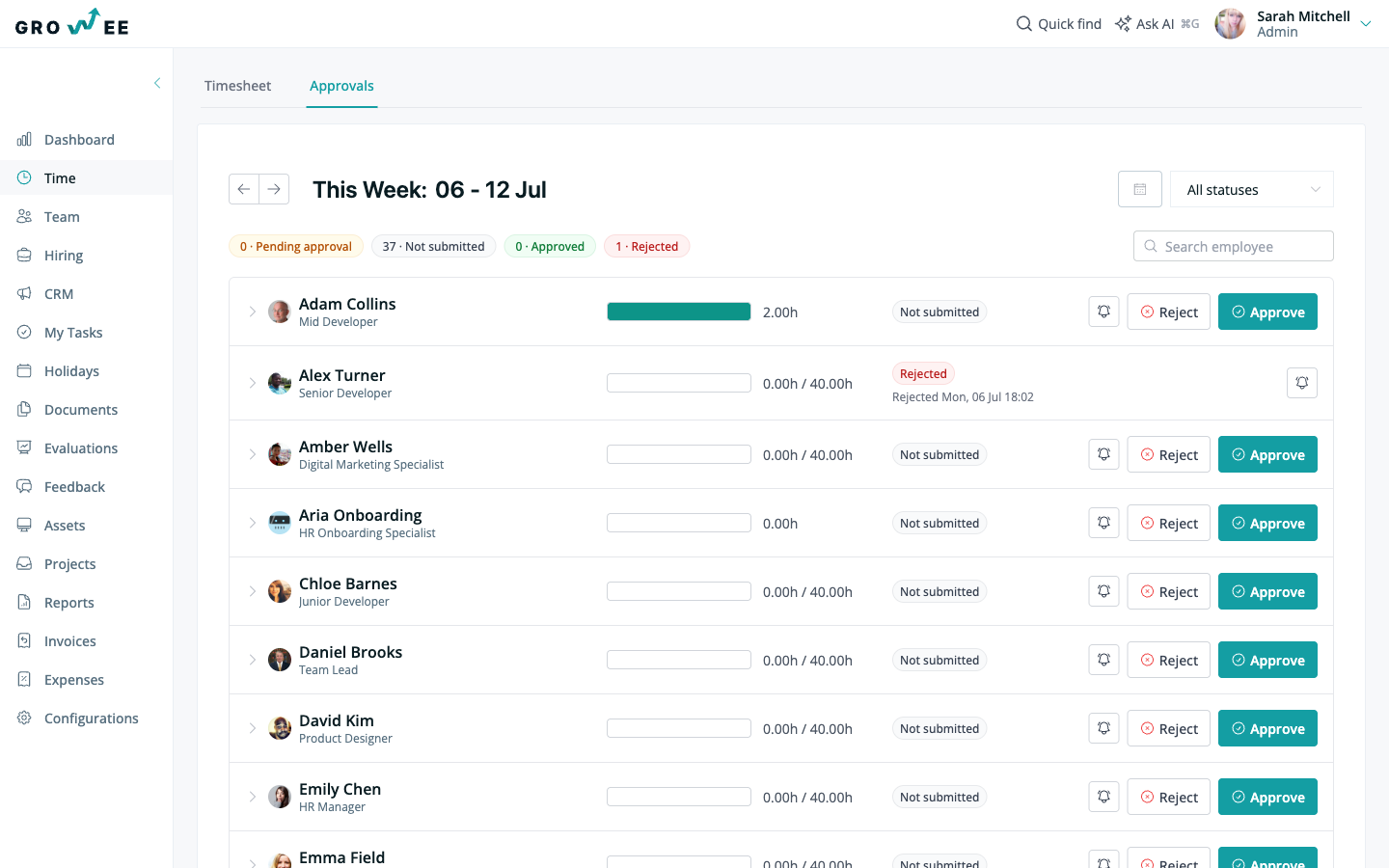
The Approvals tab lists your team for the selected week. Each row shows the employee, their logged hours against their expected weekly hours, and the current status. Use the arrows or the date picker at the top to move between weeks, and the search box to find a specific person.
Every submission moves through one of these statuses:
| Status | What it means |
|---|---|
| Not submitted | The employee has not sent the week for approval yet. |
| Pending approval | The week has been submitted and is waiting for your review. |
| Approved | You approved the week. It is now locked for editing. |
| Rejected | You sent the week back. The employee can edit and resubmit it. |
Use the status filters at the top of the list to focus on the weeks that need attention, such as Pending approval.
Approve or reject a week
To act on a submission, use the buttons on the right of each row.
- Review the employee’s logged hours for the week.
- Click Approve to accept the week, or Reject to send it back.
When you approve a week, it is locked and the hours can no longer be edited. When you reject a week, the employee can correct their entries and submit it again.
Related articles
Need more help? Contact support or email support@growee.net.