Browse all articles
Document Templates
You build document templates in the Templates section of your configuration. Give the template a name, choose its type, either Employees for paperwork tied to a person or Holidays for paperwork tied to a leave request, then design the layout in the built-in composer and insert the variables Growee fills in from employee or leave data. Check Auto Generate if you want the document produced automatically, then save.
This article covers the template types Growee supports, how to create a template, how automatic generation works, and how to share templates with colleagues.
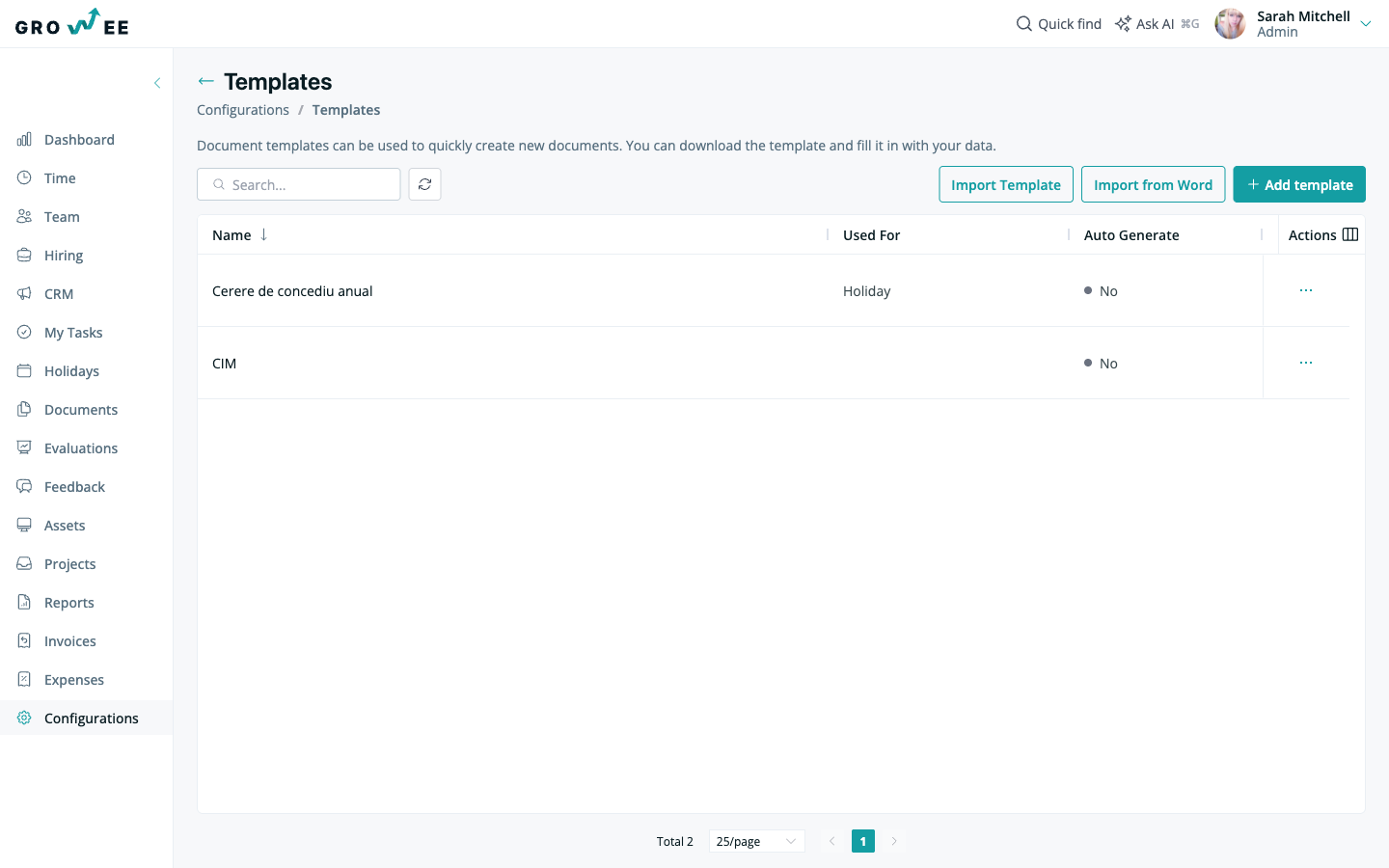
Template types
You can create and manage two types of templates:
| Template type | Use it for |
|---|---|
| Employees | Documents tied to an employee, such as contracts or annexes. |
| Holidays | Documents tied to a leave request, such as a holiday request form. |
Create a template
When you create a template, you use the built-in composer to design the layout and insert variables that Growee fills in with the relevant employee or leave data.
- Open the Templates section in your configuration.
- Create a new template and give it a name.
- Choose the template type, either Employees or Holidays.
- Design the layout in the composer and add the variables you want Growee to fill in.
- Optionally, check Auto Generate so Growee creates the document automatically.
- Save the template.
After you save it, the template appears in the templates list, showing its type and whether it is set to auto generate.
Auto-generate documents
When Auto Generate is checked, Growee creates the document for you instead of you uploading it by hand:
- Employee templates: as soon as you add a new employee, the generated document appears in the Documents section of that employee’s profile, and an email notifies the employee.
- Holiday templates: once a leave request is approved, the document is generated, added to the Documents section, and the employee is notified by email.
Example: a holiday request template
- Create a new template named, for example, “Holiday Request”.
- Set the type to Holidays and check Auto Generate.
- When an employee requests time off and the request is approved, Growee generates the document and emails the employee.
Download, edit, or delete a template
Each template in the list has a three-dot menu:
- Download a copy of the template.
- Edit the template’s layout or settings.
- Delete the template.
Share templates
The share feature lets you reuse and distribute templates across your team. Copy, paste, or share a template directly with colleagues so everyone works from the same layout. Use it for document layouts, holiday request forms, or any structured content you want to keep consistent.
Related articles
Need more help? Contact support or email support@growee.net.