Browse all articles
Company Settings and Feature Toggles
Company Settings holds two sets of switches. The Company details tab has feature toggles for break guidance, time sheet dates, weekly timesheet approval, weekends in holiday calculation, time logging on approved and national holidays, team level structure, and work locations. The Modules tab switches whole modules off, which hides them from the navigation. Both sets are restricted to admins by default, through the Manage company details permission, and changes take effect for the whole company once you click Update.
This article is for admins. Open Configurations, then Company Settings. The tabs across the top are Company details, AI Context, Modules, Roles & Permissions, and Data.
Company details and feature toggles
On the Company details tab (/settings/company/details) you manage your company profile and a set of feature toggles that change how time tracking and holidays behave across the app.
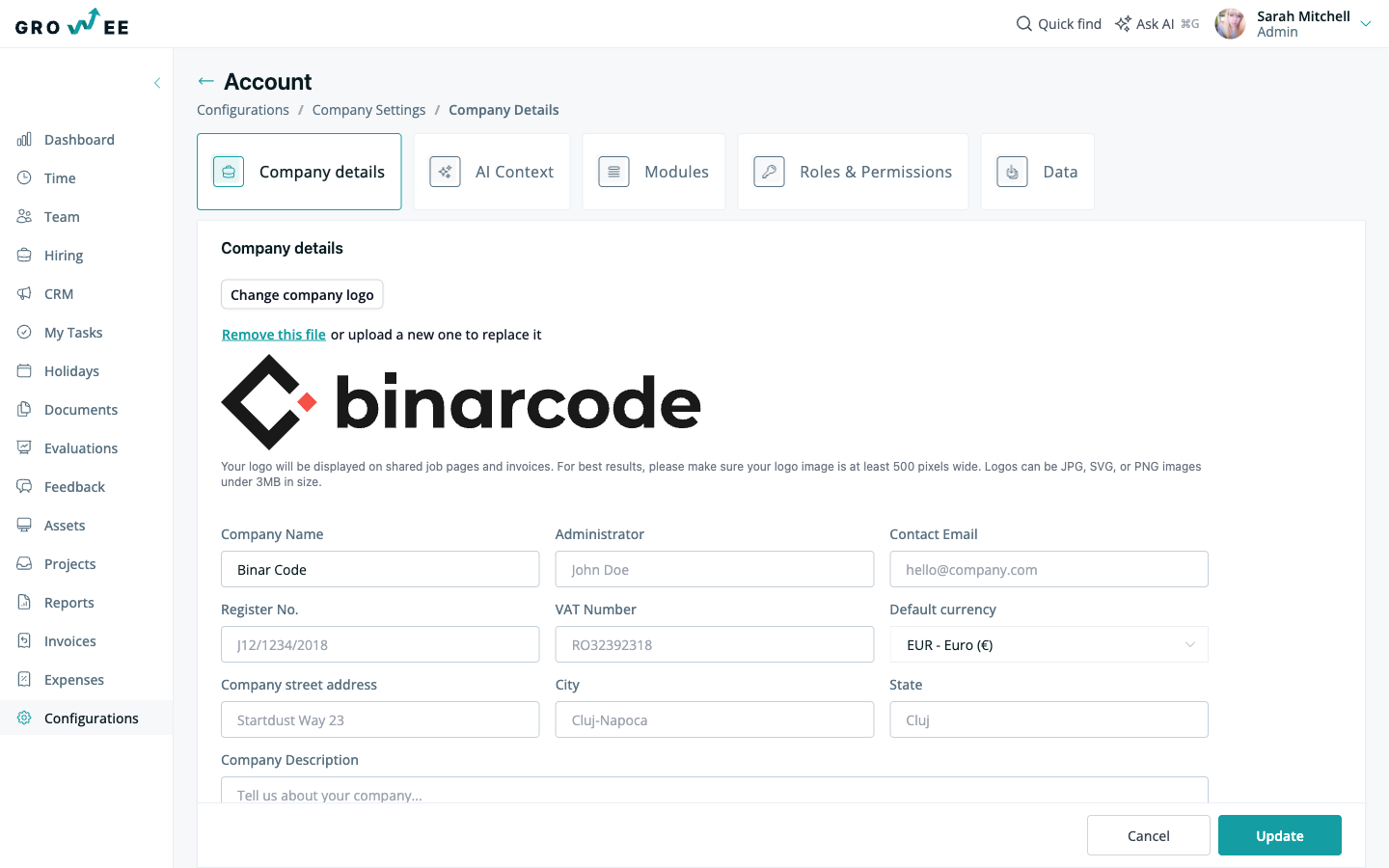
The profile section covers your company logo, company name, administrator, contact email, register number, VAT number, default currency, street address, city, state, and a company description. Your logo and description appear on shared job pages, and your logo also appears on invoices.
Below the profile, you can turn on optional behaviors. Each toggle takes effect for the whole company once you click Update.
| Toggle | What it does when enabled |
|---|---|
| Show break guidance | Shows a non-intrusive suggestion in time logging once a person passes the threshold you set without a logged break. You set the suggested delay and duration in minutes. Actual breaks are still logged manually as entries marked as a break, and break entries are excluded from worked-time totals. |
| Show time sheet dates | Displays when users logged their time in the reports. |
| Disable time logging for approved holidays and national holidays | Prevents users from logging time on approved holidays and national holidays. |
| Enable weekly timesheet approval | Lets employees submit their weekly timesheet for approval. The direct manager is notified by email and can approve or reject it, and approved weeks are locked for editing. See Timesheet approval. |
| Include weekends in holiday calculation | Counts weekends when calculating holiday duration. |
| Enable team level structure | Allows creating teams within departments for more detailed organization. |
| Show work locations | Makes work locations visible throughout the application. |
Tip: Toggles are company-wide. Turning one off hides the related behavior for everyone, so review the effect before you save.
Turn modules on or off
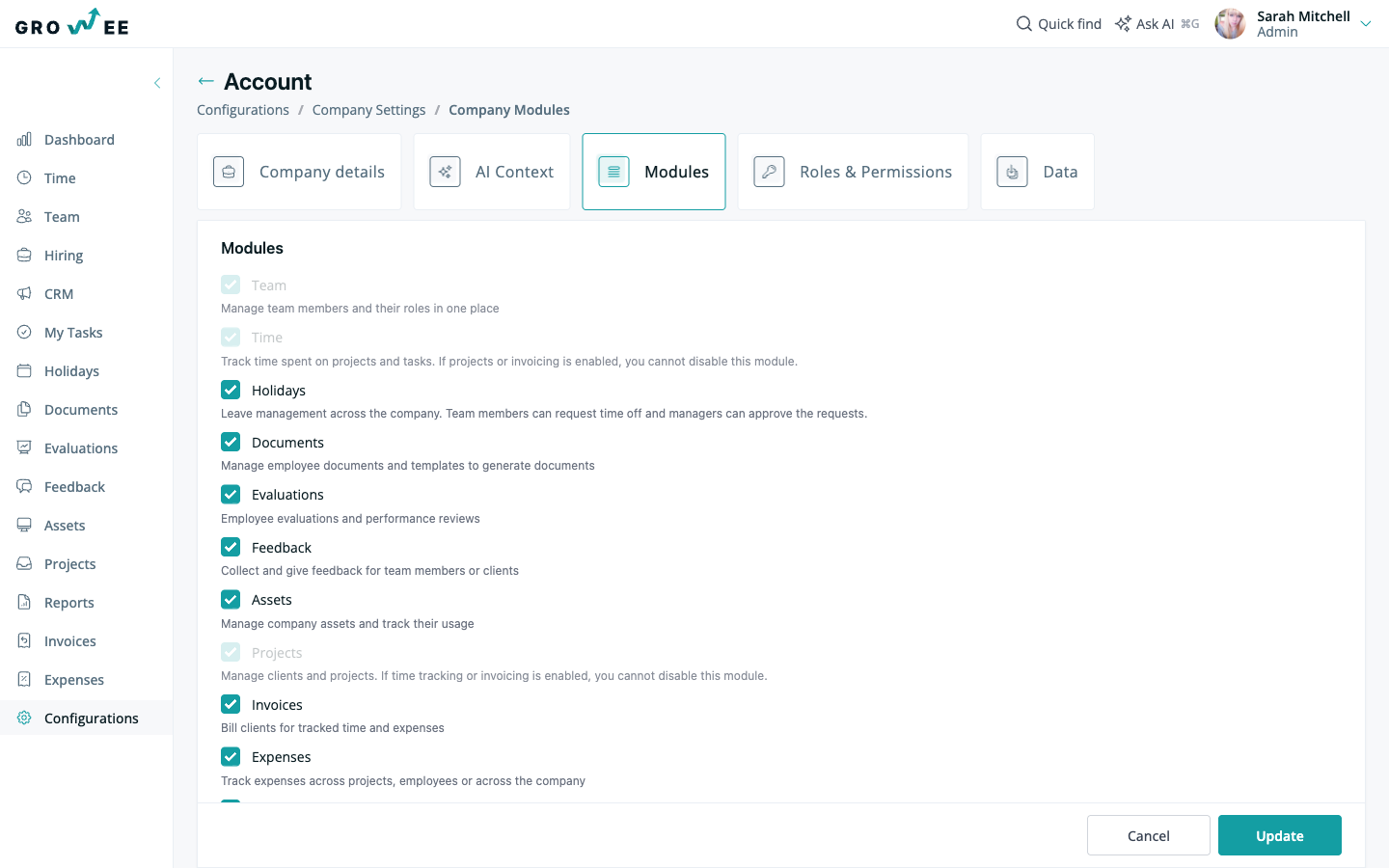
The Modules tab (/settings/company/modules) controls which product modules are active for your company. Turning a module off hides it from the navigation and stops your team from using it, so you can keep the interface focused on the features you actually need.
| Module | What it covers |
|---|---|
| Team | Manage team members and their roles in one place. |
| Time | Track time spent on projects and tasks. |
| Holidays | Leave management across the company. Team members request time off and managers approve the requests. |
| Documents | Manage employee documents and templates to generate documents. |
| Evaluations | Employee evaluations and performance reviews. |
| Feedback | Collect and give feedback for team members or clients. |
| Assets | Manage company assets and track their usage. |
| Projects | Manage clients and projects. |
| Invoices | Bill clients for tracked time and expenses. |
| Expenses | Track expenses across projects, employees, or the whole company. |
| Onboarding Tasks | Manage onboarding tasks and onboarding templates for new employees. |
| CRM | Manage leads and outbound campaigns to grow your client base. |
Some modules depend on each other and cannot be turned off on their own. The Team module is core to the app and always stays enabled. The Time module cannot be disabled while projects or invoicing is enabled, and the Projects module cannot be disabled while time tracking or invoicing is enabled. Click Update to apply your changes.
Other Company Settings tabs
The same area holds a few more tabs for wider company configuration:
- AI Context (
/settings/company/ai-context): background information about your company that Growee’s AI features use when they generate content. - Roles & Permissions (
/settings/company/roles): the roles that decide what each person can see and do. See Roles and permissions. - Data (
/settings/company/data): company-wide data tools. See Exporting Your Data.
Related articles
Need more help? Contact support or email support@growee.net.