Browse all articles
Offers and E-Signatures
Build the offer on an organization with New offer, add line items, then click Send for signature on its detail page. Growee sends the request through Yousign, once an administrator has connected your account to the signature service. Pick one of the organization’s contacts or type a signer name and email, and the signer receives a secure link. The offer moves from Sent to Viewed to Signed, and the certified PDF lands in the organization’s Documents.
You find offers in two places: the Offers item under the CRM module, which lists every offer, and the Offers tab on an organization’s page, which shows the offers sent to that account.
Create an offer
You create an offer from an organization, or from the Offers list, with New offer. The builder is split into three sections:
- Offer details: a Title, an optional Offer number, a Valid until date, the Organization the offer is for, and the Currency.
- Line items: one row per item, each with a Description, a Quantity, a Unit price, and a VAT %. Growee calculates each row’s amount and the running Subtotal, VAT, and Total as you type, so you never total the offer by hand. Use Add item to add a row.
- Terms & notes: free-text Terms and Notes that appear on the offer, for payment terms, scope, or anything else the customer should read.
Save the offer with Create offer. It starts as a draft.
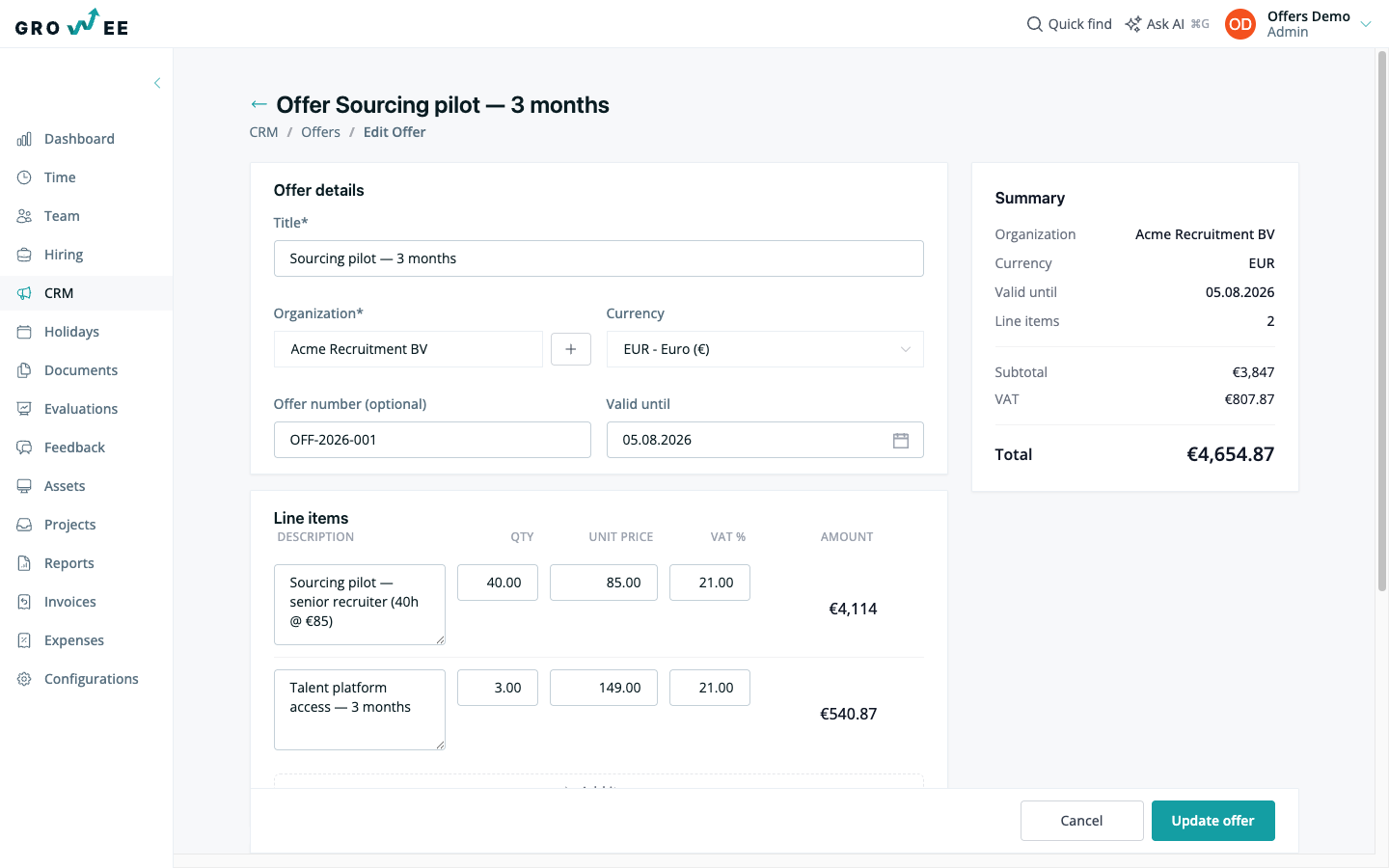
Note: While an offer is a draft you can freely edit its line items and details. Once you send it for signature, the line items are locked so the signer always sees exactly what was sent.
Preview and share
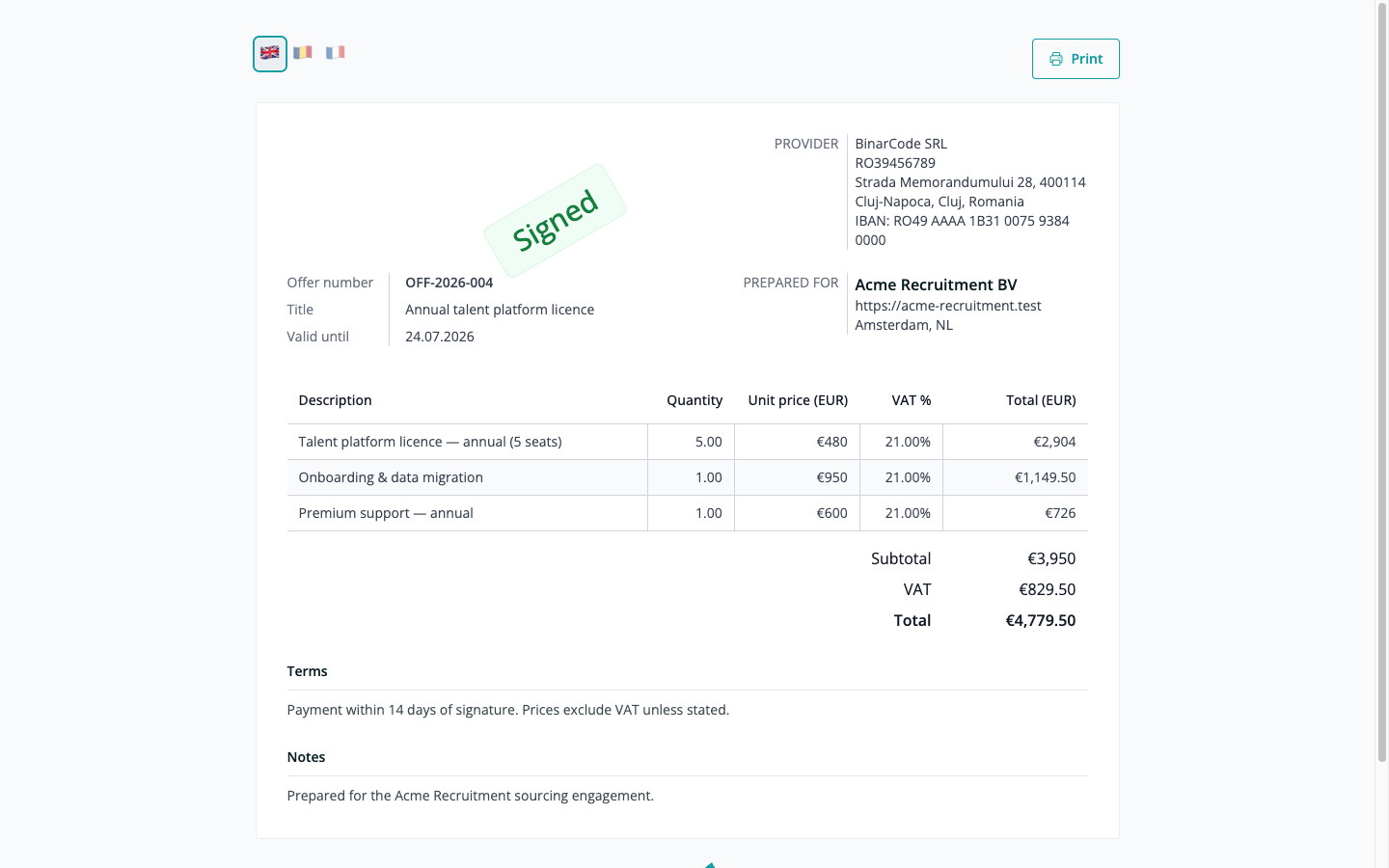
Every offer has a public, branded page. From the offer’s detail page, click Preview to open that page in a new tab and see the offer exactly as the recipient will.
The share page uses your invoice branding, including your logo and company address, and shows the line items and totals under a Prepared for block naming the organization. The recipient does not need a Growee account to open it.
Send for signature
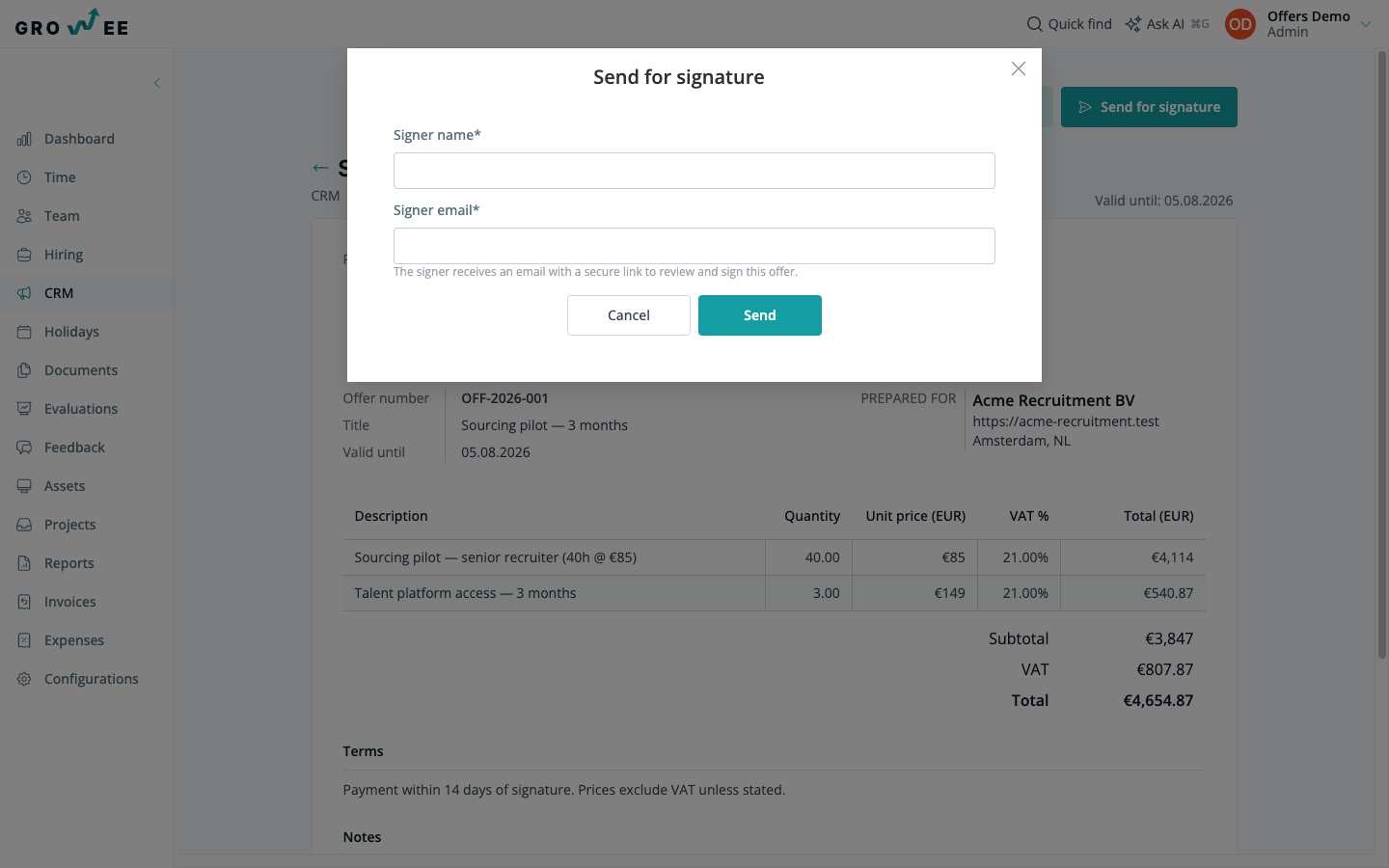
When the offer is ready, click Send for signature on its detail page. Growee sends the signature request through Yousign, an electronic signature service whose signatures are legally recognized across the EU under eIDAS.
In the send dialog you choose who signs:
- Pick a contact: select one of the organization’s contacts, which fills in their name and email for you. This picker appears only when the organization already has contacts with an email address.
- Or enter a Signer name and Signer email by hand for someone who is not a contact.
Click Send. The signer receives an email with a secure link to review and sign the offer, and the offer’s status begins to move.
An offer’s status tells you where it is:
- Draft: still being edited, not yet sent.
- Sent: the signature request has gone out to the signer.
- Viewed: the signer has opened the offer.
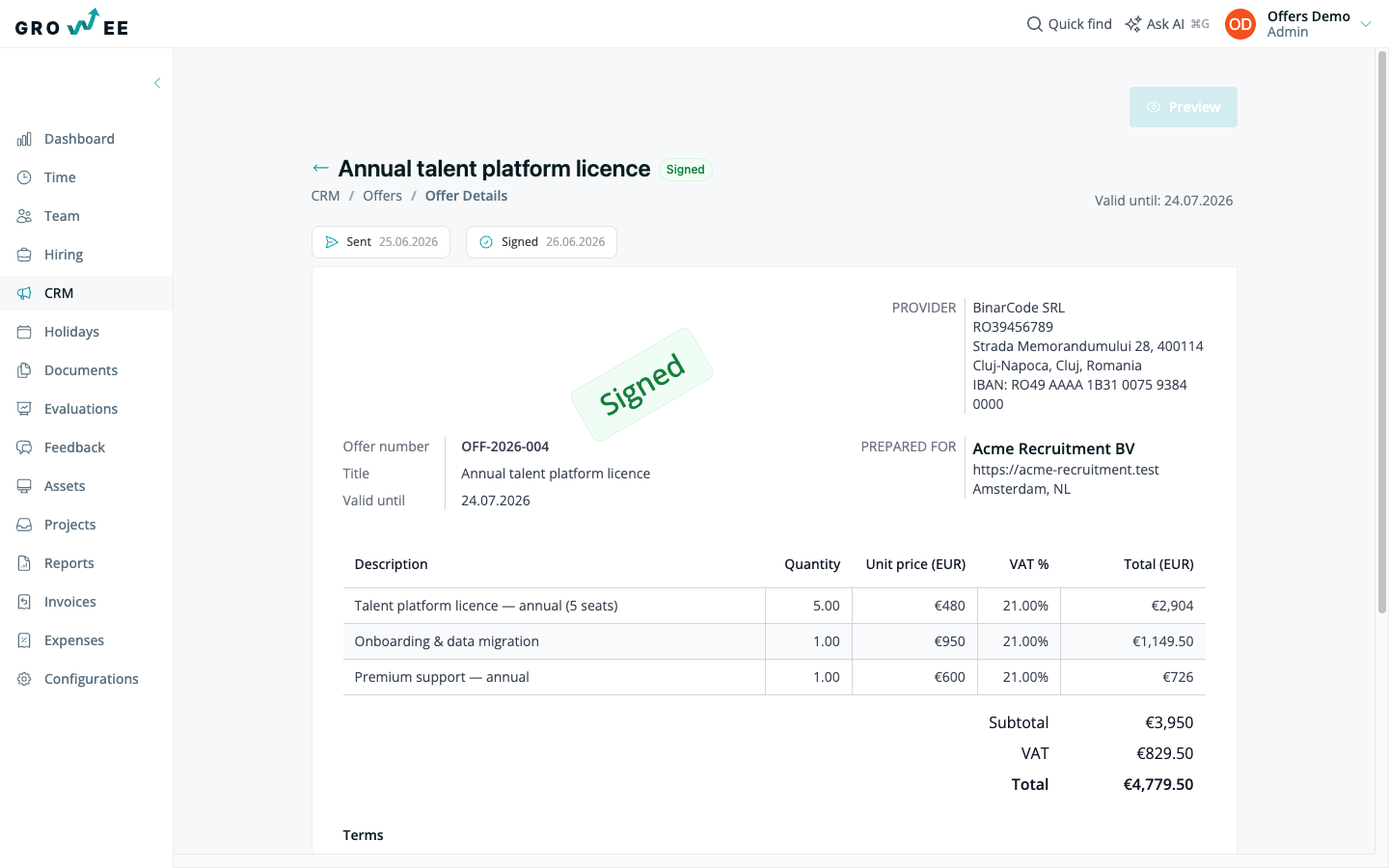
- Signed: the signer has signed.
- Declined: the signer declined to sign.
- Expired: the offer passed its Valid until date without being signed.
Offers left unsigned past their validity date expire automatically, so a stale quote does not stay open.
After signing
Once the offer is signed, Growee produces a certified PDF that includes a signature certificate page. That document is saved automatically to the organization’s Documents tab, alongside the rest of that account’s files, and a signed entry is added to the organization’s timeline so the whole team can see the deal was closed.
The offer’s detail page shows its Signed status and a short timeline of when it was sent, viewed, and signed. If the signer declines instead, nothing is stored and the offer simply shows a Declined status.
Note: Sending offers for signature relies on your account being connected to the electronic signature service. That connection is a one-time setup an administrator handles, not something you do for each offer.
Related articles
Need more help? Contact support or email support@growee.net.