Browse all articles
Managing Candidates
Open the Hiring module, click the job, and add applicants from its Candidates section: either Add new candidate to fill in a form, or Create from LinkedIn to import a profile. Click a candidate’s name to open their panel with application details, contact information, CV, the AI score and its reasoning, and team notes. Move each person through your pipeline stages as they progress toward an offer.
This article is for admins and hiring managers.
Add a candidate to a job
Open the Hiring module, then click the job you want to add a candidate to. In the Candidates section of the job’s detail page, you have two ways to add someone:
- Click Add new candidate to open a form and enter the candidate’s details.
- Click Create from LinkedIn to import a candidate from a LinkedIn profile instead of typing the fields by hand.
Either way, the candidate is added to that job so you can start reviewing them.
Tip: You can also upload a CV and let Growee’s AI parsing fill in the candidate’s details for you, so you skip most of the manual data entry.
Review a candidate
Click a candidate’s name to open their panel next to the job. The panel brings the full picture together in one place, so you do not have to piece it together from email threads.
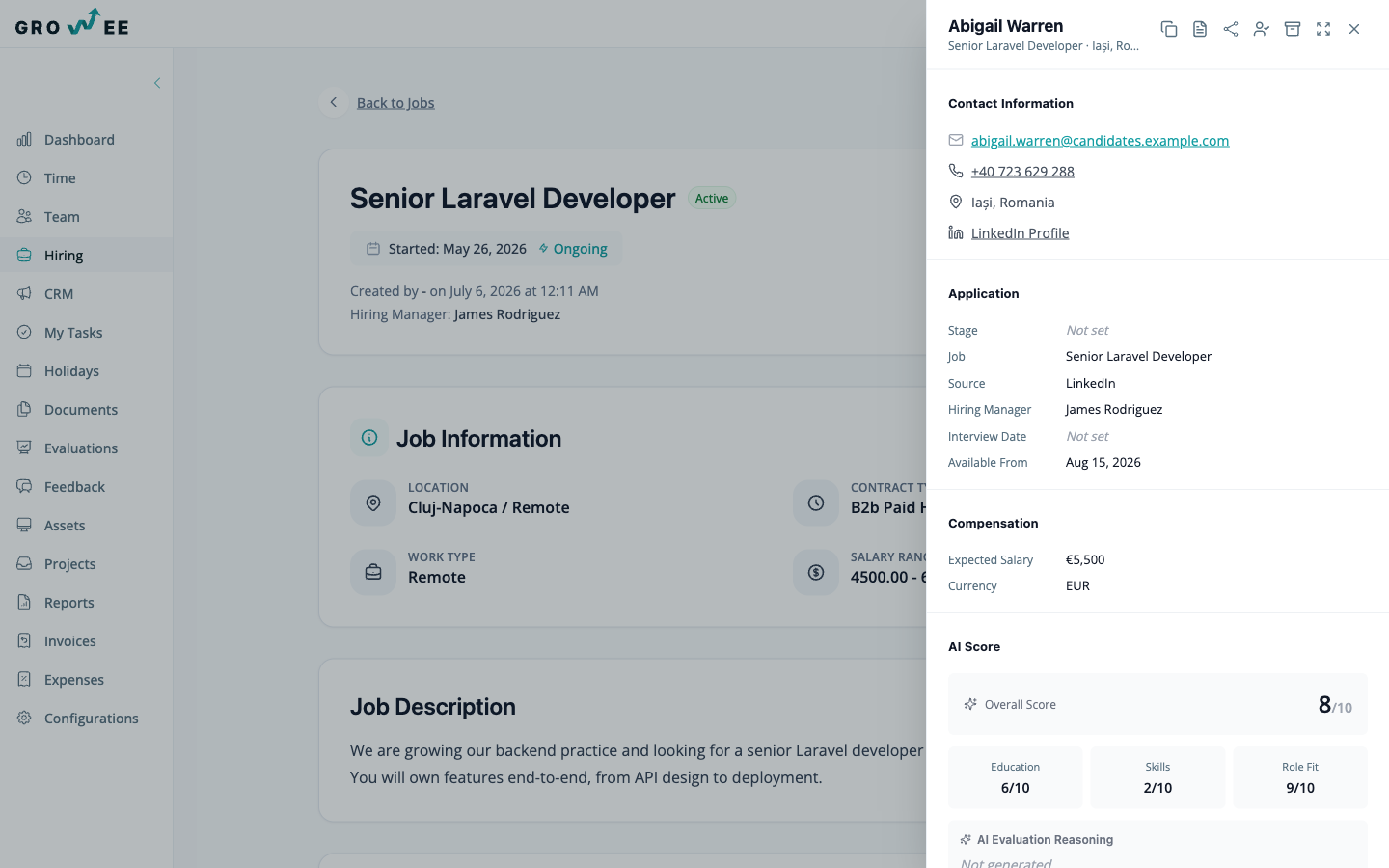
From the panel you can review the candidate’s application details, contact information, and CV, read the AI score and its reasoning, and leave notes and comments that stay attached to the candidate for the whole team to see.
Move candidates through stages
Candidates for a job are organized by pipeline stage, such as applied, interview, and offer. As a candidate advances, move them from their current stage to the next one so the pipeline always reflects where each person stands. Filtering by job, stage, or owner helps you focus on the candidates that need attention.
Configure pipeline stages
Pipeline stages are shared configuration you manage in one place. Open Configurations from the sidebar, then go to Candidate Stages at /settings/candidate-stages. Add, rename, or reorder stages so the pipeline matches how your team actually hires.
Share a job with candidates
To let candidates apply to a role themselves, use the Share button on the job’s detail page. This publishes the job to a public careers page where candidates read the role and apply. Each application lands in that job at the first stage, ready for you to review.
Turn a candidate into an employee
When you make an offer, you can convert the candidate into a Growee employee record in one step. Their personal, role, and hiring details carry across automatically, with no duplicate entry, so onboarding picks up right where hiring left off. See Adding Employees.
Related articles
Need more help? Contact support or email support@growee.net.