Browse all articles
Plans and Billing
An admin upgrades from the Billing section of Configurations: choose a plan, pick Monthly or Yearly, set the number of seats you need, then confirm. A seat is one employee, and the subscription fee is calculated automatically from the seat count. The same section is where you add payment methods, review billing history, and open the Stripe billing portal to download your subscription invoices.
By default the Admin role manages billing, and an Admin can grant the Manage company billing permission to a custom role. If you hold that permission, you manage everything below from the Billing section of Configurations.
Available plans
Growee has a free plan and paid plans that you can pay for monthly or yearly.
The Free plan lets you include up to 3 employees, so you can try Growee with a small team before committing. Paid plans remove that limit and unlock the full set of features. You choose how many seats you need when you subscribe.
Prices depend on the plan and the number of seats. For current pricing, see the pricing page.
What each plan includes
The free plan covers the basics. Paid plans add the tools most companies need to run their workflow end to end.
| Feature | Free plan | Paid plans |
|---|---|---|
| Employees | Up to 3 | As many seats as you need |
| Billing cycle | No charge | Monthly or yearly |
| Integrations (Slack, Google Calendar, personal Google Calendar) | Not included | Included |
| Reports and invoices | Not included | Included |
| Projects | Not included | Included |
| Full leave and time management | Limited | Included |
With a paid plan you can generate reports and create invoices, add people to projects, manage employee leave and returns, and track hours worked by week, month, and year.
Seats and employees
A seat is one employee. When you choose a plan, you also set the number of seats it covers. The subscription fee adjusts automatically based on how many seats you add.
Upgrade your plan
When you try to add a fourth employee on the free plan, Growee prompts you to upgrade to a paid plan.
- Open Configurations, then the Billing section.
- Choose a plan and whether to pay Monthly or Yearly.
- Set the number of seats you need.
- Confirm the upgrade. The fee is calculated automatically from the seat count.
You can switch between the Free, Monthly, and Yearly options at any time from the same page.
Update the number of seats
If your team grows after you subscribe, an admin can update the number of seats without changing anything else. Open the Billing section, increase the seat count, and confirm. The subscription fee updates automatically to match the new number of seats.
Payment methods and billing history
The Billing section is also where you manage the account’s payment methods and review its billing history. From here you can:
- Add or update payment methods
- View past invoices and payments
- Change your subscription plan
Access your subscription invoices
All billing runs through Stripe, so your payment methods and subscription invoices live in a secure Stripe billing portal that you open from Growee.
- Open Configurations, then the Billing section (
/settings/billing). - You see the available plans, with a Your current plan button on the plan you are subscribed to.
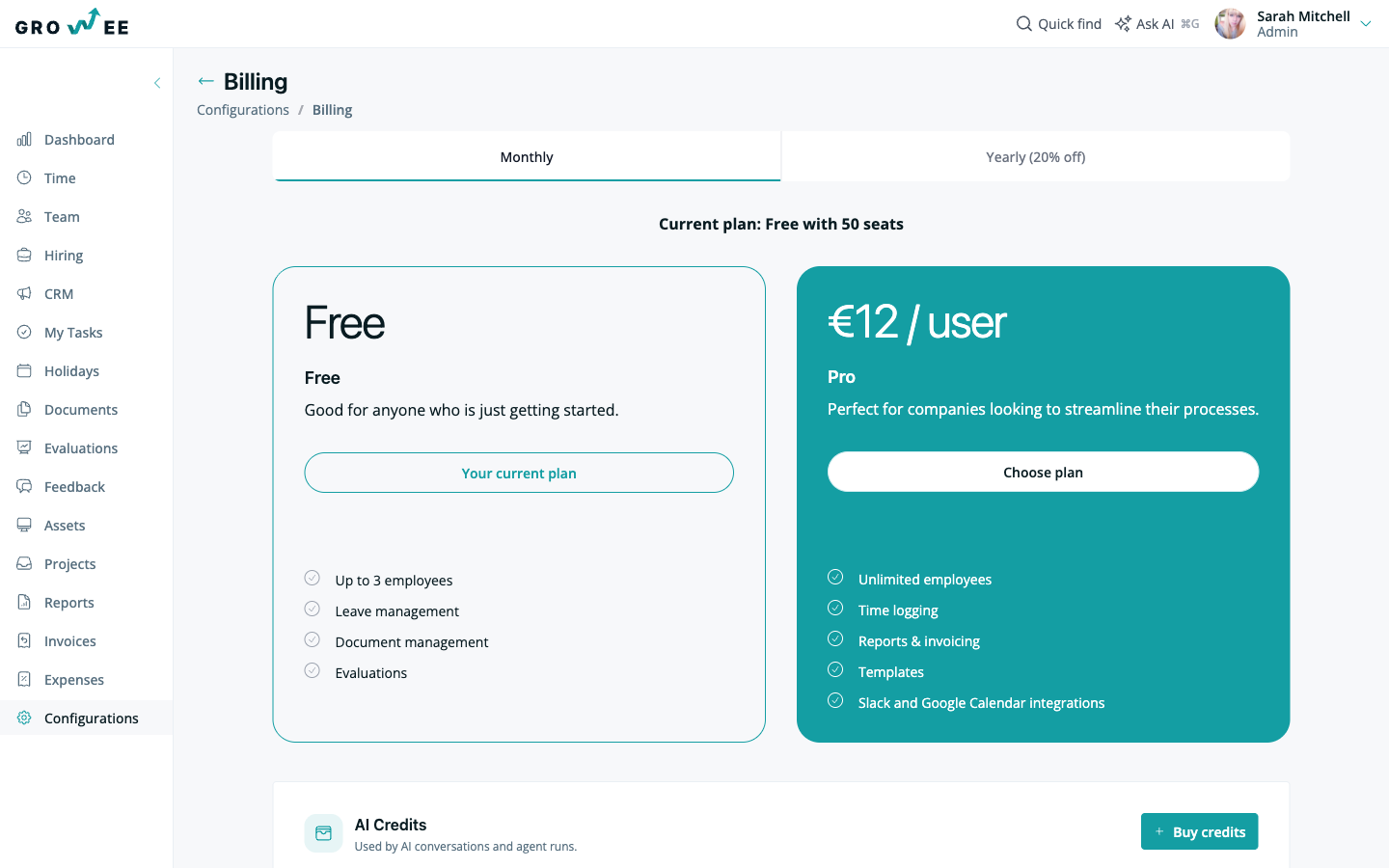
- Click Your current plan. Growee redirects you to the secure Stripe billing portal.
- In the portal you can add or update your payment method, update your billing information, and download every subscription invoice under Invoice history.
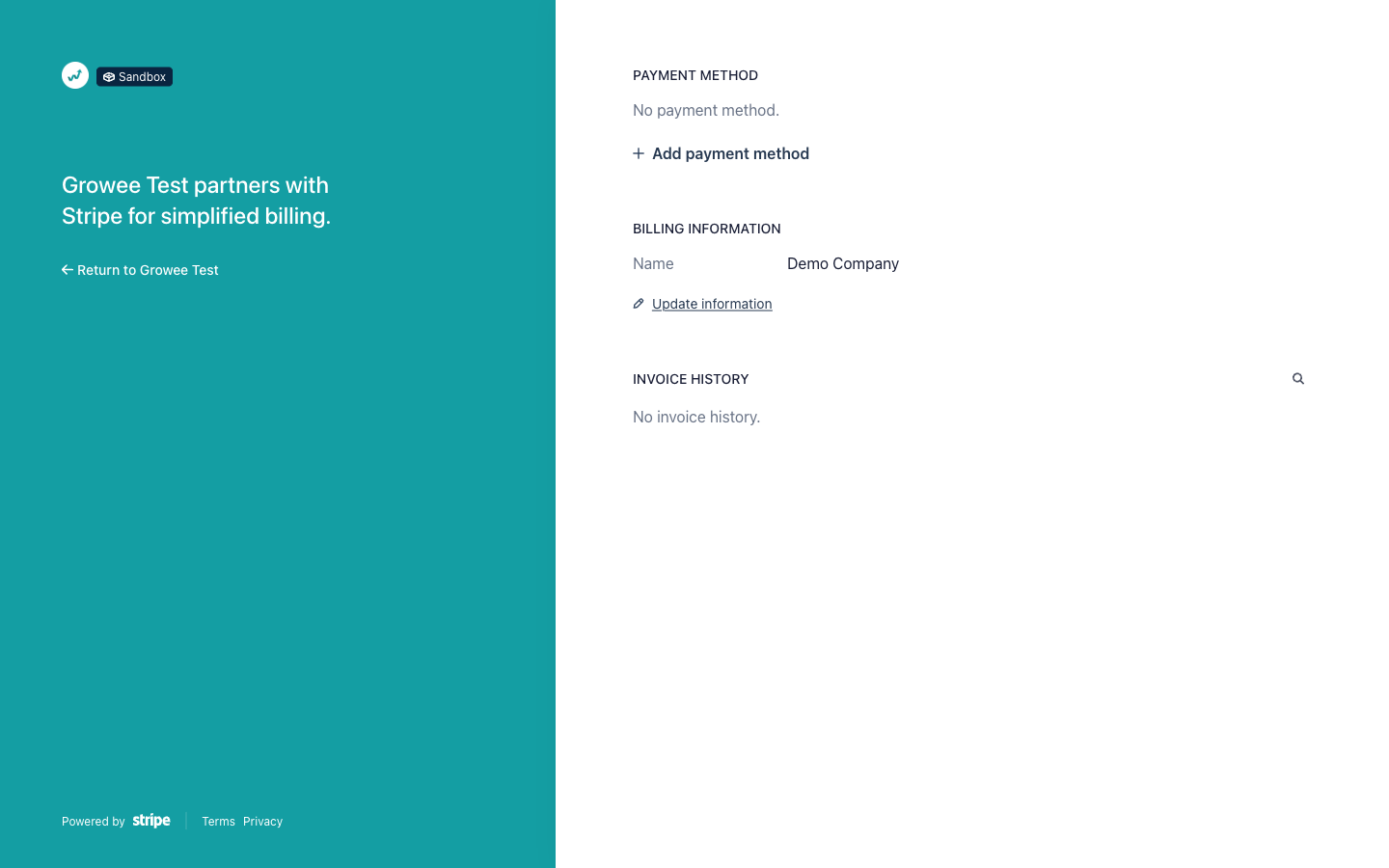
- When you are done, click Return to Growee to come back to the app.
Note: Growee partners with Stripe to handle billing. Growee never stores your card details.
Related articles
Need more help? Contact support or email support@growee.net.