Browse all articles
Managing Evaluations and Criteria
Open the Evaluations module and find the evaluation in the list, filtering if that helps. Use its three-dot menu: select Edit to change the dates or other details, then click Update. Select Delete to remove it permanently, type DELETE in the confirmation box, and click Yes, Delete. By default, the Admin and Manager roles can edit and delete every evaluation, and a role granted Manage evaluations for subordinates can edit and delete the evaluations of the people below it in the reporting line. The HR role holds no evaluation permission by default.
This article covers how to edit and delete an evaluation, how to configure evaluation types and criteria in Configurations, and which roles can manage them. By default, editing and deleting are available to the Admin and Manager roles.
Edit an evaluation
Use this when you need to change the date of an upcoming evaluation or update its details.
- Open the Evaluations module.
- Find the evaluation you want to change in the list. Filter the list if it helps you locate it.
- Open the three-dot menu on that evaluation and select Edit.
- Change the dates or any other details so they fit your schedule.
- Click Update.
The evaluation now shows the new details in the list.
Delete an evaluation
Deleting removes an evaluation permanently. Growee asks you to confirm before it is deleted.
- Open the three-dot menu on the evaluation and select Delete.
- In the confirmation window, type
DELETEin the text box. - Click Yes, Delete.
The evaluation is removed and no longer appears in the evaluations list.
Configure evaluation types and criteria
Evaluation types and criteria are managed in the Configurations module. Setting them up once keeps your reviews consistent and fair across the company. From here you can:
- Set up evaluation criteria so every review follows the same framework.
- Manage review schedules to keep track of upcoming evaluations.
- Access evaluation history to review past data and spot performance trends over time.
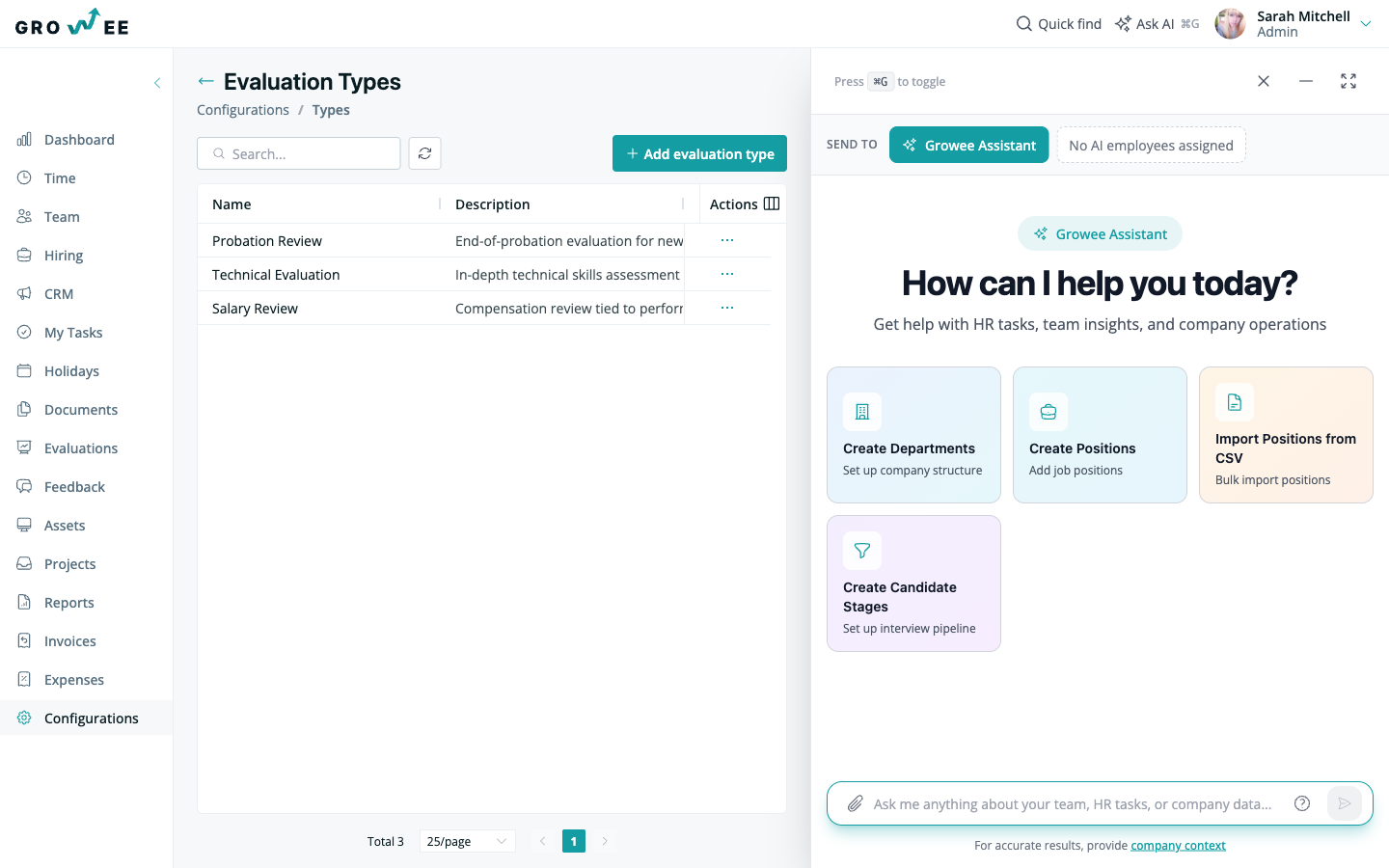
A new company’s account comes preloaded with demo data, which includes sample evaluation types such as Salary Review, Technical Evaluation, and Probation Review. Clear Demo Data removes them along with the rest of the sample company, so add the types your reviews use. By default, the Admin and Manager roles hold the Manage evaluation types permission. To add a type:
- Open the Configurations module and go to the evaluations settings.
- Click Add Evaluation Type.
- Fill in the details for the new type and save.
After you save, the new type appears as an option the next time you create an evaluation. See Creating Evaluations for that flow.
To remove an evaluation type:
- Find the type in the list.
- Open the three-dot menu on the right side of the row.
- Select Delete and confirm in the window that appears.
Roles and capabilities
Who can manage evaluations depends on the permissions their role holds. The table below shows the defaults, and an Admin can grant an evaluation permission to a custom role.
| Role | Default capabilities |
|---|---|
| Admin | Add, edit, and delete every evaluation, and manage evaluation types. |
| Manager | Add, edit, and delete every evaluation, and manage evaluation types. |
| A role granted Manage evaluations for subordinates | Add evaluations, and see, edit, and delete the evaluations of the people below it in the reporting line, along with seeing its own. |
| HR | No evaluation permission by default. Sees their own evaluations, like any employee. |
| Employee and IT Manager | See their own evaluations. These roles hold no permission to add, edit, or delete one by default. |
For a full breakdown of what each role can access across Growee, see Roles and Permissions.
Related articles
Need more help? Contact support or email support@growee.net.