Browse all articles
Roles and Permissions
Growee has five built-in roles, and an admin can add custom ones. An Admin has full access to every feature and setting, including contracts, billing, invoices, and the roles and permissions themselves. A Manager runs the team, documents, and evaluations but not the financial side. HR manages employee records, holidays, documents, and timesheets. An Employee sees their own data and limited colleague details such as work email, position, and birthday. An IT Manager has the Employee permissions plus the ability to manage company assets.
This article explains the five roles, compares what each one can do, and shows where roles are set. Understanding roles is the key to keeping your account secure and your data private.
The five roles
Growee has five built-in roles:
- Admin: full access to every feature and setting.
- Manager: manages the team, documents, and evaluations, but not the financial side of the company.
- HR: manages employee records, holidays, documents, and timesheets, and can see employee personal information.
- Employee: access to their own information and limited details about colleagues.
- IT Manager: the Employee access plus management of company assets.
What each role can do
The table below compares the main capabilities of each built-in role with its default permissions. “Limited” means the role has partial access rather than full control.
| Capability | Admin | Manager | HR | Employee | IT Manager |
|---|---|---|---|---|---|
| Log time and request their own leave | Yes | Yes | Yes | Yes | Yes |
| View basic colleague info (work email, position, birthday, start date) | Yes | Yes | Yes | Yes | Yes |
| View confidential info about others (IDs, documents) | Yes | Yes | Yes | No | No |
| View and manage other people’s salaries | Yes | No | No | No | No |
| Approve anyone’s leave requests | Yes | Yes | Yes | No | No |
| Add and invite team members | Yes | Yes | Yes | No | No |
| Manage documents and timesheets | Yes | Yes | Yes | No | No |
| Create and manage evaluations | Yes | Yes | No | No | No |
| Manage projects and clients | Yes | Yes | Limited | No | No |
| Manage company assets | Yes | Yes | Yes | No | Yes |
| Manage contracts, payroll, billing, and invoices | Yes | No | No | No | No |
| Manage roles and permissions | Yes | No | No | No | No |
| Access all configurations | Yes | Limited | Limited | No | No |
Admin
The Admin role has the most access in the app. As an Admin you can manage contracts, payroll, billing, and invoices, add new members, create holidays, positions, levels, and evaluations, and approve every type of request. Admins also have full access to configurations, where changes to holidays, templates, documents, and more are made.
Manager
The Manager role covers running the team day to day: managing departments, documents, positions, employees, their holidays, and their evaluations. Unlike an Admin, a Manager does not have access to the financial side of the organization.
HR
The HR role handles employee management and policy tasks. HR can manage holidays and holiday approvals, documents, and timesheets, and can see employee personal information. By default HR does not hold Manage roles, Manage employee evaluations, or Manage all projects. It can view all projects and manage who is assigned to them, and it manages client companies through the CRM.
Employee
By default, an Employee sees their own data, edits their own profile, manages their own expenses, takes part in 360 feedback, and sees the feedback shared with them. For each colleague, an Employee sees a shorter profile with fields such as name, work email, phone number, birth date, photo, position, department, and start date. Salary fields need the salary permission, which Admin holds by default, and a custom role can be granted more than the Employee defaults.
IT Manager
The IT Manager role starts from the Employee permissions: it sees its own data, edits its own profile, manages its own expenses, and takes part in 360 feedback. On top of that it can manage all company assets, so the person looking after laptops, phones, and other equipment can keep the asset records up to date.
Where roles are set
You assign a role when you add a team member, and you can change it later from their profile. The role you choose determines which modules and settings that person sees when they log in. By default the Admin role holds the Manage roles permission, which covers creating roles and changing the permissions of any role.
Custom roles
The five built-in roles cover most companies, but you can also create custom roles when a team needs a permission set that none of the defaults matches. For example, you might add a “Finance” role that keeps the standard employee permissions and adds Manage invoices and Manage all expenses, without opening up evaluations, projects, or company settings.
To work with roles, go to Configurations → Company → Roles & Permissions (/settings/company/roles). The roles table lists every role, both built-in and custom, with an optional description and a count of how many permissions each one grants.
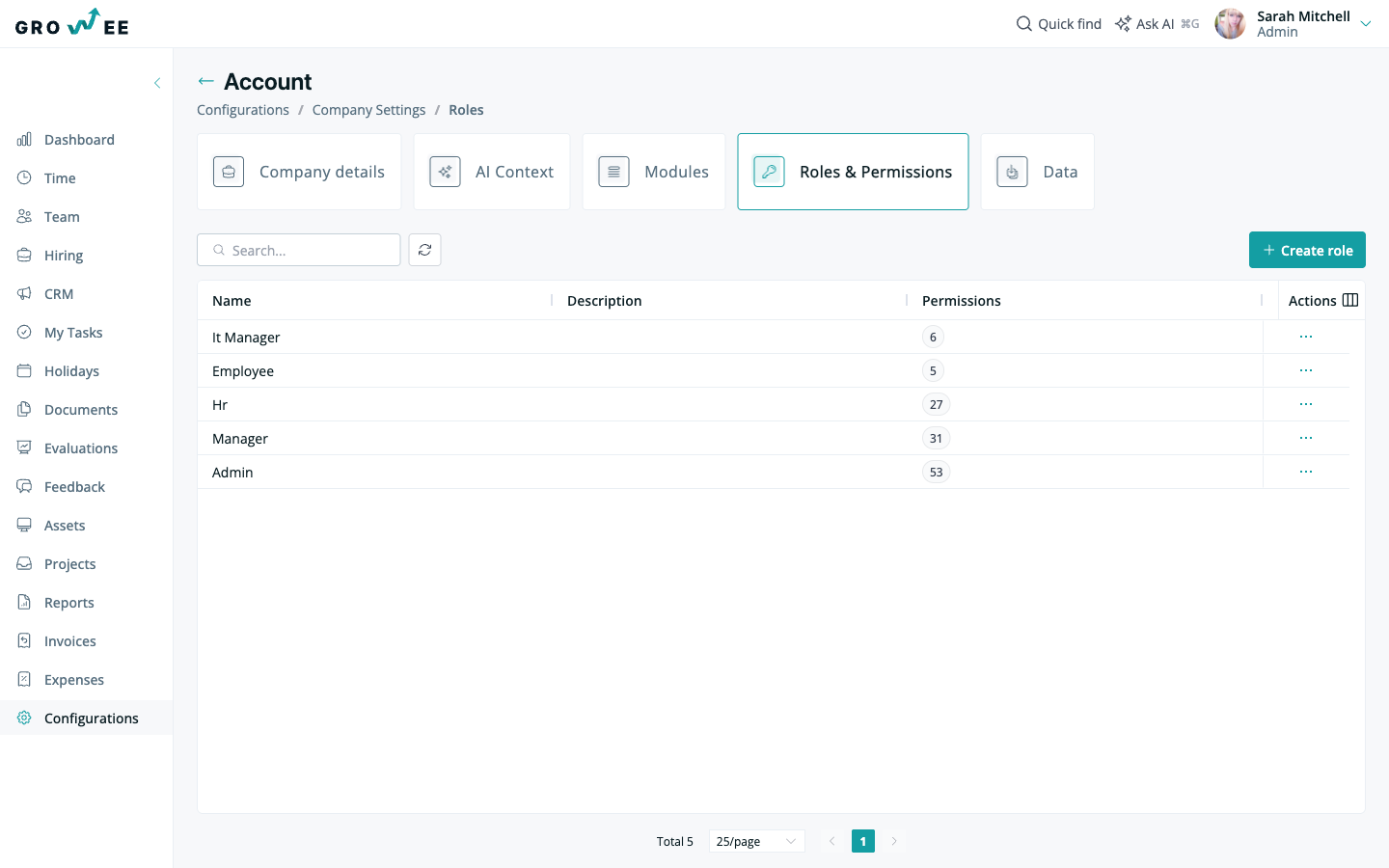
To add a role:
- Click Create role.
- Enter a Name and, optionally, a Description.
- Select the permissions the role should have.
- Click Save.
The permission editor
Clicking a role in the table opens the permission editor. Permissions are grouped by module, such as Clients, Company, Documents, Evaluations, Expenses, Holidays, Projects, Team, and Timesheets. Select the checkbox next to each permission you want to grant, then click Save. Use the Search permissions box to find a specific permission quickly.
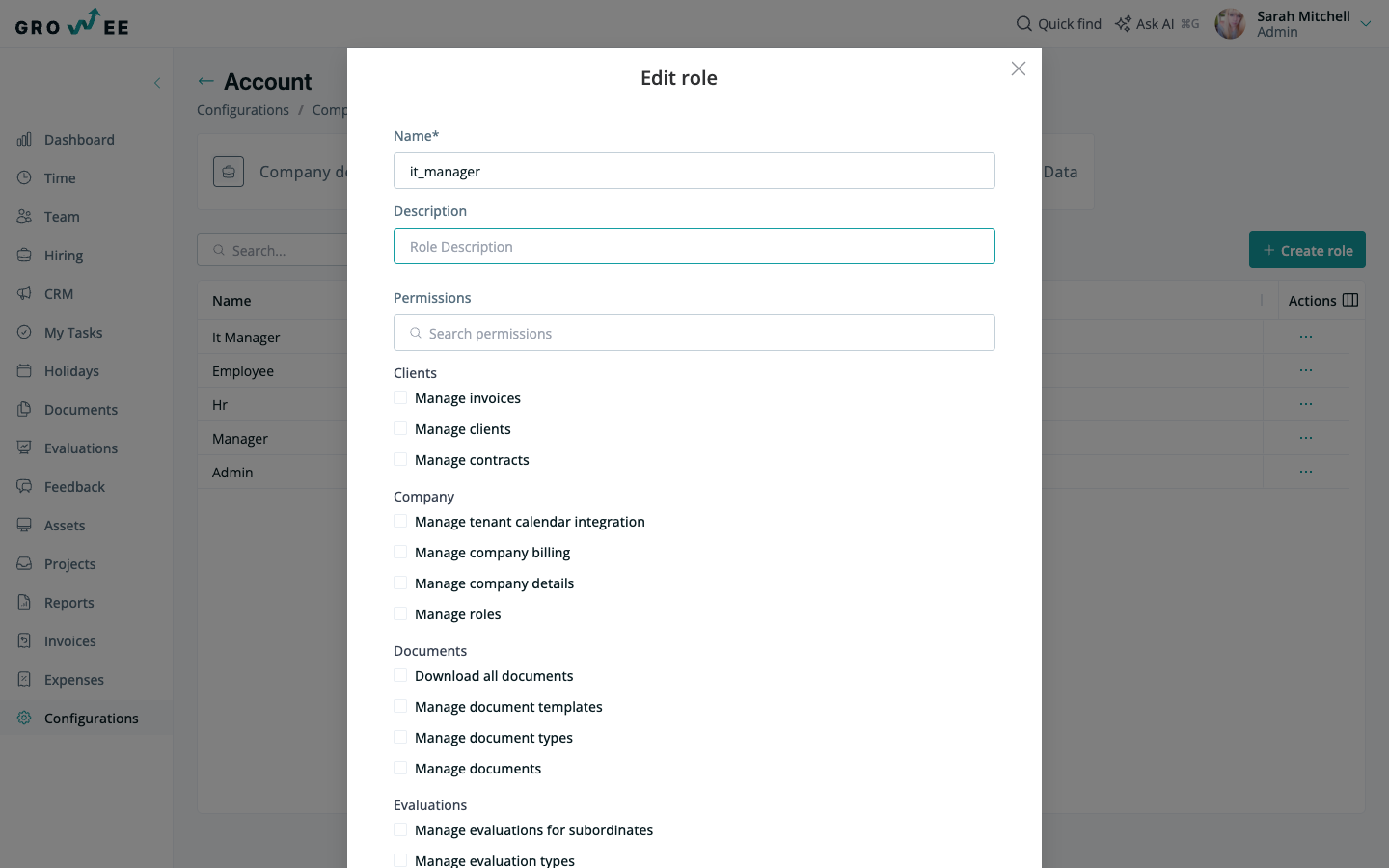
Each permission is granular, so you can grant exactly the access a role needs. Many permissions come in two forms:
- A company-wide version, such as Approve/Reject holidays for all employees or Manage timesheets for all employees.
- A subordinate-scoped version, such as Manage holidays for subordinates or Manage evaluations for subordinates.
Note: Subordinate-scoped permissions cover everyone below a manager in the reporting line: their direct reports, the people who report to those reports, and so on down the chain, not the whole company. If you give a Project Manager who has five direct reports the Manage holidays for subordinates and Manage evaluations for subordinates permissions, they can approve leave and run evaluations for those five people and for everyone below them in the chain, not for the rest of the company.
Related articles
Need more help? Contact support or email support@growee.net.