Browse all articles
Google Calendar
The company Google Calendar connection sends leave requests to a shared calendar, so approved and rejected requests appear automatically and the whole team sees who is in and who is out. A second, personal connection works the other way around, bringing company events such as birthdays and team activities into an employee’s own Google Calendar, so key dates show up where they already look.
You manage both from Configurations → Integrations. The company connection is set up by an Admin, Manager, or HR user. The personal connection is set up by each employee for their own account.
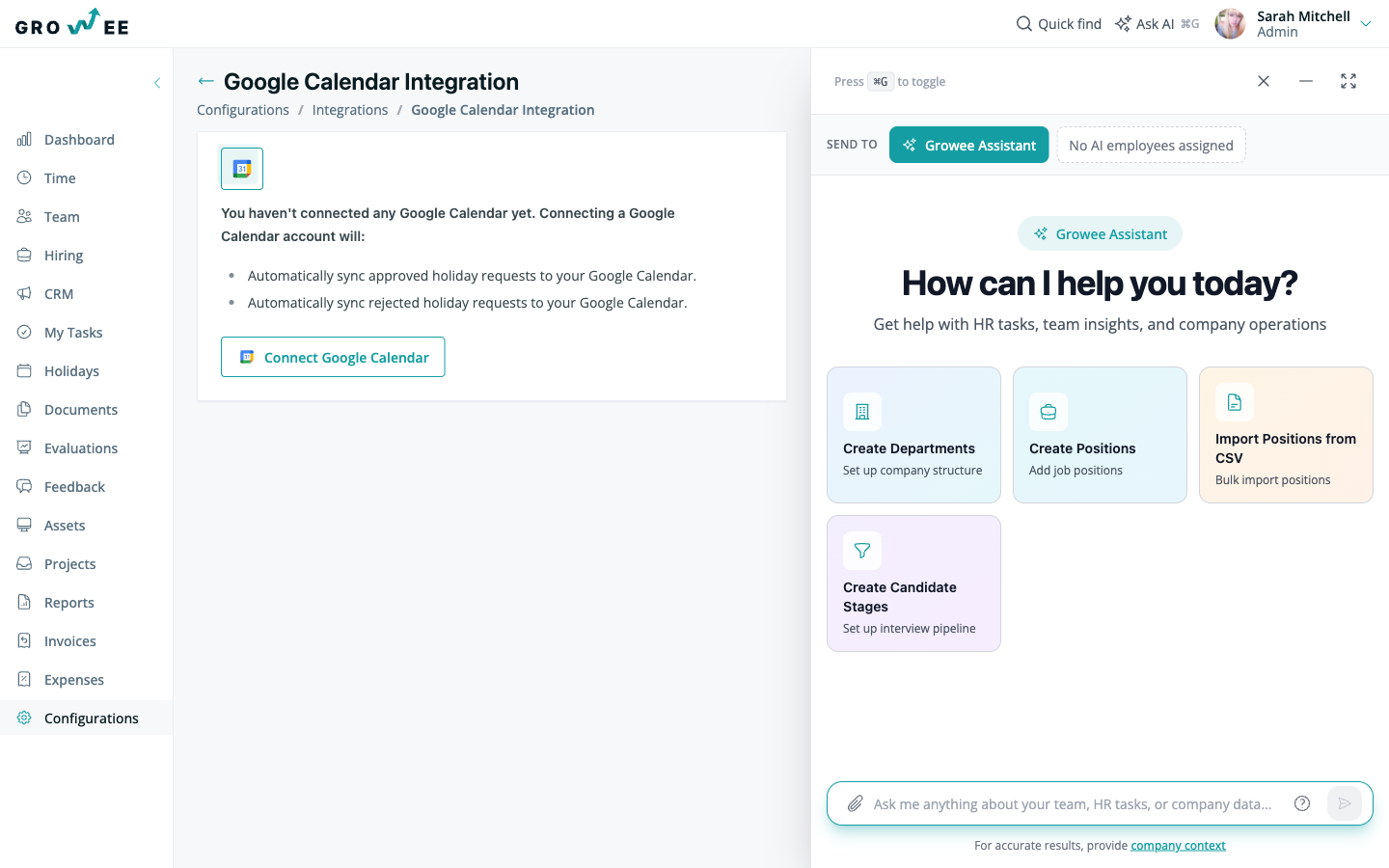
Company Google Calendar
The company connection sends leave requests to a shared Google Calendar. Once it is set up, approved and rejected requests appear on the calendar automatically, giving the whole team a clear picture of availability without any manual updates.
Only Admin, Manager, and HR roles can set up this connection. For more on what each role can do, see Roles and permissions.
To connect:
- Open Configurations → Integrations.
- Click Connect Google Calendar.
- On the Google page, enter a Gmail address. This is usually the Admin’s email.
- Review the requested permissions and click Allow.
- Select Holiday from the dropdown to choose what syncs to the calendar.
- A confirmation message appears at the top of the page.
How leave appears on the calendar
Once the connection is active, leave flows to Google Calendar as it moves through approval:
- An employee requests time off from the Holidays module. See Requesting time off.
- When a manager approves the request, the leave appears on the connected Google Calendar.
- If a request is rejected, the calendar is updated automatically so it stays accurate.
Anyone with access to the shared calendar can see approved time off at a glance.
Personal Google Calendar
The personal connection works the other way around. It brings company events, such as birthdays and team activities, into an employee’s own Google Calendar, so key dates show up where they already look.
Each employee sets this up for themselves:
- Open Configurations → Integrations.
- Click Connect Personal Google Calendar.
- On the Google page, enter or select your personal Gmail address, then click Continue.
- Review the requested permissions and click Allow.
- Back on the Integrations page, select which calendar to connect to.
- A success message appears at the top of the page.
To confirm the connection, open My Profile from the upper right corner, then select the Personal Calendar tab.
Control what you share
Your personal calendar connection is under your control. You choose what to share and with whom. Private events are not exposed to your colleagues. Only whether a day or a time slot is available or busy is visible, so teammates can see when you are free to meet without seeing the details of your schedule.
You can also choose which calendars to display, so each person sees only what is relevant to them.
Disconnect the integration
To remove the company Google Calendar connection, open Configurations → Integrations, click Disconnect Google Calendar, and confirm the action. You can remove a personal connection from the same page.
Related articles
Need more help? Contact support or email support@growee.net.