Browse all articles
Tasks, Email and Automation
Growee automates CRM follow-ups with rules you set under Configurations, CRM Automation. A rule pairs a trigger, such as a new lead or a stage change, with an action, such as assigning an owner or creating a follow-up, and optional conditions narrow when it runs. Drip sequences send spaced messages from a connected sending mailbox and stop when a lead replies. Follow-ups you set by hand on a lead collect in My Tasks.
My Tasks
When you set a follow-up on a lead, it becomes a task assigned to you. My Tasks collects those follow-ups in one place so you can see what is due without opening each campaign. Open it from My Tasks in the main navigation, next to the CRM module.
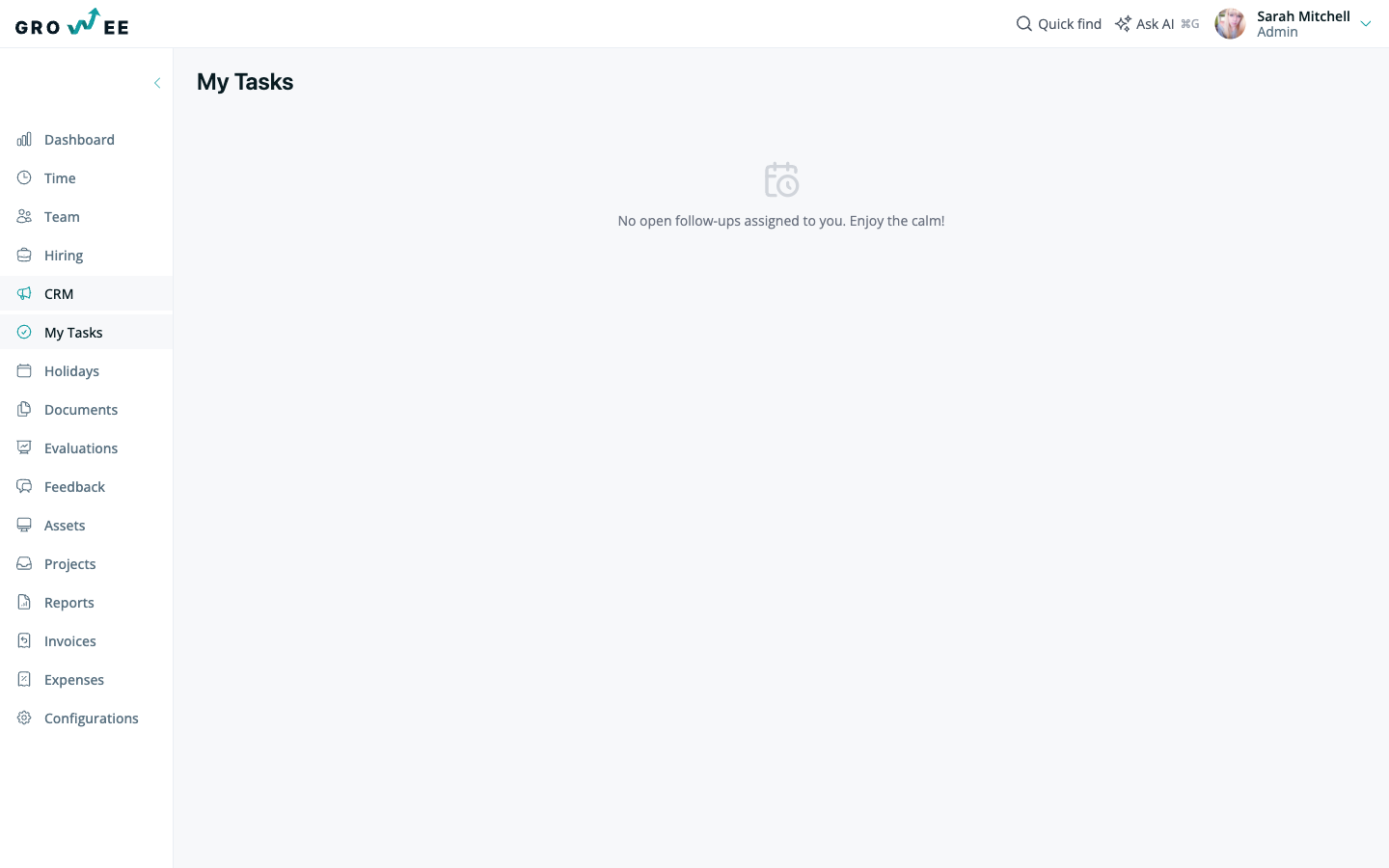
When you have nothing outstanding, the page tells you there are no open follow-ups assigned to you. As you work leads and set follow-up dates in the lead details, they appear here.
Connect a sending mailbox
To send email from Growee and have replies logged back to the right lead, connect a sending mailbox. Open Configurations → CRM Email and follow the steps to add the mailbox you want to send from.
Once a mailbox is connected, you can compose email from a lead’s details or send a campaign message to the leads in a stage, and the messages are tracked against the lead.
Note: Before you send, the campaign page can verify recipient addresses to help protect your sending reputation.
Automation rules
Automation rules watch your pipeline and act when something changes, so routine follow-ups happen without anyone remembering to do them. You manage them under Configurations → CRM Automation.
A rule has three parts:
- A trigger: the event that starts the rule, such as a new lead, a stage change, a lead going stale, or a reply coming in.
- Conditions: optional checks that narrow when the rule runs, such as a specific campaign or value.
- An action: what happens, such as assigning an owner, scoring or enriching the lead, or creating a follow-up.
You can also set up drip sequences that send follow-up messages automatically, spaced out over time, and stop as soon as a lead replies.
Tip: Automation and AI work together. For more on what the AI can do across Growee, see AI Features.
Related articles
Need more help? Contact support or email support@growee.net.