Browse all articles
Navigating Growee
Growee is organized into modules, and the main navigation lists the ones your role gives you access to: Dashboard, Leave, Documents, Evaluations, Team, Projects, Reports, Invoices, and Configurations. Your own details sit in the profile menu in the upper-right corner. The Leave, Evaluations, and Documents modules carry filters for narrowing a long list, and Quick Find takes you straight to a page or action in one step.
This article gives you a tour of the layout, the filters that help you find things inside a module, and the Quick Find search for jumping straight to a page or action.
The main navigation
The main navigation lists the modules you have access to. What you see depends on your role, so some people see every module and others see a smaller set.
- Dashboard: the events page, showing upcoming events across your organization.
- Leave: request time off and review your requests.
- Documents: view the documents linked to your profile and upload new ones.
- Evaluations: see the evaluations assigned to you, who is running them, and when.
- Team: browse colleagues and, with the right role, add new members.
- Projects: review current projects and who is assigned to them. Available to Admin, Manager, and HR.
- Reports: generate reports on logged hours and, with the right role, open the presence sheet.
- Invoices: create and send invoices. Available to Admins.
- Configurations: adjust settings such as holiday policies, positions, and levels. The available settings change by role, with Admins seeing the most and employees the least.
Your profile menu
In the upper-right corner you can open your profile to view and change your own details. It includes:
- Profile: change your profile picture, name, phone number, and similar details.
- Employee Profile: your holidays, evaluations, contract details, and other employee information.
- Personal Goals: track goals for your own development, such as learning a new skill, with a progress percentage.
- Personal Calendar: a combined view of your holidays and national holidays. If you connect Google Calendar, your events appear too, masked so the calendar is safe to share.
- Security: change your password.
- Language: switch the interface language.
- Contact Support: send a question to the Growee support team. Available for every role.
Useful filters
The Leave, Evaluations, and Documents modules include filters that help you narrow a long list down to what you need. A few examples:
- In Evaluations, filter to find the date and assignee of the next evaluation.
- In Leave, an Admin can filter to see which employees have time off booked in the upcoming period.
- In Documents, sort by date to see which documents are about to expire for a specific employee.
Combine filters to answer a specific question rather than scrolling through everything.
Quick Find
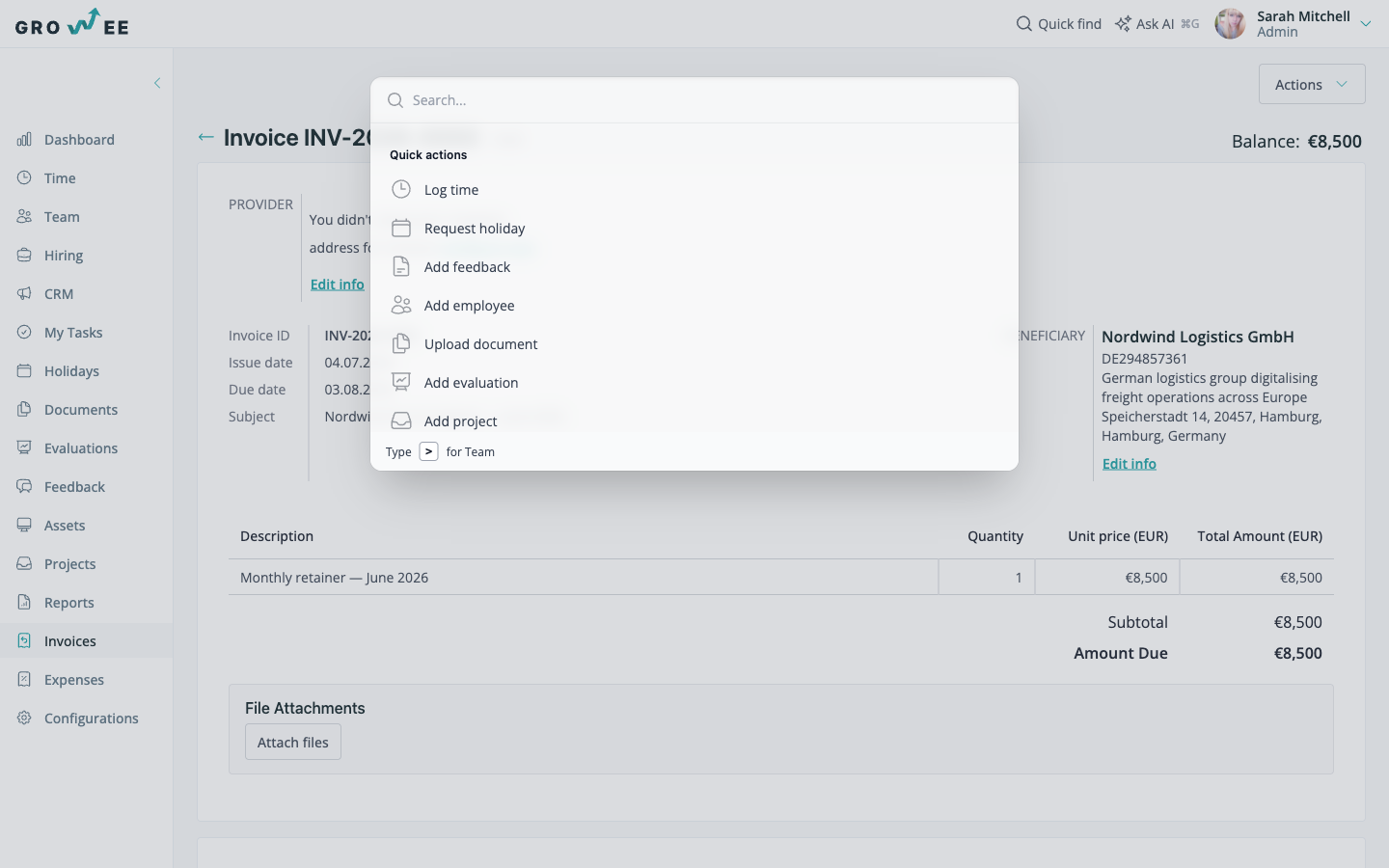
Quick Find is a search that takes you straight to a page or action in one step, without hunting through the menus. Use it to:
- Go to the time logging page and log work hours
- Open the leave request page
- Give feedback to a colleague
- Create a new employee account
- Upload a document
- Add an evaluation
- Add a new project
To open a colleague’s profile, type the > symbol followed by their name and select them.
Note: Your recent searches are saved until you log out, and they clear automatically the next time you log in.
Related articles
Need more help? Contact support or email support@growee.net.