Browse all articles
Inbox and Tickets
Mail arriving at a connected inbox is matched to the right contact or organization and logged on that record’s timeline. Anything that cannot be matched waits on the Email inbox tab for triage. Email reaching an address you set up as a support inbox opens a ticket automatically, and you work those tickets through stages on a kanban board or in a filterable list. Both are Beta features inside the CRM module.
Both features are in Beta, and they live as tabs inside the CRM module rather than as separate items in the main navigation. The Inbox and Tickets tabs each carry a Beta label so you know they are still evolving.
How inbound email is filed automatically
When email arrives at your connected inbox, Growee matches it to the right record and logs it on the timeline for you, so you rarely file anything by hand.
- A contact can have more than one email address. Mail from any of a contact’s addresses files onto the same contact.
- If the sender is not a known contact but their email domain matches an organization you already track, the mail files onto that organization and is flagged as needing a contact match. Free and personal email domains, such as public webmail providers, are excluded from this fallback so unrelated senders are not grouped under a company.
- Attachments on inbound email are saved automatically and appear on the record’s Documents.
You set up which mailboxes feed the CRM from Set up email on the Inbox tab. Alongside a personal forwarding address, you can route a shared mailbox in from Shared & support inboxes: a support address opens a ticket for every new email, while a shared address simply files the message on the timeline.
Triaging unmatched email
Mail that cannot be matched to a lead or contact is not dropped silently. It waits on the Email inbox tab so you can decide where it belongs.
For each email you can:
- Assign to contact: search for the person the email belongs to and file it on their timeline. You can also add the sender’s address to that contact so the same address matches automatically next time.
- Create contact: create a new contact from the sender and file the email on their timeline in one step.
- Discard: remove the email from the inbox. This does not notify the sender.
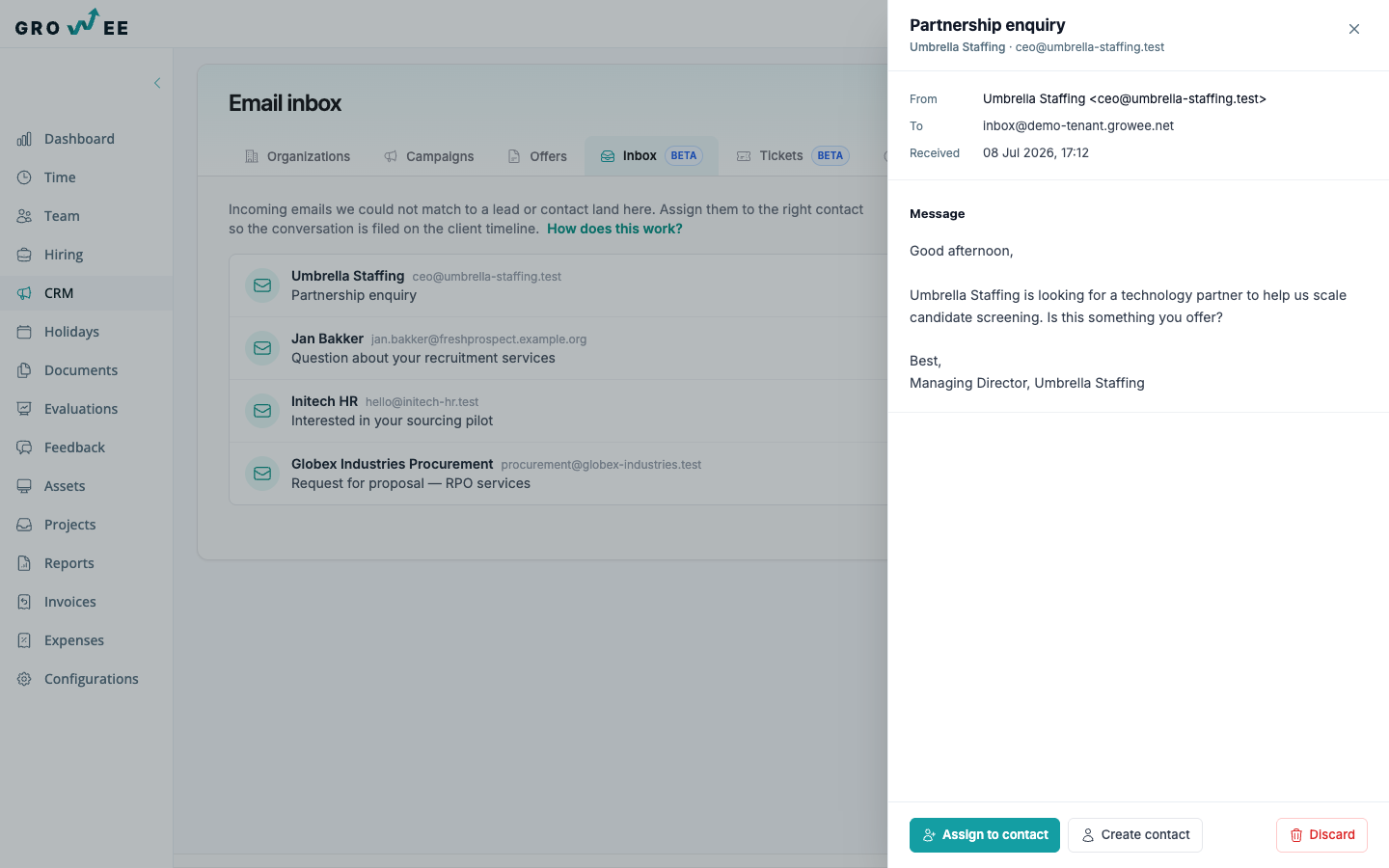
Note: Assigning an email to a contact can teach Growee that address, so future mail from it files automatically instead of returning to triage.
Support tickets
When email reaches an address you set up as a support inbox, Growee opens a ticket for it automatically, so a support mailbox becomes a shared queue your whole team can work.
Each ticket has a Priority (Low, Normal, High, or Urgent), an Owner, and links to both the organization and the contact it came from. A first-response SLA chip shows how quickly your team replied, or how long is left to reply.
You work tickets in either of two views, switched with the Board and List buttons at the top of the tab:
- Board: a kanban board with one column per stage. You drag a ticket from one stage to the next as it moves along.
- List: a filterable list, so you can narrow tickets by priority or stage and scan them in a table.
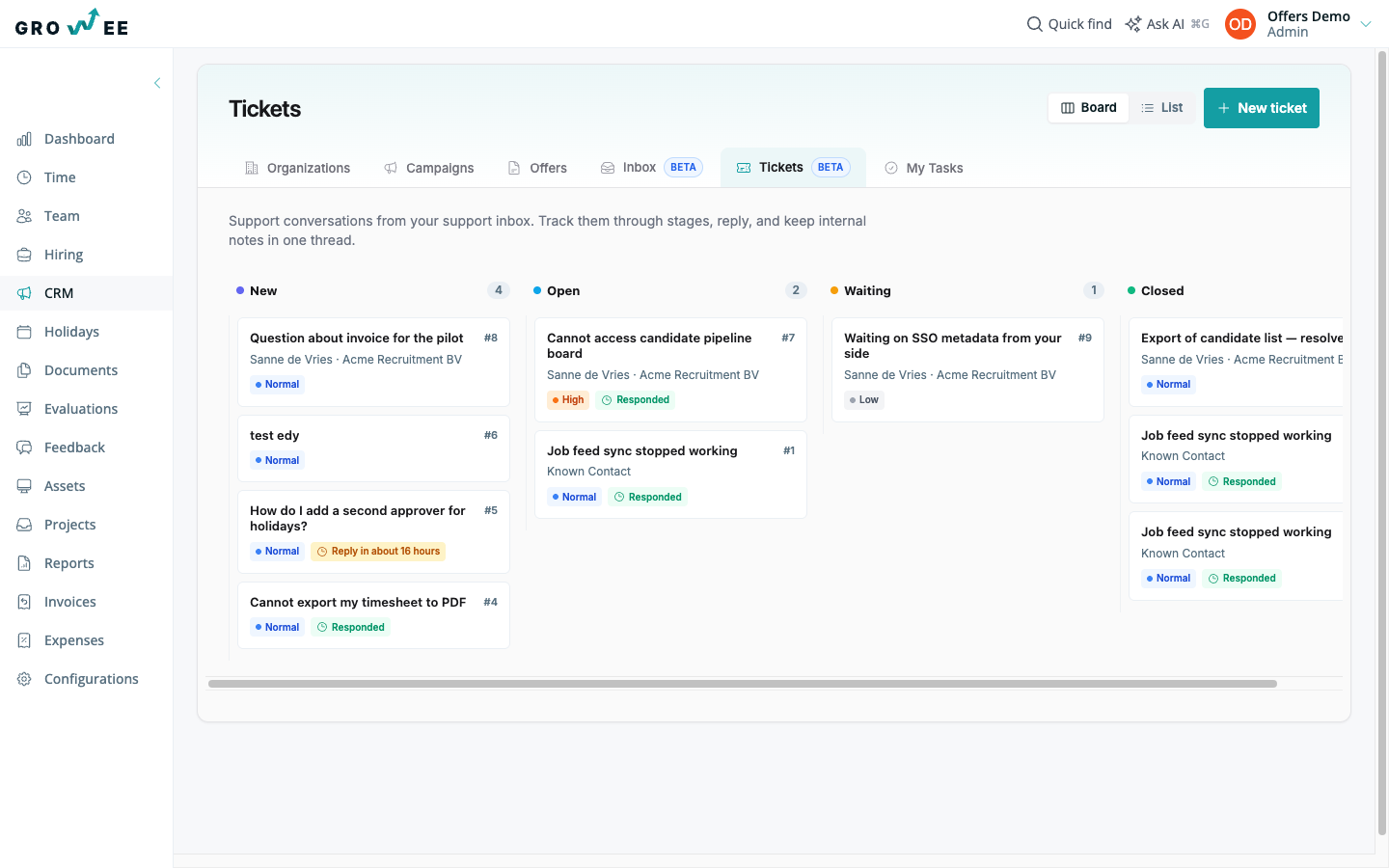
If a customer replies to a ticket you have closed or set to waiting, the ticket reopens automatically so the reply does not get missed. You can also open a ticket by hand with New ticket for something that did not arrive by email, such as a phone call.
Replying to a ticket
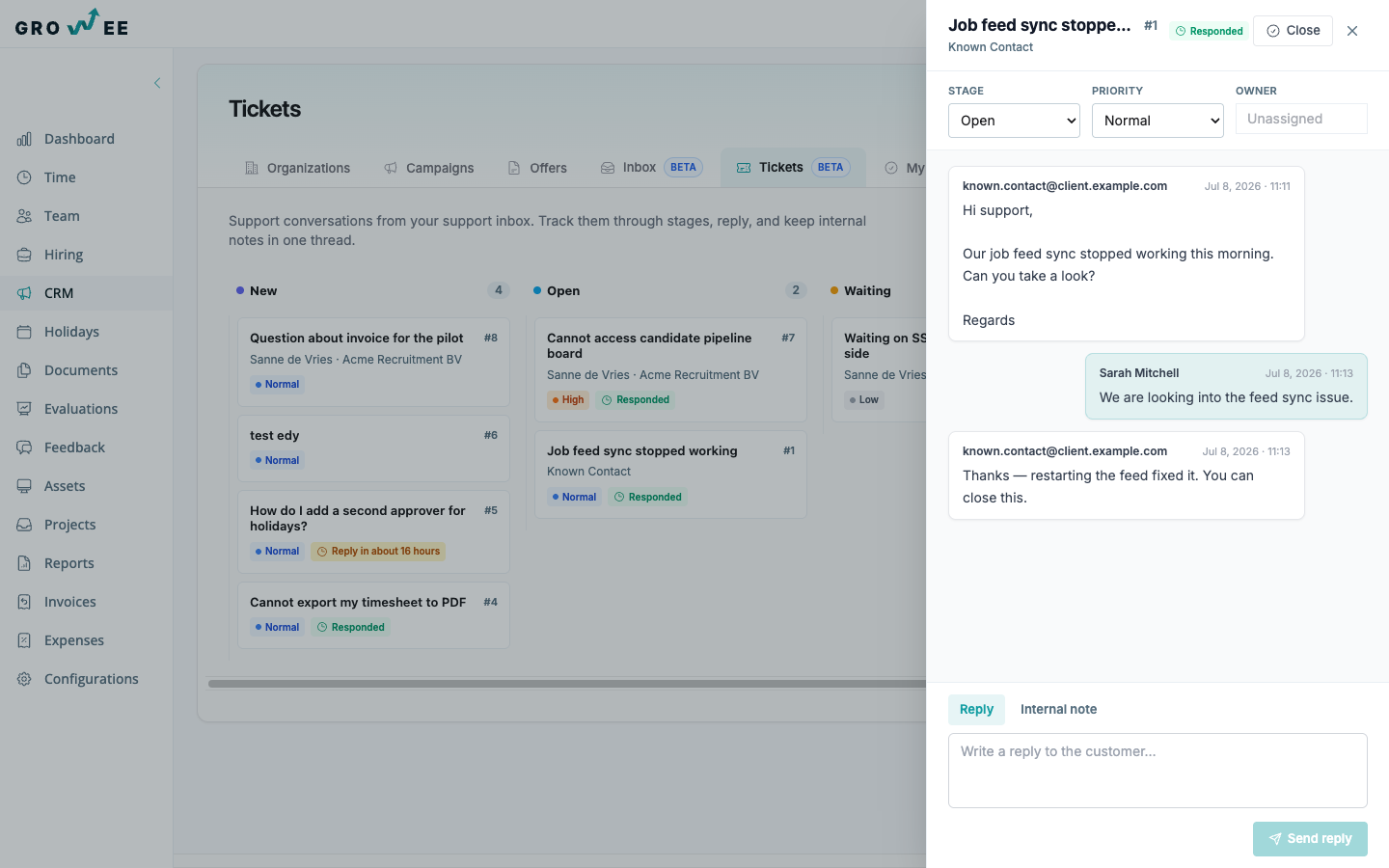
Open a ticket to see its full conversation in a drawer beside the board. The thread shows the customer’s messages and your team’s replies together, and you reply without leaving Growee.
- Reply: write a message to the customer. Your reply is threaded into the same email conversation in their inbox, not sent as a separate email.
- Internal note: leave a note for your team only. Internal notes are never emailed to the customer.
While the drawer is open you can change the ticket’s Stage, Priority, and Owner from the controls at the top, and close the ticket with Close when the conversation is done.
What Inbox and Tickets do not do yet
Because these features are in beta, some things you may expect from a mature help desk are not here yet:
- No saved views or filter presets, and no canned replies or macros.
- No assignment or routing rules to hand tickets out automatically.
- No formal SLA policies such as business hours or breach escalation. Only the first-response chip is shown.
- No ticket merging or splitting, customer satisfaction surveys, or reporting dashboards.
- No automation triggered by ticket events.
Related articles
Need more help? Contact support or email support@growee.net.