Browse all articles
Holiday Types and Balances
Open Configurations, go to Policies, and click Add policy to define a leave type: choose a holiday type and an accrual method, name the policy, pick the contract types it applies to, set the total days per year, and set whether it is paid. Accrual methods are Given, where the full allocation lands upfront, or Accrual, where days build up over the year. Balances are then visible per employee, year, and holiday type.
This article is for users with an Admin, Manager, or HR role. Holiday policies are managed in the Configurations section.
Create a holiday policy
Policies are grouped by holiday type on the Holiday policies page. Each group (for example Vacation or Sick / Required) lists its policies with a paid or unpaid badge and the number of days each one grants.
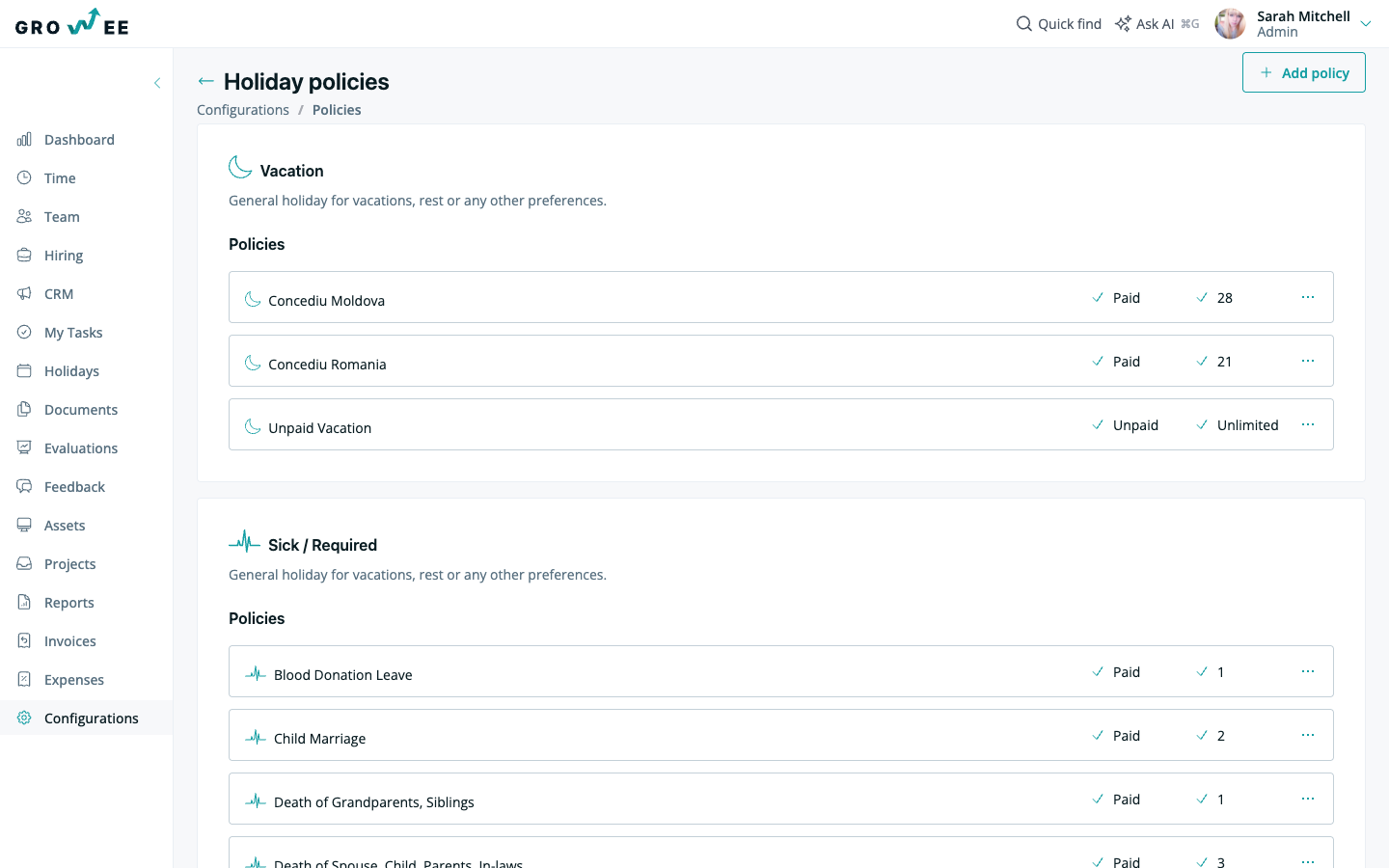
To add a policy:
- Open the Configurations section and go to Policies.
- Click the Add policy button in the top right.
- In the Details section, choose a Holiday type (for example Rest) and an Accrual method.
- Enter a Policy name and, optionally, a Description.
- Under Include Contract types, select the Contract Type or types the policy applies to, such as Employment Contract.
- Under Limit, choose Limited or Unlimited, then set the Total number of days per year.
- Under Payment, set whether the holiday is paid.
- Under Cancellation, choose whether employees can cancel their own holidays before the start date.
- Optionally, under Forms / Template Requests, upload a document or template that this leave type requires.
- Click Add to save.
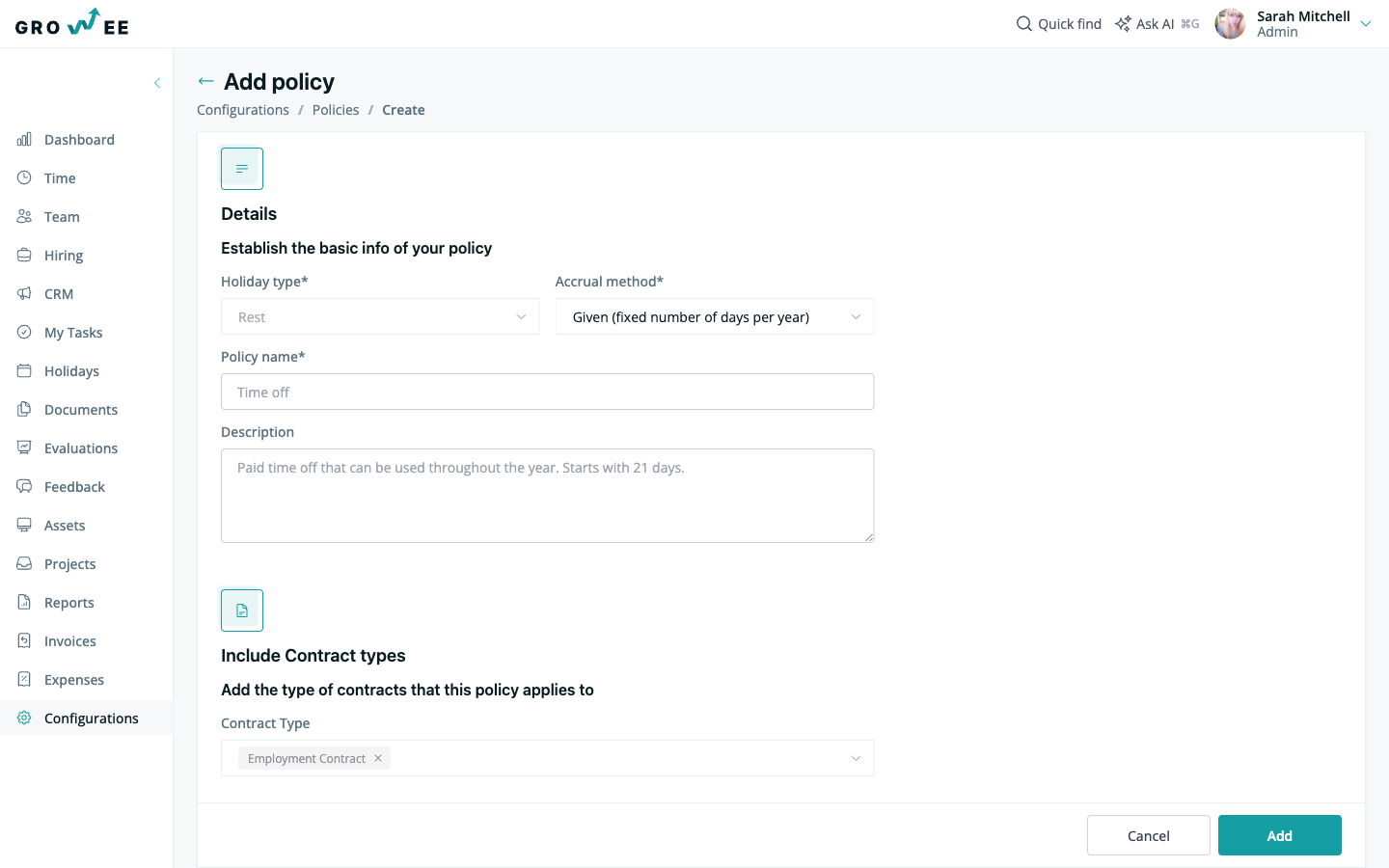
Policies vary from one organization to another, so set them up to match your company’s rules. When a policy grants time off, Growee adds it to the employee’s overall balance.
Accrual method
The Accrual method controls how the allowance is earned, so the policy matches how time off is granted in your region:
| Accrual method | How it works |
|---|---|
| Given (fixed number of days per year) | The full allocation is granted upfront at the start of the year. |
| Accrual | Days accumulate gradually over the year. |
Note: Leave allowances are not fixed by Growee. The number of paid days and the rules for each type depend on your company policy and local labor law, and are set entirely through the policies you configure.
Contract types
Policies are assigned by contract type so entitlements can differ between staff. The Contract Type field is a multi-select, and the available options come from your company’s configured contract types, such as Employment Contract. This lets one policy cover employment contracts while another covers internships or B2B contracts, with or without paid holidays.
Note: Growee counts holiday duration in working days by default. To count weekends as leave, enable Include weekends in holiday calculation under Configurations → Company Settings → Company details. See Company Settings.
National holidays
Each company has a National group on the Holiday policies page that tracks the national days off for your country. To review or change them, click the Edit button on the National group to open the National Holidays editor.
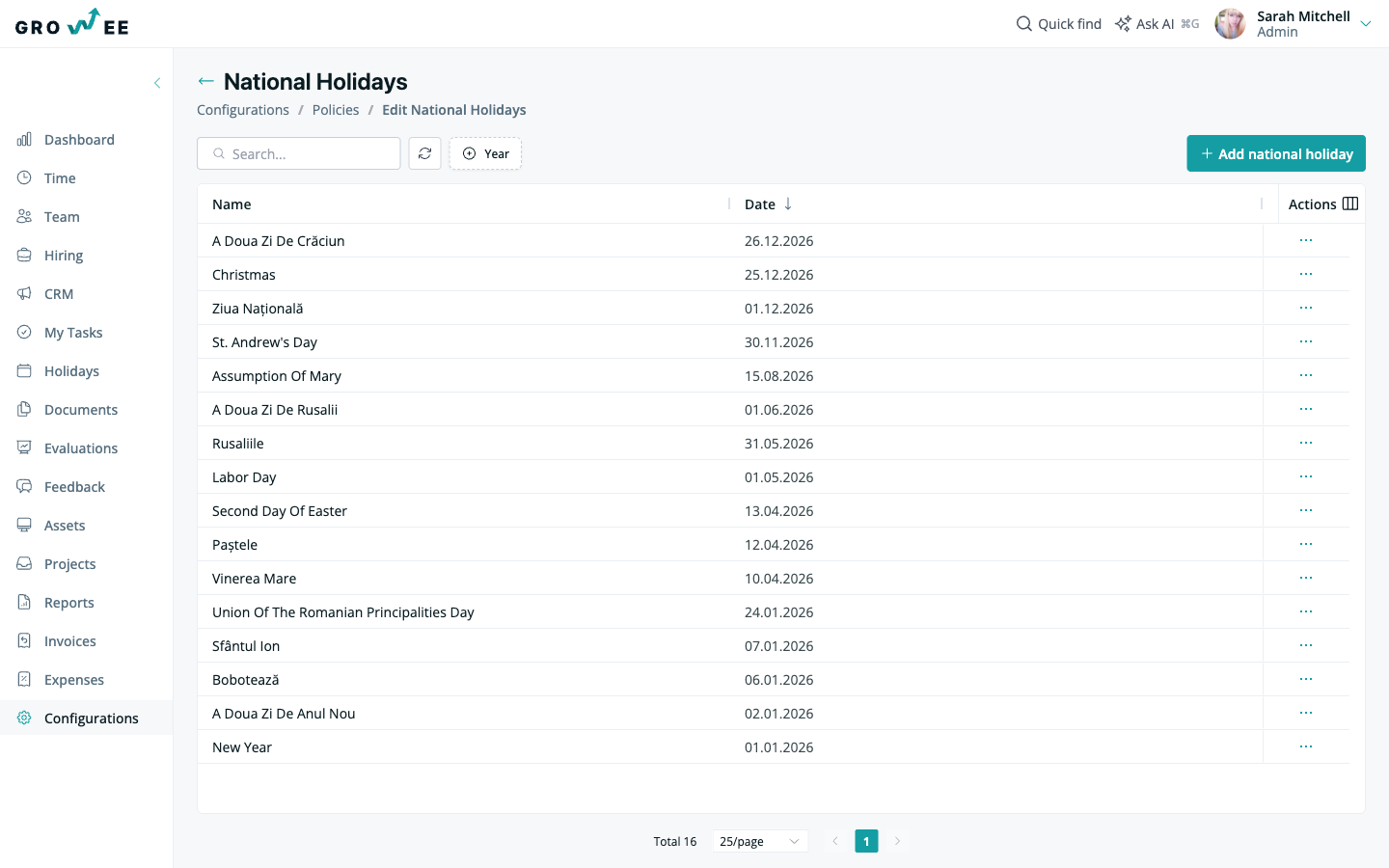
In the editor you can:
- Switch the Year filter to view the national holidays for a specific year.
- Click Add national holiday to add an entry that is missing for your country.
- Open the three-dot Actions menu on any row to edit or delete an entry.
Tip: The Holiday policies page also has a Pending Approval Reminders setting. Enable it to have Growee email approvers about holiday requests that are still waiting for a decision.
Holiday balances
Balances give you complete oversight of your team’s time off in one view. You can see all employee balances organized by year and holiday type, and filter by specific employees, teams, or departments.
- Set initial balances, earning rules, or bonuses.
- Grant compensatory days or make custom adjustments whenever needed.
- Make quick changes with inline editing directly in the balance table.
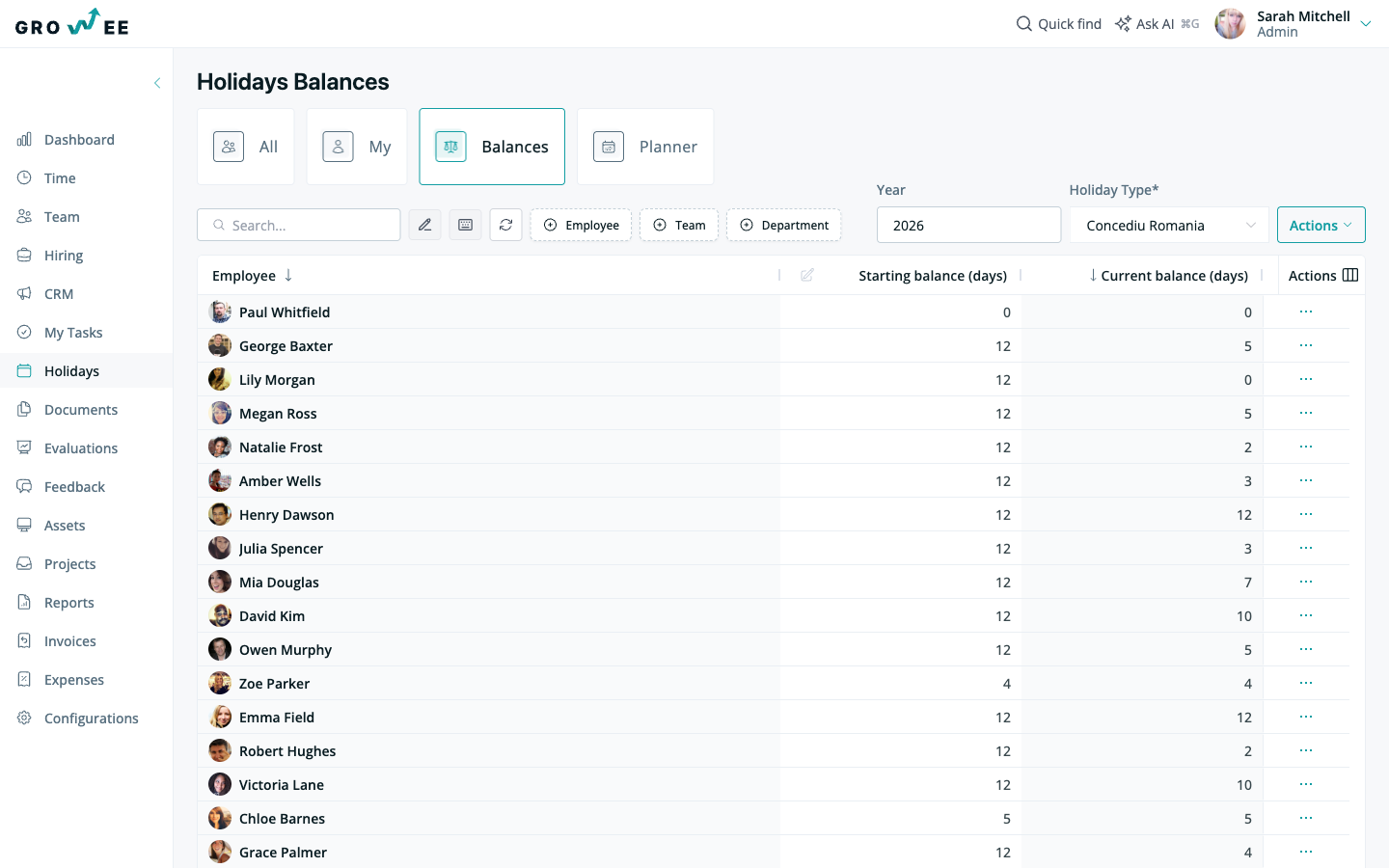
To review an individual balance, open the employee’s profile in the Holidays section to see the updated number of paid days. Growee manages accumulation, carry-overs, and adjustments automatically, even when time off spans across calendar years, so records stay accurate.
Related articles
Need more help? Contact support or email support@growee.net.