Browse all articles
Exporting Leave Data
Open the Holidays module, go to All, then click Export to Excel or Export to CSV next to the filters above the list. Growee generates the file for the current view, and the exported records include the employees, leave types, dates, and status of each request. Both buttons respect the filters you have applied, so narrow the list by employee, department, status, or start date before exporting if you need a smaller file.
This article is for users with an Admin, Manager, or HR role.
Export all holiday entries
- Open the Holidays module and go to All.
- Click Export to Excel or Export to CSV, next to the filters above the list.
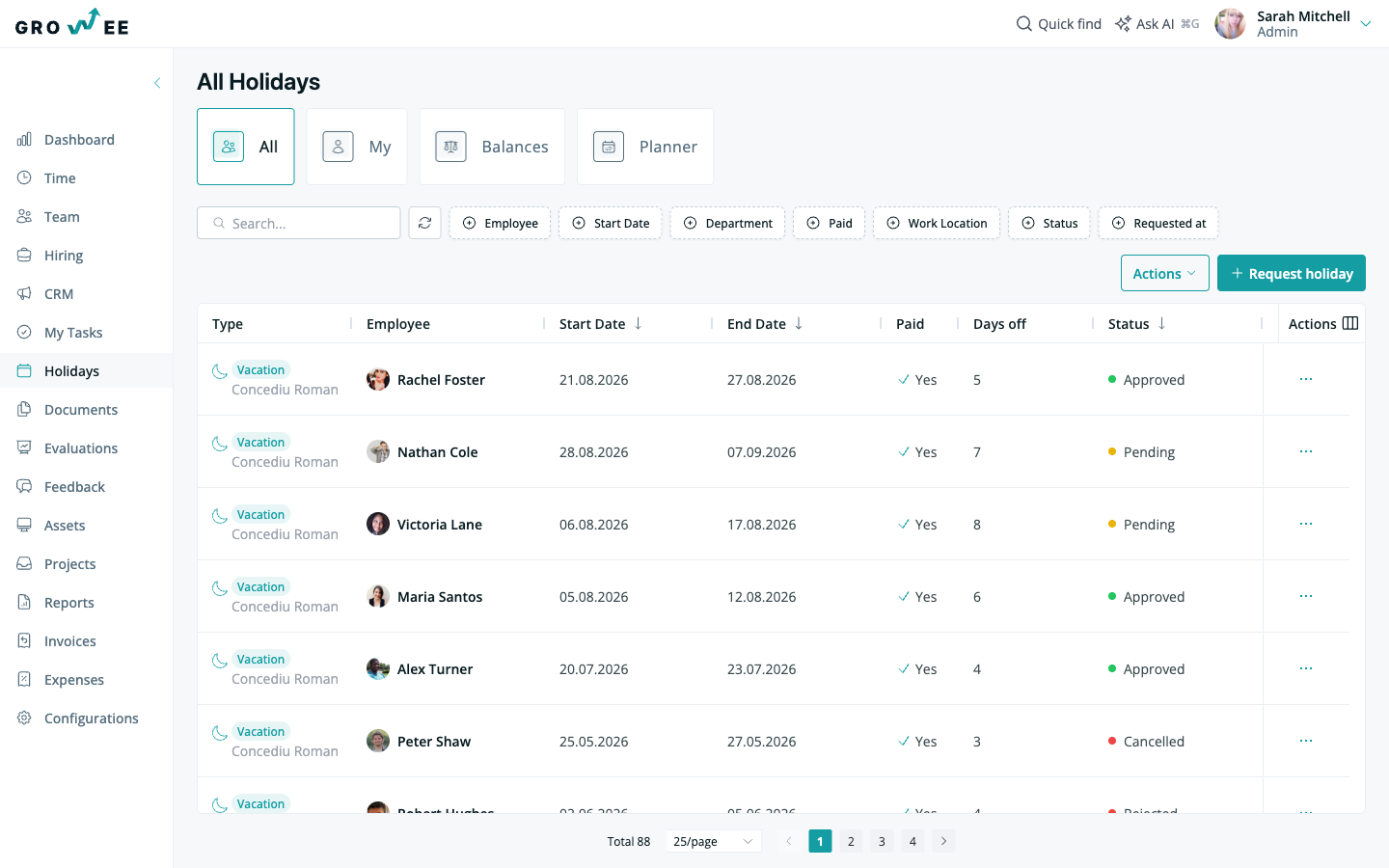
Growee generates the file for the current view. The exported records include the employees, leave types, dates, and status of each request.
Filter before exporting
You can narrow down the list before you export it, so the file contains only the records you need. Both export buttons respect the filters that are currently applied. Filter the holiday list by:
- Employee
- Start date
- Department
- Paid
- Work location
- Status
- Requested at
Applying a filter first is useful when you need leave data for a single payroll cycle, a specific department, or one status rather than the full history.
Related articles
Need more help? Contact support or email support@growee.net.