Browse all articles
Managing Clients
A client is the entity a project is associated with, and every project in Growee belongs to one, so you need at least one client before you can create a project. To add one, open the Projects module, switch to the Clients tab, click Add client, enter the company name and details such as address and preferred currency, add any contacts, then save.
This article is for admins and managers who set up projects and billing.
What a client is
A client is the entity a project is associated with. Each project links to one client, which keeps all the work and billing for that relationship in one place. Invoices are linked to clients too, so what you bill sits next to the projects it came from.
You need at least one client before you can create a project.
Add a client
- Open the Projects module.
- Switch to the Clients tab using the toggle at the top of the page.
- Click Add client.
- Enter the company name and any details you want on file, such as a company identifier, address, preferred currency, and description.
- Add one or more contacts if you have them (name, email, phone, and position).
- Save the client.
Your client is now saved and available whenever you create a project.
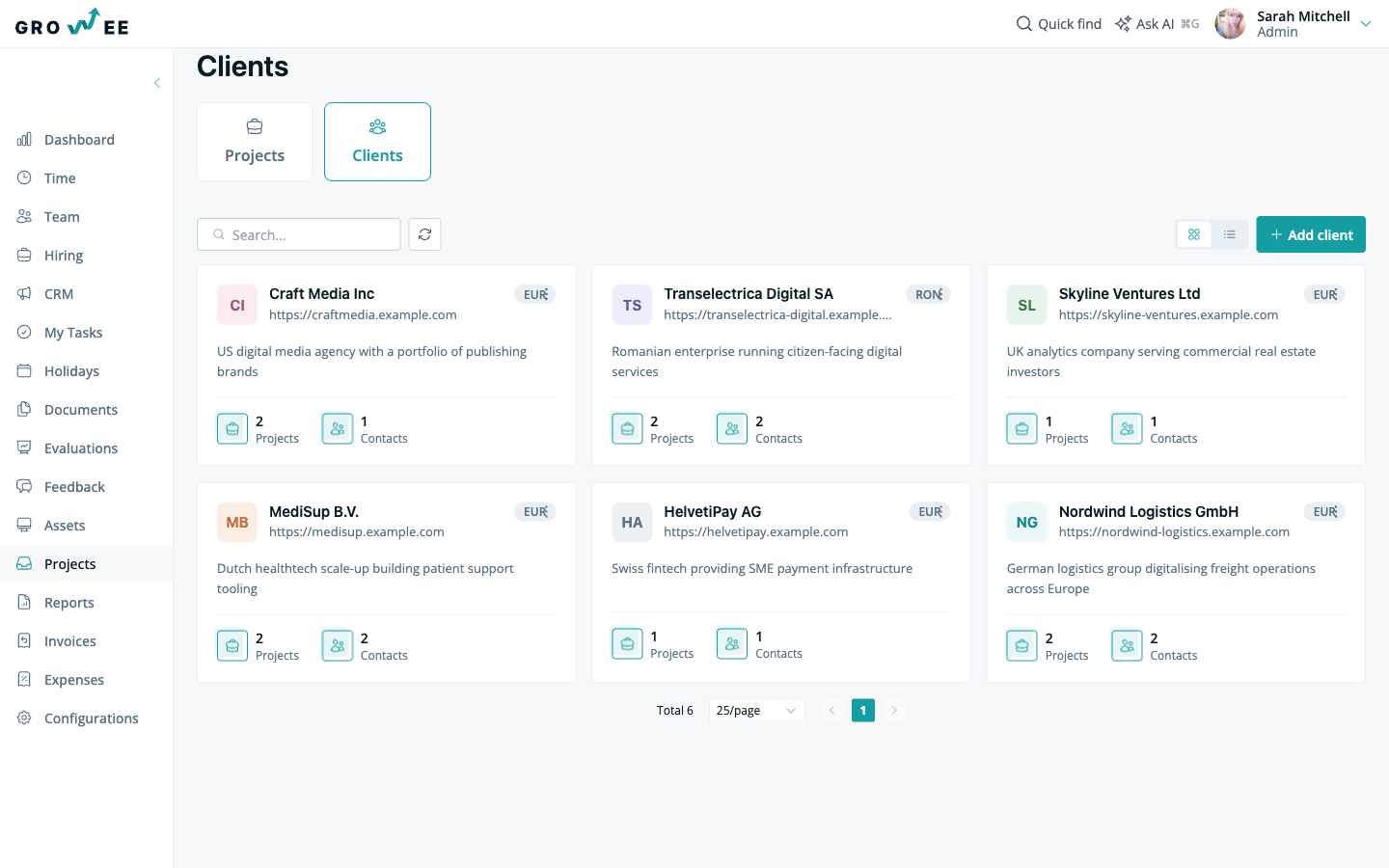
The Clients tab lists every client as a card showing the company name, website, preferred currency, and how many projects and contacts it has. Use the Search box to find a client, and the Grid view and List view buttons to switch layouts.
Tip: After you add a client, switch to the Projects tab to create a project for it. See Creating Projects.
The client page
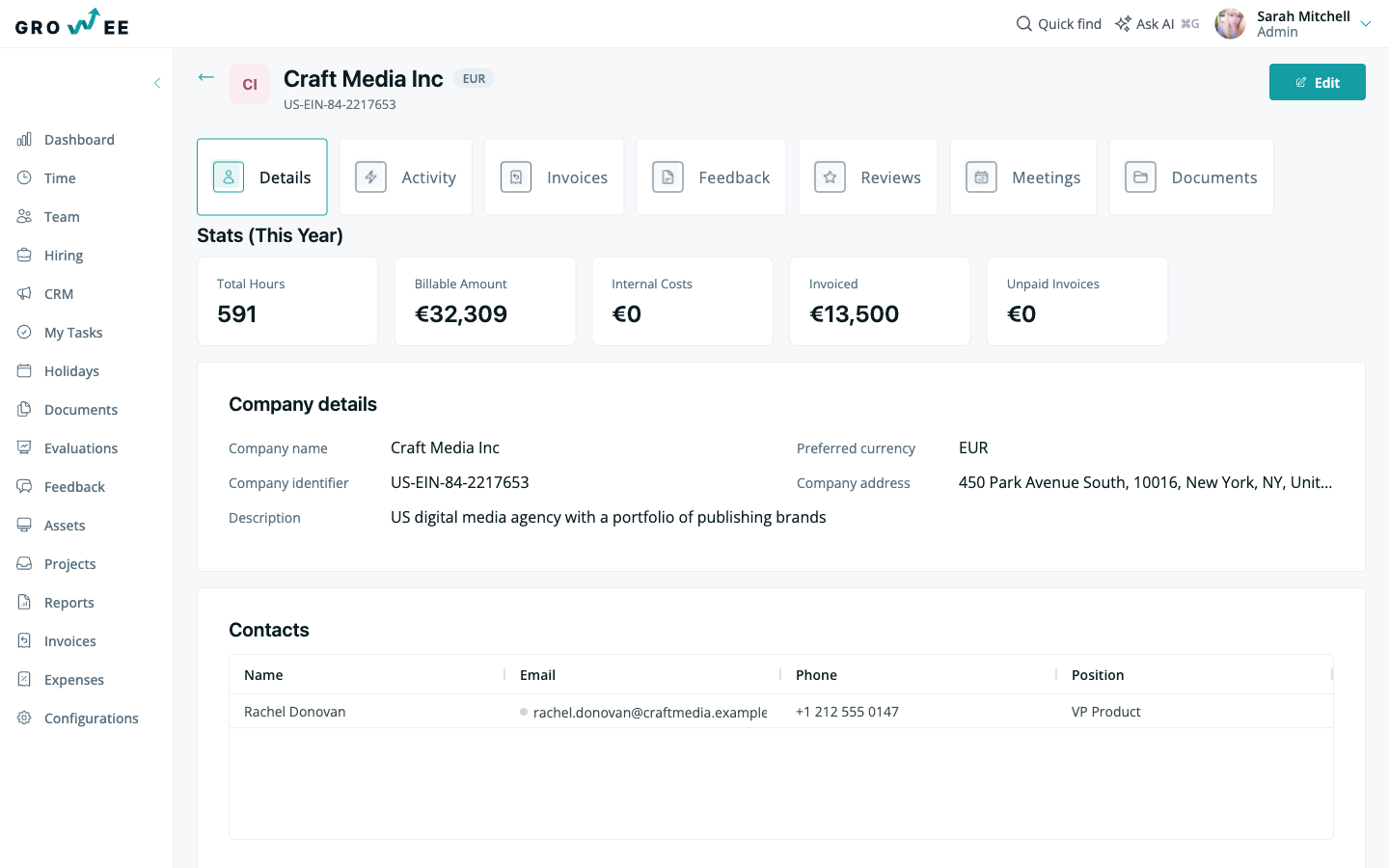
Click a client to open its page. The header shows the client name, its preferred currency, and its company identifier, with an Edit button to change the client’s details. A row of tabs across the top groups everything Growee tracks for that client.
Details
The Details tab is the client’s home view. At the top, a Stats (This Year) row summarizes the relationship: total hours logged, billable amount, internal costs, invoiced amount, and unpaid invoices. Below that you see the Company details you entered and a Contacts table with each person’s name, email, phone, and position.
Activity
The Activity tab is a feed of recent changes and events for the client, so you can catch up on what has happened across projects, documents, and invoices in one place.
Invoices
The Invoices tab lists every invoice raised for this client, so you can see what has been billed and what is still outstanding without leaving the client page. For the full billing workflow, see Managing Invoices.
Feedback
The Feedback tab collects feedback tied to this client, keeping notes and responses about the relationship in one place.
Reviews
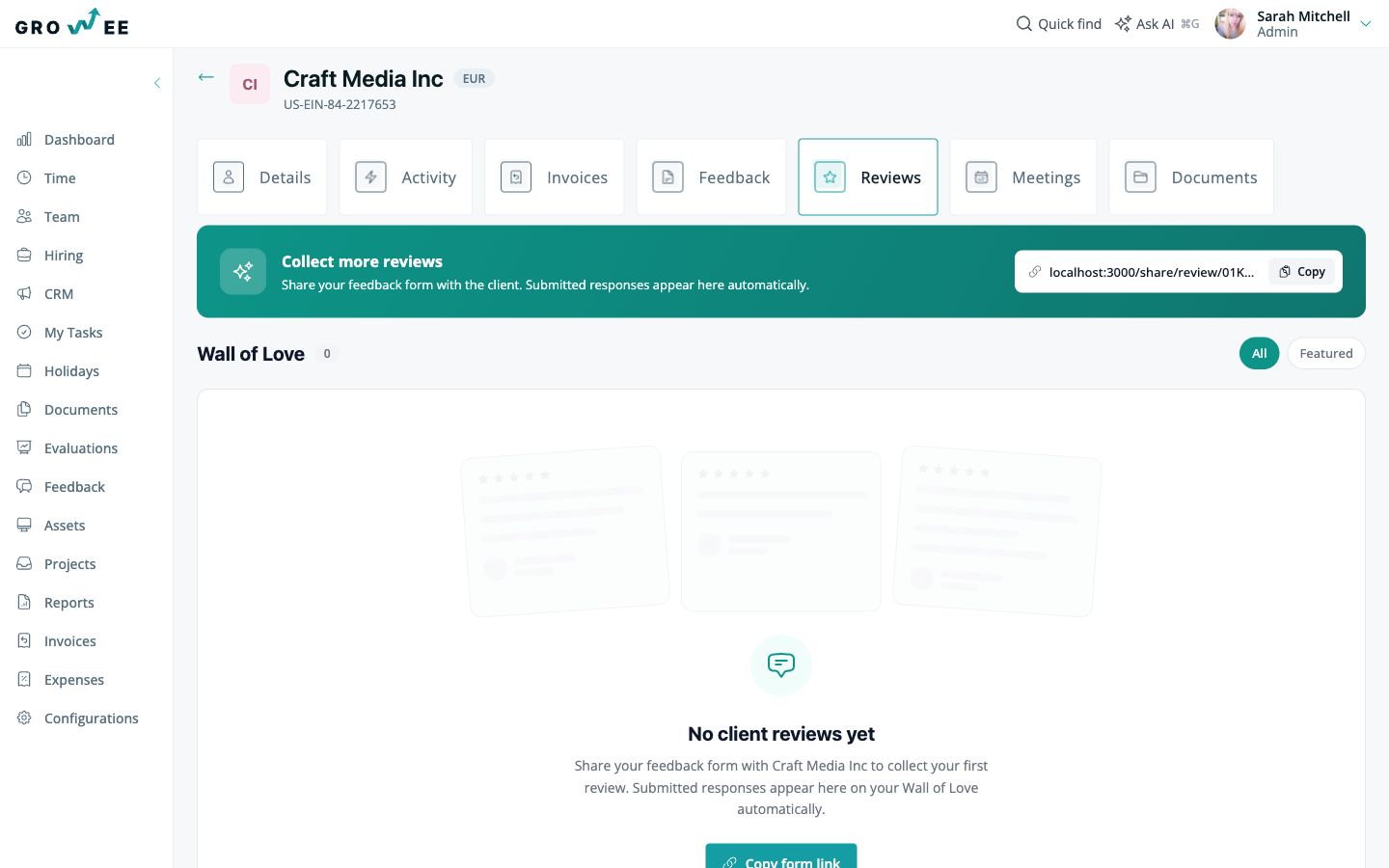
The Reviews tab is where client reviews live. Use the Collect more reviews banner to copy a shareable feedback form link and send it to the client. Responses they submit appear here automatically on the Wall of Love, which you can filter between All and Featured.
Meetings
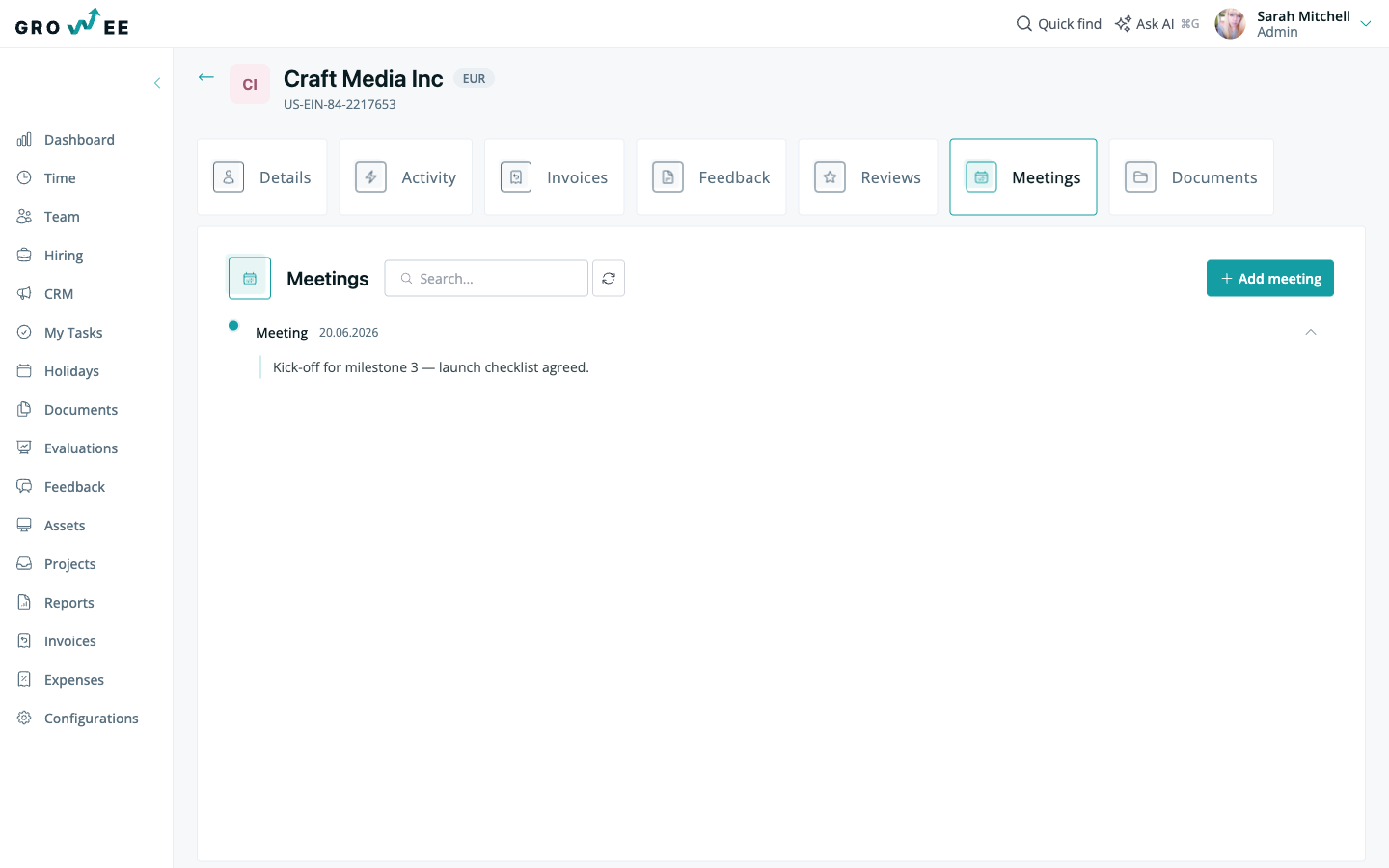
The Meetings tab keeps meeting notes for the client. Click Add meeting to record a note with its date, and use the Search box to find past meetings.
Documents
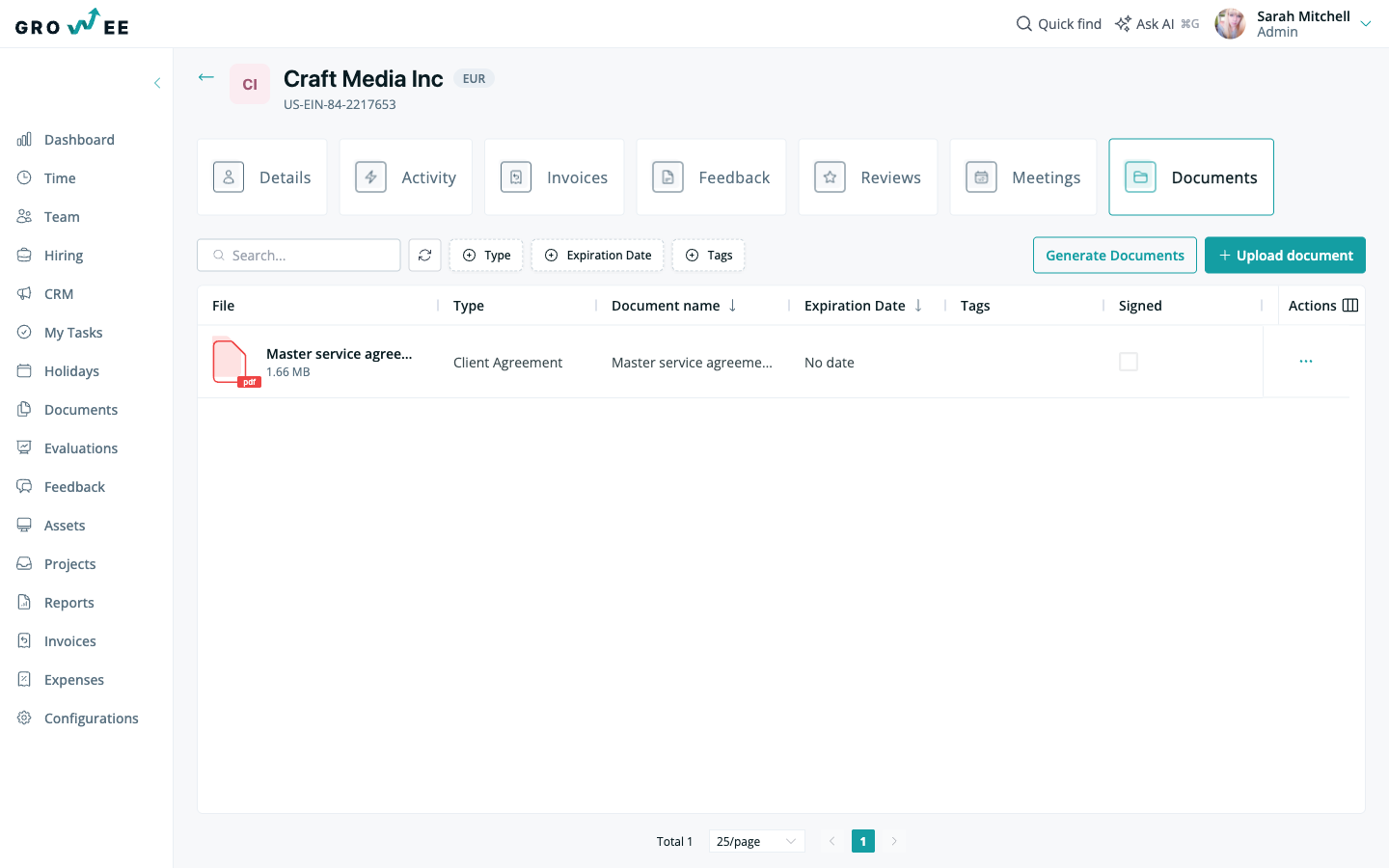
The Documents tab stores files against the client, such as contracts and agreements. Click Upload document to add a file, or Generate Documents to create one from a template. Each row shows the file, its type, document name, expiration date, tags, and whether it has been signed. Filter by Type, Expiration Date, or Tags to narrow the list.
Related articles
Need more help? Contact support or email support@growee.net.