Browse all articles
Departments, Positions, and Levels
Departments, positions, and levels live in your company configuration in Growee’s settings, and admins or managers can create or delete each one. Once saved, they appear as options on the form you use to add or edit a team member. Set them up before you add employees so the right choices are ready. A position still assigned to someone cannot be deleted until you reassign it.
This article covers how to manage each of these lists. Keeping them accurate means employee records stay consistent and your reports group people the way your business actually works. Managing these settings is available to admins and managers.
Departments
Departments let you categorize and manage employees by the part of the company they belong to. As an admin or manager, you can create, edit, or delete departments at any time.
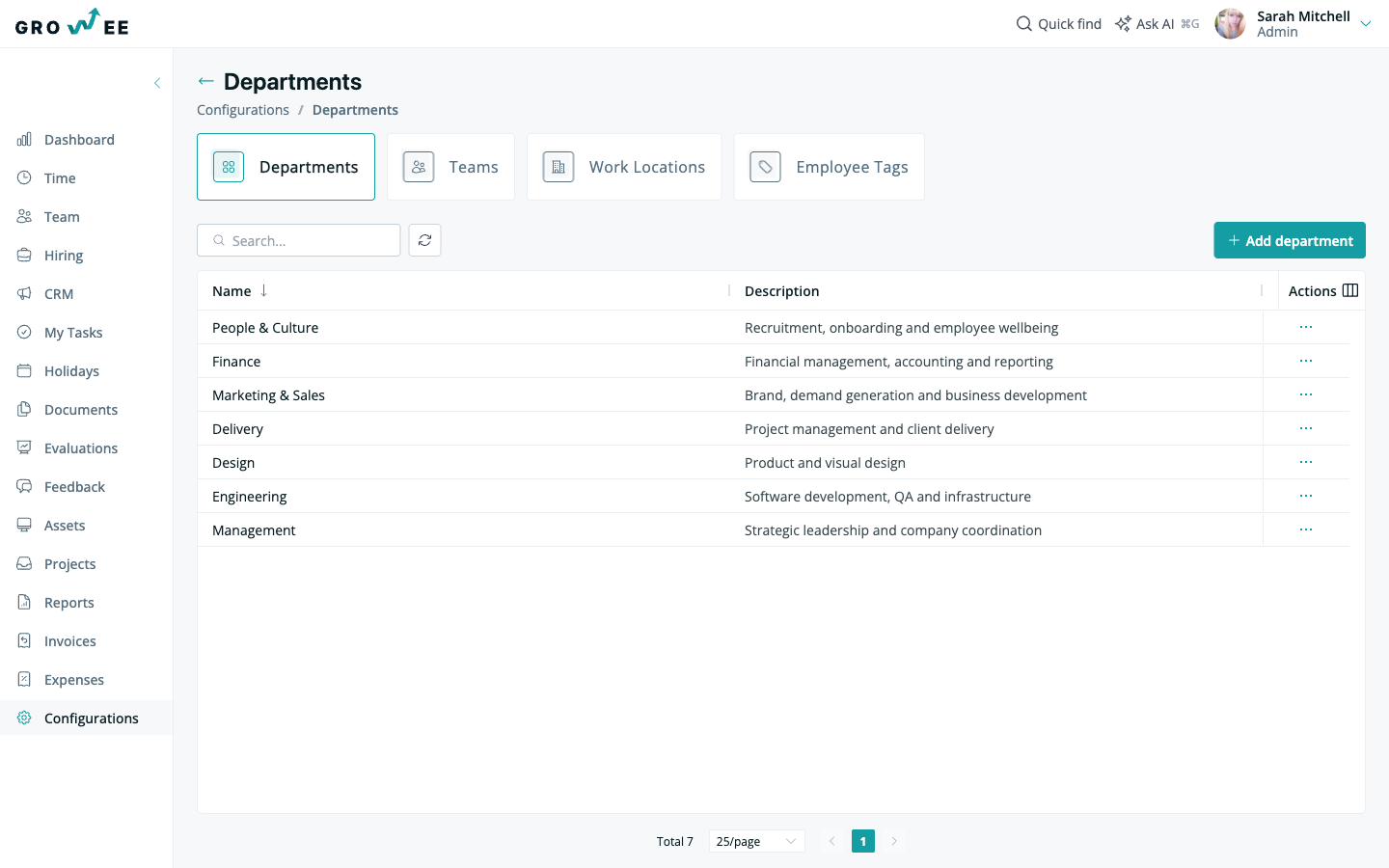
This is useful when you are reorganizing the company, adding new departments, or renaming existing ones. You can:
- Create a new department.
- Rename an existing department.
- Delete a department you no longer need.
Positions
Positions define the job roles in your organization, including titles, descriptions, and how they relate to one another. The positions you set up here become available when adding a new member.
To add a position:
- Open the Positions settings.
- Click Add Position.
- Fill in the details in the form that appears.
- Save.
The new position is then selectable when you add or edit a team member. You can edit or delete any position later.
Note: If a position is currently assigned to an employee, the delete option is not available. Reassign or remove it from those employees first, then delete the position.
Levels
Levels are the hierarchical tiers within your organization. They reflect reporting structure and career progression, and, like positions, they feed into the form you use when adding a new member.
To add a level:
- Open the Levels settings.
- Click Add Level.
- Fill in the details in the form that appears.
- Save.
The new level then appears as an option on the add member form.
To remove a value, open the three-dot menu on the right side of the row and select Delete. A confirmation window appears before the value is removed.
Where these settings live
Departments, positions, and levels are part of your company configuration in Growee’s settings, alongside your other organization-wide options. Set them up before you add employees so the right choices are ready in the registration form. For where to find company-wide settings, see Account Settings.
Related articles
Need more help? Contact support or email support@growee.net.