Browse all articles
Managing Documents
Open the Documents module, start a new upload, pick the file from your device, fill in details such as the document type and any start and end date, then save. Growee accepts formats including PDF, Microsoft Word, and plain text. Each file’s three-dot menu holds View, Download, Edit, and Delete. Dated documents trigger an email reminder before they expire, and role-based access decides who sees which records.
This article covers uploading documents, controlling who can see them, setting expiration reminders, and deleting files you no longer need.
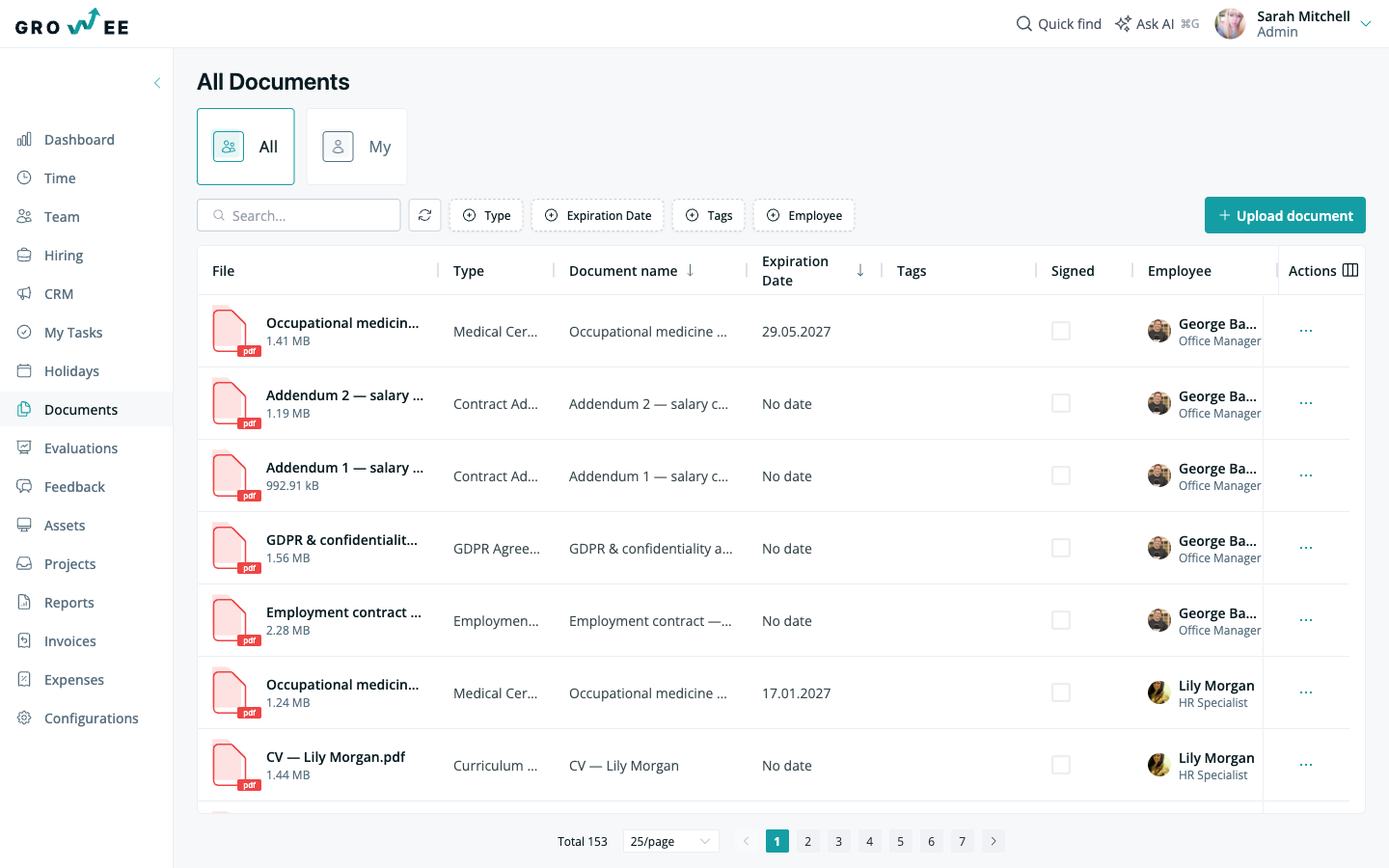
Upload a document
You can upload documents directly from your device, whether it is a scanned copy, a photo, or a digital file.
- Open the Documents module.
- Start a new document upload.
- Select the file from your device.
- Fill in the required details, such as the document type and, if relevant, a start and end date.
- Save the document.
Note: The document types you can choose from come from your account configuration. See Document Types and Settings to add your own.
Supported file formats
Growee supports a wide range of file formats, including PDF, Microsoft Word documents, and plain text files. This lets you store most of the paperwork your company works with, from signed contracts to scanned certificates.
Document visibility and access
By default, access to documents depends on the user’s role:
- HR, Manager, and Admin roles can see the documents of every employee.
- By default, an employee sees, uploads, and edits their own documents. Deleting a document needs the Manage documents permission, which an Admin can grant to a custom role.
Every file is encrypted, and Growee scans uploads for viruses before storing them. For more on how roles control access, see Roles and Permissions.
Expiration reminders
When a document has a start and end date, Growee sends an email reminder before it expires. This is useful for contracts, IDs, and certifications that need to be renewed on time, so nothing slips through the cracks.
Download, view, and edit documents
Each document has a three-dot menu with the actions you need to work with it:
- View the document without downloading it.
- Download a copy to your device.
- Edit the document’s details.
- Delete the document.
Delete a document
- Open the Documents module.
- Find the document you want to remove.
- Open its three-dot menu.
- Select Delete.
- Confirm in the dialog.
Deleting removes the file from Growee. If you only need to replace a file, upload the new version instead of deleting the record.
Related articles
Need more help? Contact support or email support@growee.net.