Browse all articles
Asset Management
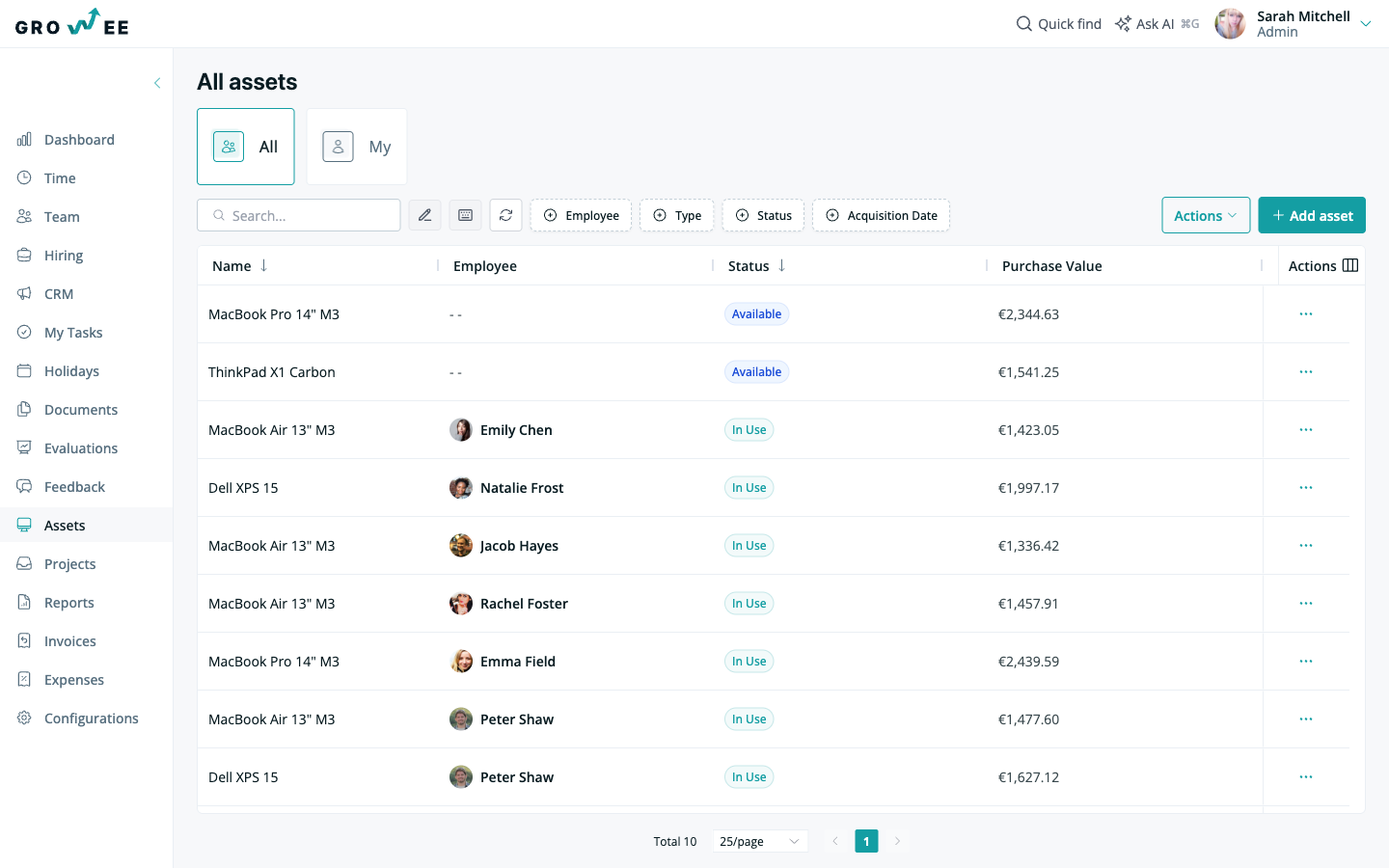
Create a record for each item your company owns and lends out, capturing its name, type, model, serial number, acquisition date, value, and the employee it is assigned to. Each asset carries a status of In use, Available, Under maintenance, Decommissioned, or Lost. You can filter the inventory by employee, asset type, status, or acquisition date, and edit details directly in the table.
This is an overview of what the feature does and how it fits alongside your employee records. It is aimed at admins and HR managing company equipment, as well as employees who want to see what has been assigned to them.
What you can track
Each asset is a record with the details that matter to your company. When you create one, you can capture:
- The asset name, type, model, and serial number.
- The employee it is assigned to.
- The acquisition date and its value.
- Any additional details you want to keep on record.
Because assets are linked to employees, you always know what is in use, what is available, and what might be missing.
Assign assets to employees
Every asset can be assigned to a specific person, and reassigned whenever it changes hands. The employee it is assigned to immediately sees the item in their own view, so there is no manual handoff to track. You can reassign an item to a different employee at any time.
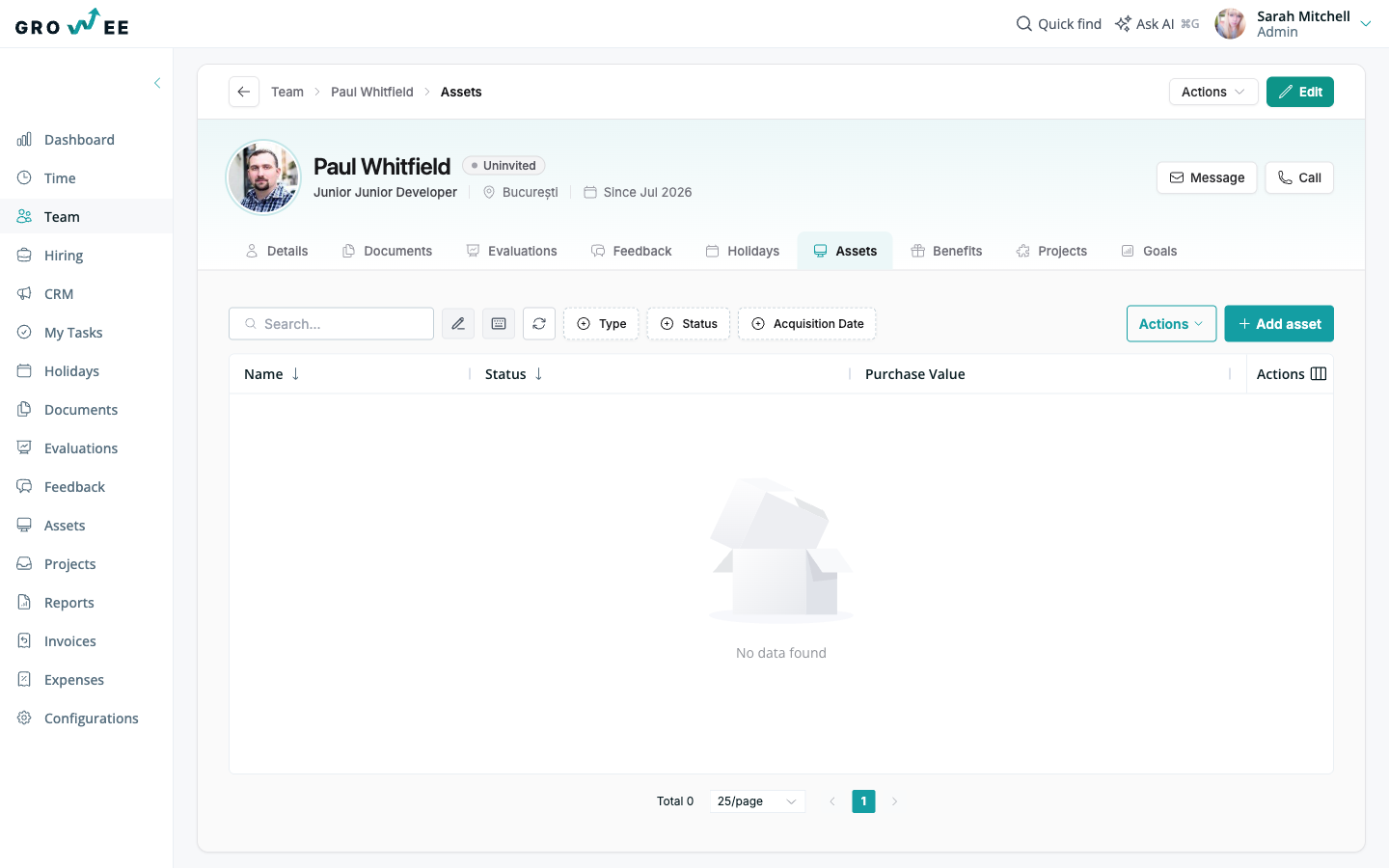
Each employee profile has an Assets tab that lists the equipment assigned to that person. Open a profile and select Assets to see what they currently hold, without filtering the full inventory. For more on profile tabs, see Employee Profiles.
Asset statuses
Each asset carries a status so you always know its condition and can plan repairs or replacements before problems pile up. Available statuses are:
| Status | Meaning |
|---|---|
| In use | Currently assigned to and used by an employee. |
| Available | Not assigned, ready to hand out. |
| Under maintenance | Temporarily out of service for repair. |
| Decommissioned | Retired from active use. |
| Lost | No longer accounted for. |
You can also delete items that are no longer part of your inventory to keep the list clean and accurate.
Filtering and editing
You can filter your inventory by employee, asset type, status, or acquisition date, so finding a specific item or reviewing a category takes seconds. For example, filter by employee to see everything assigned to one person, or by asset type to get a quick overview of all laptops or licenses.
Asset details are shown in a table you can edit directly, similar to working in a spreadsheet. You can update names, models, serial numbers, values, and other fields in place, and changes save as you go.
Who can see what
Access depends on the role:
- Admins can view and manage every asset across the organization.
- Employees see only the items assigned to them.
Admins can switch between the full company view and a personal view, so everyone has the right level of access without extra setup. For how roles work more broadly, see Roles and Permissions.
Related articles
Need more help? Contact support or email support@growee.net.