Browse all articles
Inviting Your Team
You invite a team member from the Team module, and you need the Admin, Manager, or HR role plus their valid email address to do it. Add the person as an employee, then either check Send Invite in the new employee form or pick Send Invite from the three-dot menu on their row later. They receive a welcome email, set a password, and join.
This article covers who can invite people, how to add a team member, the two ways to send an invitation, what the new employee sees, and how to cancel an invitation.
Who can invite team members
To invite a team member, you need the Admin, Manager, or HR role. You also need the person’s valid email address, usually their company email, since the invitation is sent there.
Add a team member
You add new people from the Team module.
- Open the Team module.
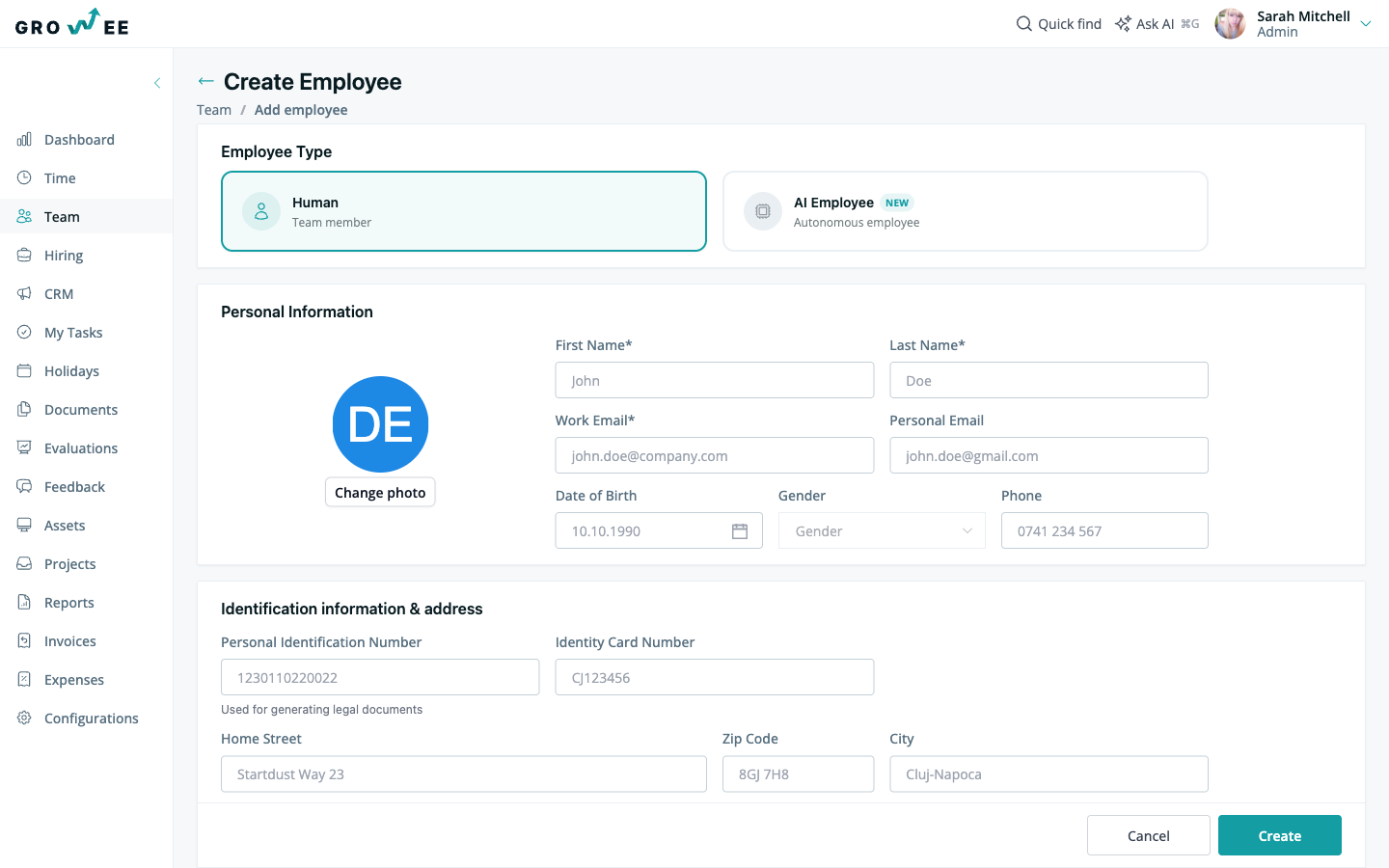
- Start a new employee and complete the form with the required information.
- Click Create.
The required fields are:
- First name and last name
- Role
- Contract type
- Working start date
There are three contract types to choose from: Employment Contract, B2B - Paid Holidays, and B2B - Unpaid Holidays. Each one behaves differently, so pick the one that matches your collaboration.
You do not have to fill in everything now. The remaining profile fields can be completed at the same time or after the person has been created.
Send the invitation
There are two ways to send an invitation.
While adding the employee: in the new employee form, check the Send Invite box before you create the profile. The invitation goes out as soon as the employee is created.
From the team list: if you created the profile without inviting, you can send the invitation later from the Team module.
- Find the person in the team list.
- Click the three-dot menu on their row.
- Select Send Invite.
- Confirm the invitation in the dialog that appears.
After you send an invitation, a confirmation message appears at the top of the screen letting you know the email has gone out to the new employee.
What the invited person sees
The invited employee receives a welcome email with an Accept Invitation button. When they click it, they are taken to a page where they set a password and confirm it.
Once they confirm their credentials, they officially join Growee. They see a welcome message on their events page, and their status in the Team module changes to Active.
Cancel an invitation
If you change your mind before someone accepts, you can cancel a pending invitation from the Team module.
- Open the three-dot menu on the person’s row.
- Select Cancel Invite.
- Confirm the cancellation in the dialog that appears.
Their status changes to Cancelled.
Related articles
Need more help? Contact support or email support@growee.net.