Browse all articles
Creating Evaluations
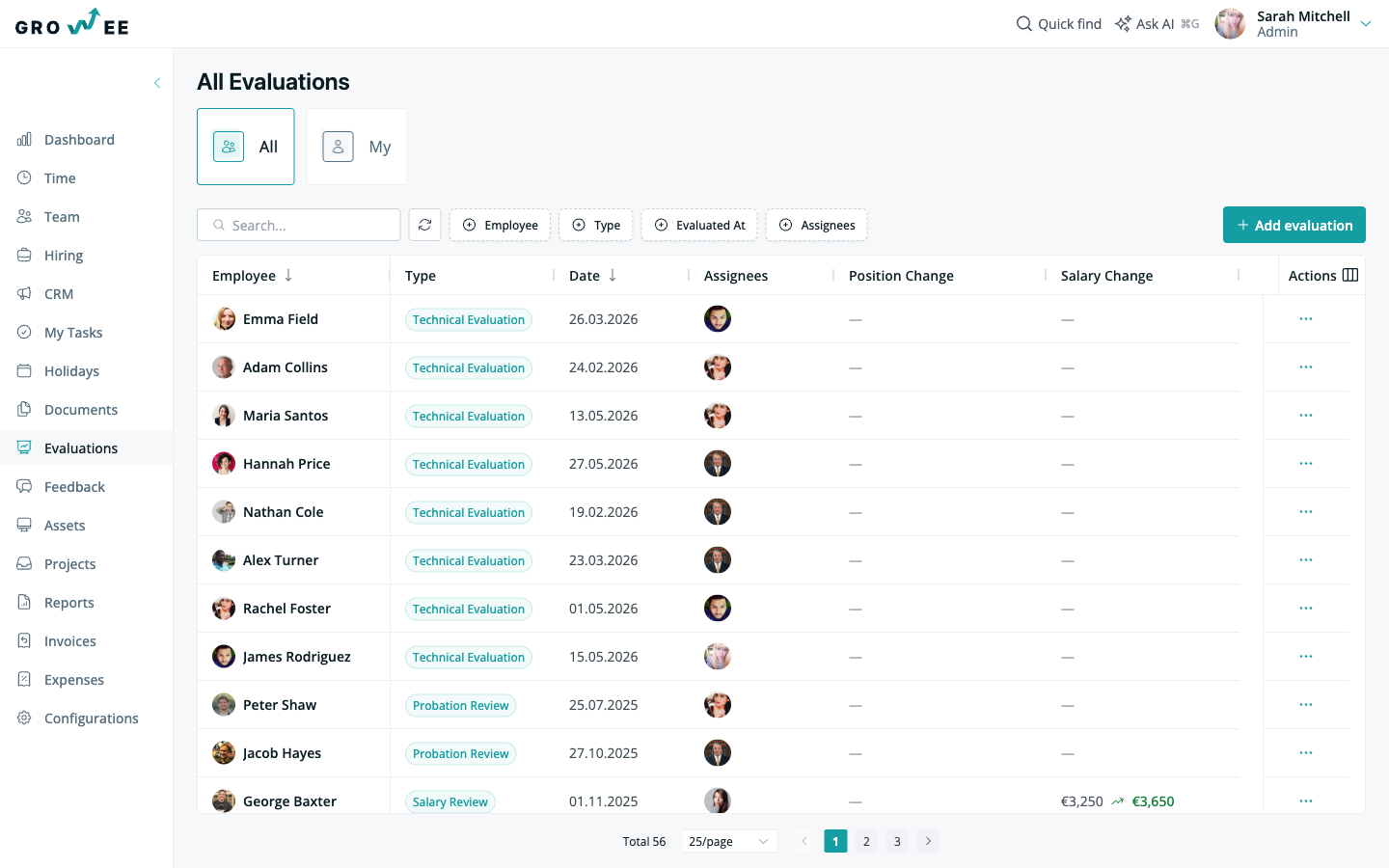
Open the Evaluations module, start a new evaluation, and fill in the employee being evaluated, the person assigned to conduct it, the evaluation date, and the evaluation type. Save, and an email goes to the employee with the review details. Growee also schedules a reminder email for the working day before the evaluation date (when that day is still ahead), sent to the employee and to the people assigned to conduct the review. An Admin or a Manager creates evaluations.
This article covers who can create evaluations, the types available, how to add a new evaluation, and what happens after you create one. Many companies run these reviews every three or six months, depending on their culture, but you can schedule them on whatever cadence fits your team.
Who can create evaluations
By default, the Admin and Manager roles hold the Manage employee evaluations permission, so they can see, create, edit, and delete every evaluation in the company.
A role granted Manage evaluations for subordinates sees and runs evaluations for the people below it in the reporting line, meaning their direct reports, the people who report to those reports, and so on down the chain. The Admin role holds it along with every other permission, while the Manager, HR, Employee, and IT Manager roles do not hold it by default. An Admin can add it to a custom role.
The HR role holds neither evaluation permission by default. An Admin can grant either permission to a custom role, as described in Roles and Permissions.
By default, an employee sees their own evaluations, and the Employee role holds no permission to create one. If an employee feels it is time for a new review, they ask their manager or an admin to schedule one for them.
For more on how roles map to permissions, see Roles and Permissions.
Evaluation types
Every review has a different purpose, so Growee lets you pick the right type before you start. A new company’s account comes preloaded with demo data, which includes sample evaluation types such as Salary Review, Technical Evaluation, and Probation Review. Clear Demo Data removes them along with the rest of the sample company, so add the types your reviews use, such as a 360-degree review or a development plan.
By default, the Admin and Manager roles hold the Manage evaluation types permission and manage types in Configurations. To create your own types, see Managing Evaluations and Criteria.
Add an evaluation
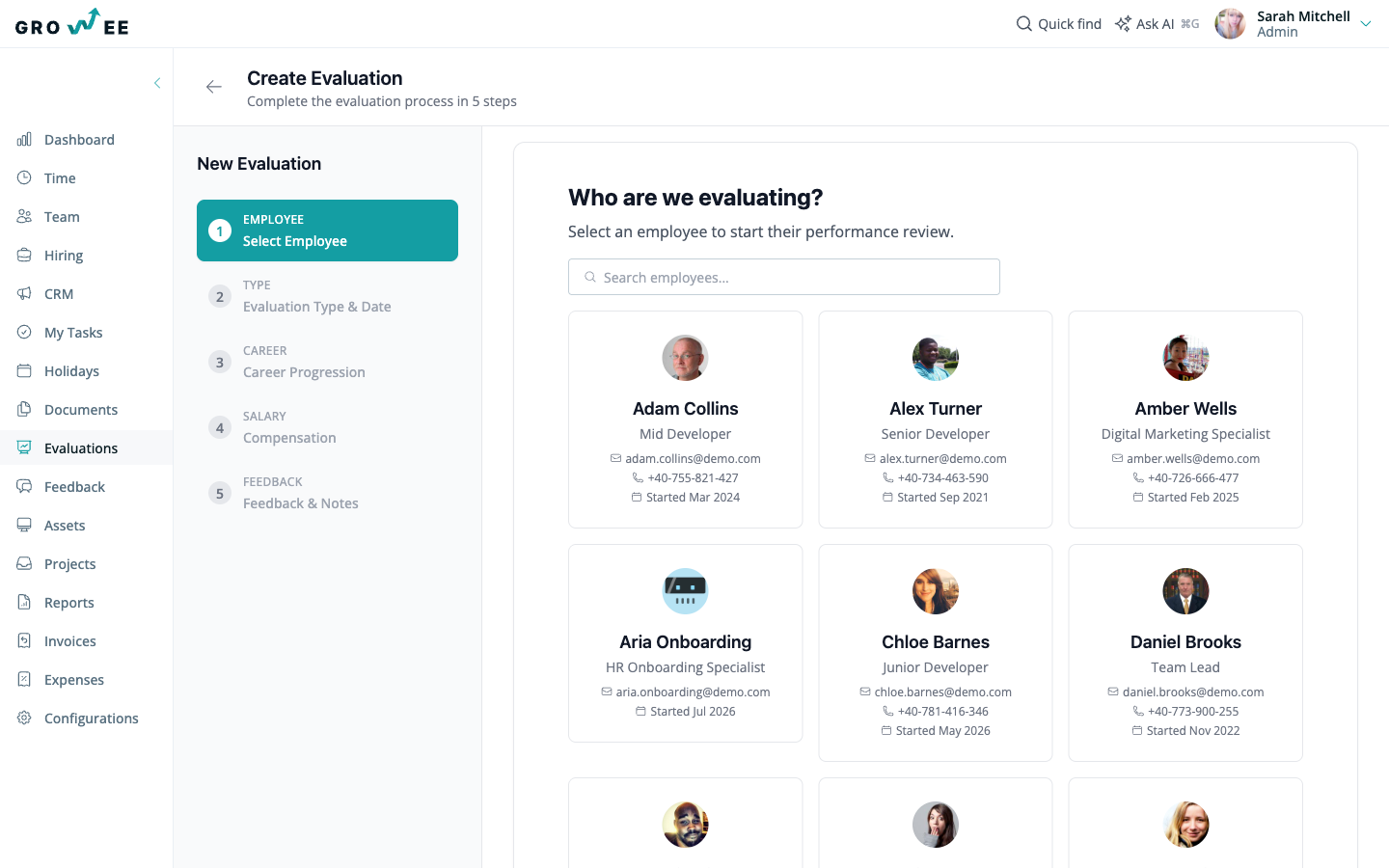
- Open the Evaluations module.
- Start a new evaluation.
- Fill in the fields below.
- Save the evaluation.
The evaluation form asks for:
- Employee: the person being evaluated.
- Person assigned: who will conduct the evaluation.
- Evaluation date: the date the review takes place.
- Evaluation type: the type of review, for example technical or salary.
The form has no reminder date field: Growee sets the reminder to the working day before the evaluation date, and the next evaluation date to one year later. Evaluations created over the API or MCP can pass their own reminder date (notify_at), or none, in which case no reminder is scheduled.
You can create as many future evaluations as you need. Growee does not limit how many you can schedule, and their dates can be changed later.
After you create an evaluation
Once the evaluation is saved, an email goes to the employee being evaluated with the details of the review.
On the working day before the evaluation date, Growee emails a reminder to the employee and to the people assigned to conduct the review, so the review is not forgotten. The email includes a link to the evaluation.
Record salary and role changes
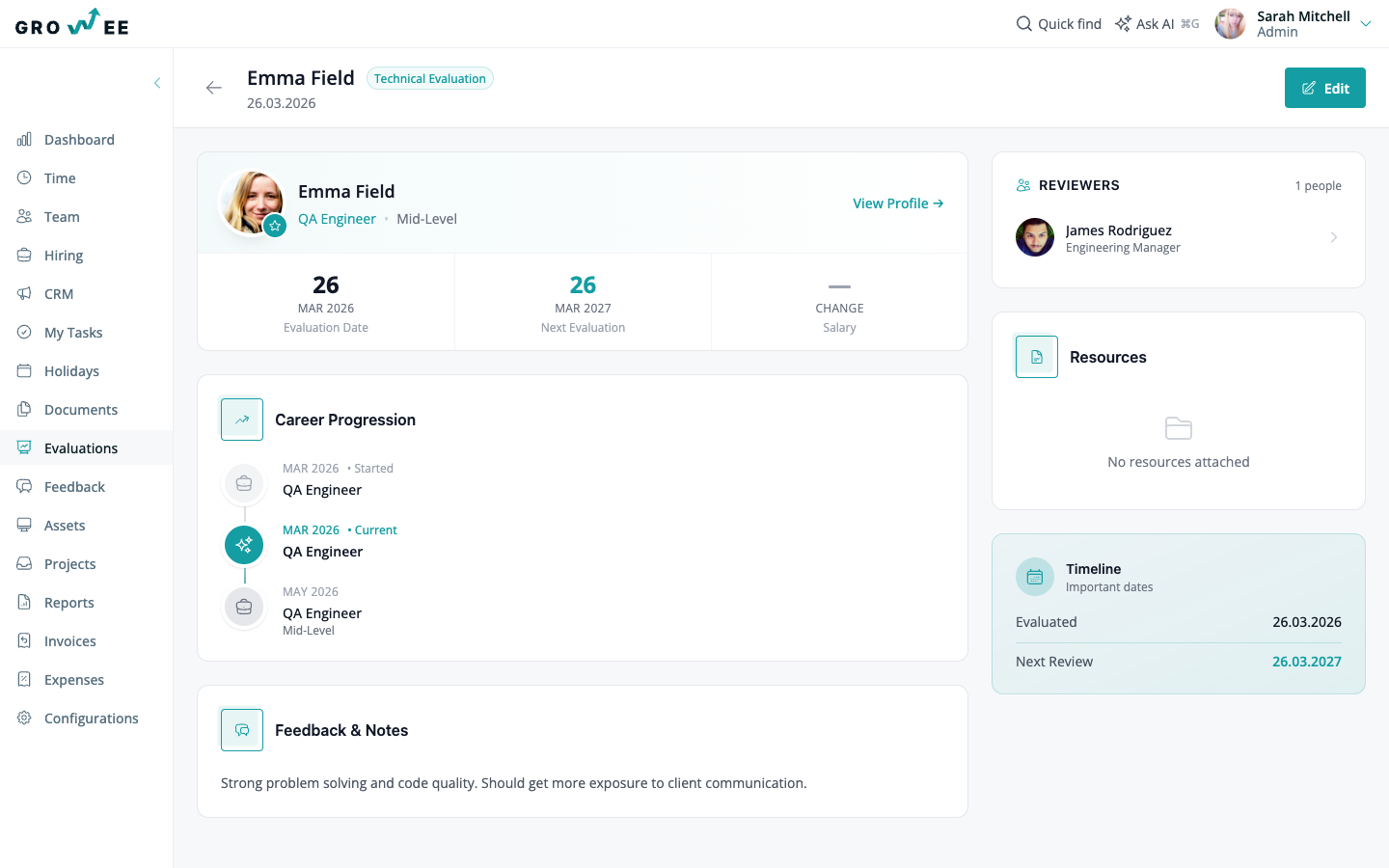
An evaluation is also where you capture the outcome of the review. Within an evaluation you can log role changes and promotions and record or update compensation, including setting new salary information as part of the process.
These changes are reflected automatically in the employee’s timeline, giving you a clear, chronological history of how each person has progressed. See Employee Profiles for how this history appears.
Find your evaluations
All evaluations, past and upcoming, live in the Evaluations module. You can filter the list by employee, evaluation type, evaluator, or date to find any review in seconds, and view upcoming evaluations at a glance to plan review cycles across the team.
By default, the Admin and Manager roles see every evaluation, a role with the subordinates permission sees the evaluations of the people below it in the reporting line, and an employee sees their own.
Related articles
Need more help? Contact support or email support@growee.net.