Browse all articles
Employee Profiles
Every person in Growee has a profile split into tabs: Details, Documents, Evaluations, Feedback, Holidays, Assets, Benefits, Projects, and Goals. The Details tab carries contact information, employment and contract details, time this week, holiday balances, and the birthday board card. What you can see and edit in each tab depends on your role. The Team module also works as a company directory, so anyone can see who their co-workers are.
This article covers how to edit your own profile, what each profile tab contains, and how to browse the team directory to view colleagues and their details. What you can see and edit depends on your role.
Edit your own profile
To open and update your personal profile:
- Click your name in the upper-right corner of the page.
- Select My Profile.
- Open the tab you want to edit and update the fields.
Profile tabs
An employee’s profile page is split into tabs, each covering a different part of their record. What you can see and edit in each tab depends on your role.
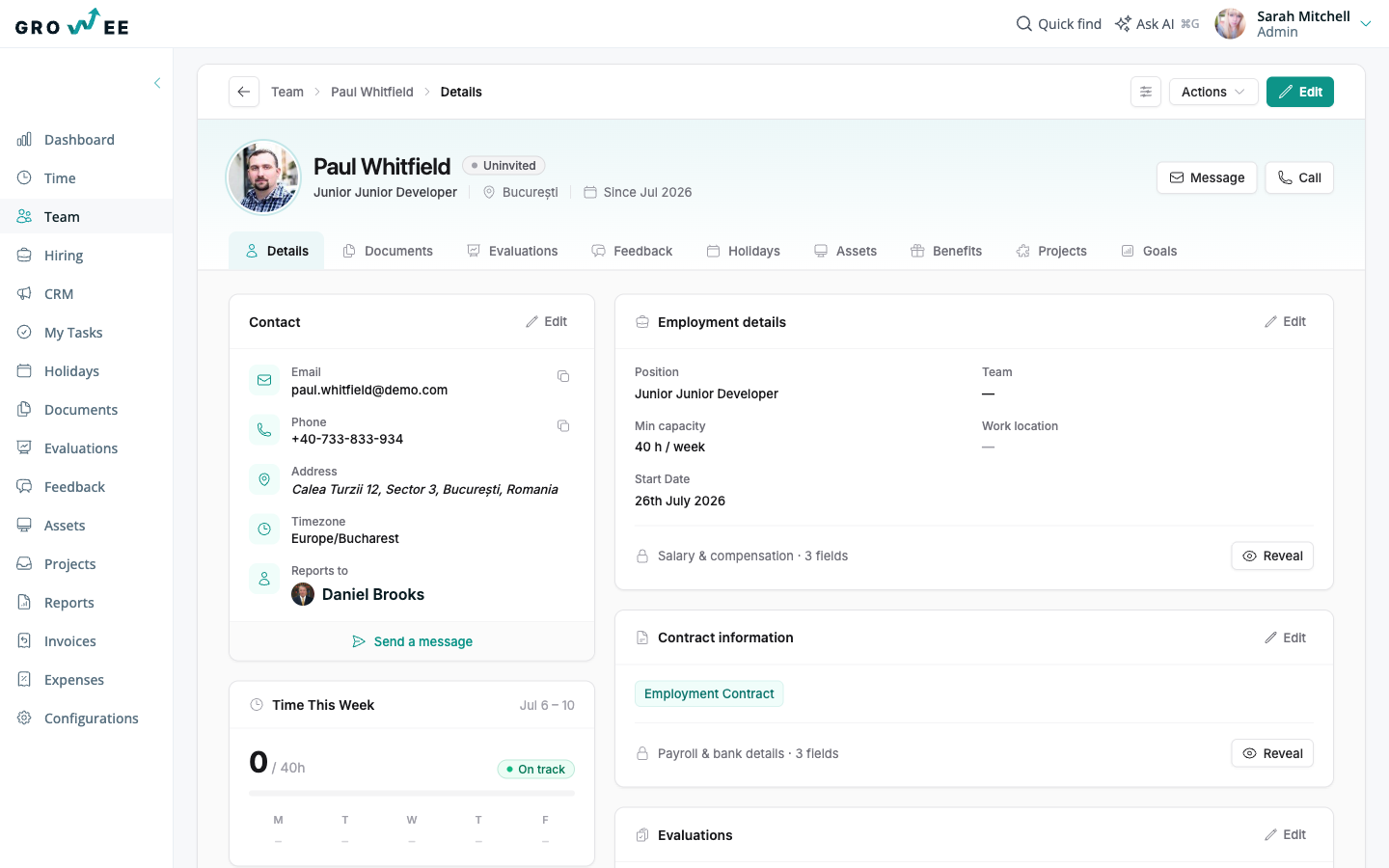
| Tab | What it covers |
|---|---|
| Details | The overview: contact information, employment details, contract information, time this week, holiday balances, and the birthday board card. |
| Documents | Documents generated for or uploaded to this employee. See Managing Documents. |
| Evaluations | Performance evaluations for this person. See Managing Evaluations. |
| Feedback | 360 feedback received and shared with the employee. See Feedback. |
| Holidays | Full holiday history and remaining balances. See Holiday Types and Balances. |
| Assets | Equipment assigned to the employee. See Asset Management. |
| Benefits | Benefits assigned to the employee. See Employee Benefits. |
| Projects | Projects the person is a member of. See Creating Projects. |
| Goals | Goals and OKRs set for the person. See Goals and OKRs. |
Birthday board
The Details tab includes a Birthday board card showing the person’s upcoming birthday. From there you can Create birthday board, a shareable page where teammates leave messages and photos. See Birthday Boards.
The team directory
The Team module doubles as a directory of everyone in your organization. Open it to see a list of all members along with their title, email, and status. Each member has a photo next to their name, which each person can update on their own profile.
Use the directory to see your colleagues and understand how the organization is structured. To review reporting lines visually, the Org Chart renders the company hierarchy from each profile’s Reports to relationship and updates automatically as you add people or reorganize.
View a colleague’s details
Click any person in the directory to open their Employee Details. How much information you see depends on your role: admins and HR see the full set of tabs described above, while an employee typically sees a more limited set of details.
From the directory you also get quick actions on each member:
- Edit: update the employee’s information.
- View: open the full details for that person.
The Status column
The Status column shows whether a member is currently part of the organization. When someone leaves, use the Archive option. Archiving removes the person from active modules such as Dashboard, Team, Time, Holidays, and Evaluations, but keeps them in the Reports module for accounting purposes. You can filter the directory to see archived employees when you need them. For how archived people appear in reporting, see Generating Reports.
Related articles
Need more help? Contact support or email support@growee.net.