Browse all articles
Document Types and Settings
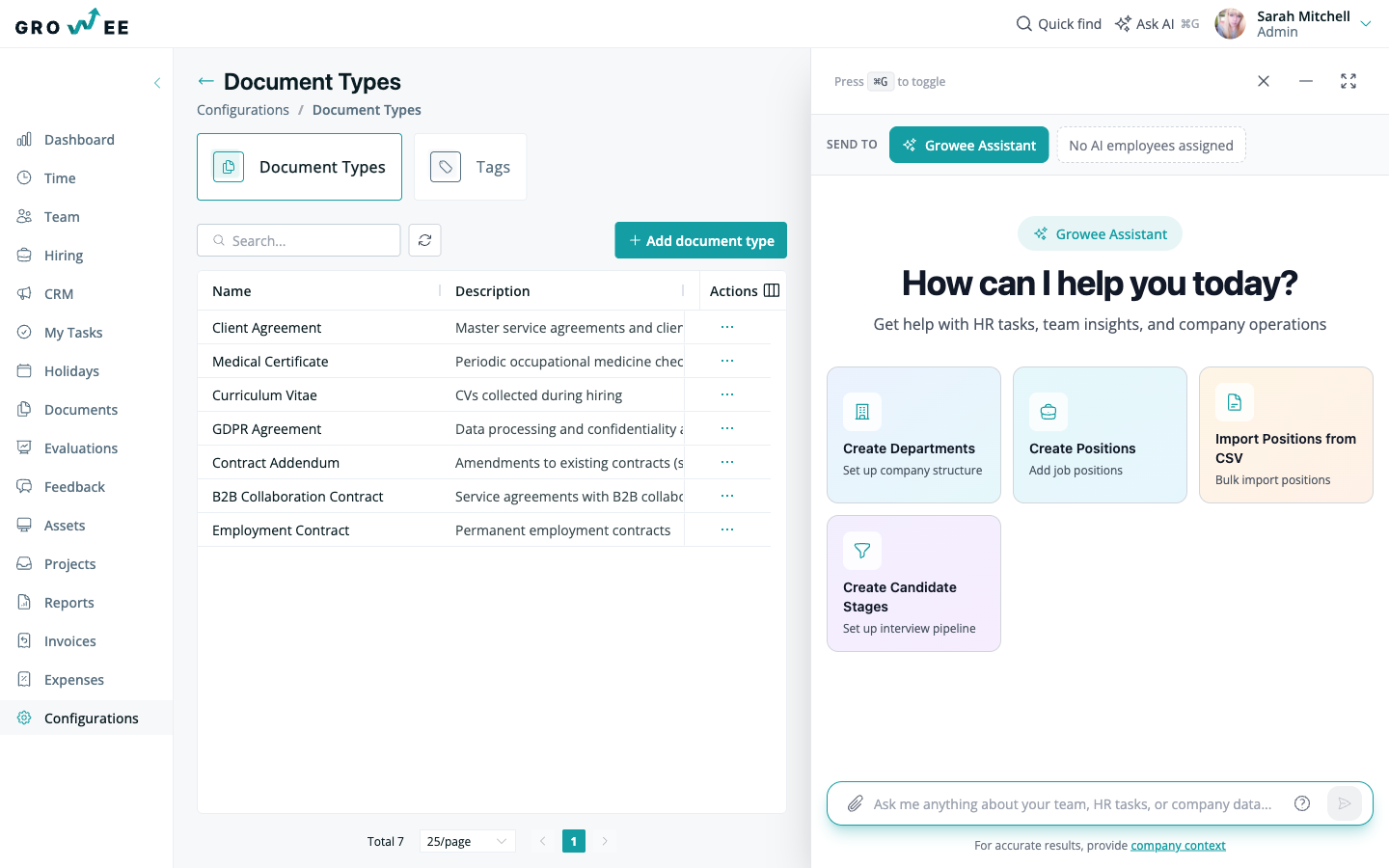
Document types are the categories you assign to files in the Documents module, such as Contract, Certification, or Policy. They keep your records organized and easier to find and filter. Users with administrative permissions, such as Admin or Manager, add and remove them from the account configuration. Once a type is saved it becomes available to every employee who uploads or views documents, and deleting one stops it being offered for new uploads.
This article is for Admins and Managers. It covers who can manage document types, how to add them, and how to remove ones you no longer need.
Who can manage document types
Document types are managed from your account configuration. Only users with administrative permissions, such as Admin or Manager, can add or remove them. Once a type is added, it becomes available to every employee when they upload or view documents.
For more on how roles control what people can do, see Roles and Permissions.
Add a document type
- Open the document settings in your configuration.
- Add a new document type and give it a name that matches how your company categorizes files, for example Contract, Certification, or Policy.
- Save your changes.
After you add a type, it becomes available in the Documents module and can be selected when someone uploads a document.
Use document types when uploading
When someone uploads a file, they pick a document type from the list you configured. Consistent, well-named types make it easier for your team to filter and find records later. See Managing Documents for the upload flow.
Edit or delete a document type
To remove a document type you no longer need, open its three-dot menu and select Delete. Existing documents keep their history, but the type is no longer offered for new uploads.
Related articles
Need more help? Contact support or email support@growee.net.