Browse all articles
Campaigns and Leads
Open a campaign’s Leads section and click Add Lead to enter one by hand, Import from CSV for a bulk file, or import a lead from LinkedIn. Download template gives you a file with the right columns for the CSV. The leads board then shows those leads as cards in columns, one column per stage, and you move a lead forward by dragging its card to the next stage.
View your campaigns
Open the CRM module from the main navigation to see your campaigns. Each campaign has a name, a status, an owner, a channel such as email, and a date range. Open a campaign to reach its dashboard and its leads.
Create a campaign
Create a new campaign from the CRM module, then give it the basics:
- A name that describes the outreach.
- The channel you will use, such as email.
- An owner, the person responsible for the campaign.
- A date range for when it runs.
Each campaign also has a brief that describes its goal and audience. The brief guides the AI when it drafts messages, and you can regenerate it at any time with Regenerate Brief.
Note: Every campaign starts with its own set of pipeline stages, so one campaign’s stages do not affect another’s.
The campaign dashboard
The campaign page opens on a dashboard that summarizes how the campaign is doing. Along the top you see:
- Leads: how many leads are in the campaign.
- Won: how many deals closed, and their value.
- Open pipeline: the value and count of leads still in progress.
- Win rate: the share of leads that closed as won.
- Emails sent and Replies: outreach volume and responses.
Below the numbers are the campaign brief and the campaign’s leads. Use the Leads board, Analytics, and Edit buttons at the top to switch to the pipeline, open the analytics dashboard, or change the campaign’s settings.
Add leads
From the campaign’s Leads section you can:
- Click Add Lead to add one lead by hand.
- Click Import from CSV to bring in leads in bulk. Use Download template first to get a file with the right columns.
- Import a lead from LinkedIn.
The leads pipeline
The leads board shows your leads as cards arranged in columns, one column per stage. Move a lead forward by dragging its card from one stage to the next. Click Add Stage to add a column to the pipeline.
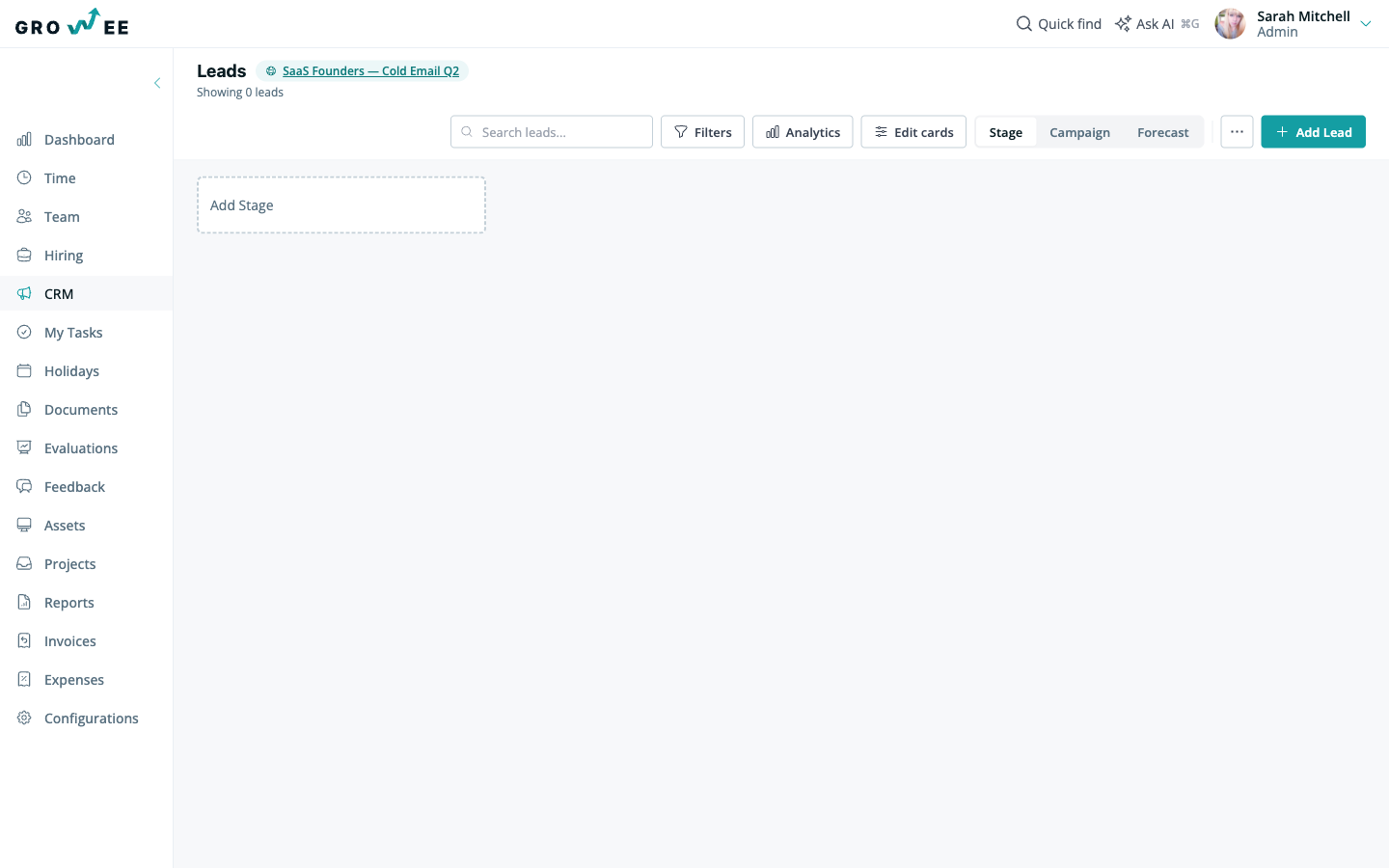
You can control how the board is organized and what it shows:
- Group by Stage, Campaign, or Forecast: switch how cards are grouped. Forecast groups leads by when you expect them to close, so you can drag a card to a different month to re-forecast it.
- Search leads: find a lead by name.
- Filters: narrow the board by owner, campaign, or stage.
- Edit cards: choose which details appear on each card, such as deal size, owner, or next follow-up.
- Analytics: open the pipeline dashboard with win rate, funnel, sources, and lost reasons.
Lead details
Click any lead card to open its details beside the board. From there you can:
- Edit the deal: expected revenue, close date, and win probability. Probability starts from an AI fit score until you change it.
- Read the timeline of emails, calls, meetings, and other touches in the order they happened.
- Add a note or set a follow-up date. Follow-ups appear in My Tasks.
- Copy a clean summary of the lead to paste into an AI conversation.
When a deal closes, you can convert the lead into a client so its history carries into your client records. See Managing Clients.
Related articles
Need more help? Contact support or email support@growee.net.