Browse all articles
Requesting Time Off
Open the Holidays module, click Request Time Off, select a holiday type such as paid leave, sick leave, or unpaid leave, choose your start and end dates, select your approver, add a short reason, then click Request Holiday to submit. Growee calculates the total number of days for the interval you select, taking weekends and national holidays into account, and emails your approver for final approval.
This article is for employees requesting their own time off. Managers, HR, and admins can also submit requests on behalf of team members. If you are approving requests instead, see Approving and Managing Leave.
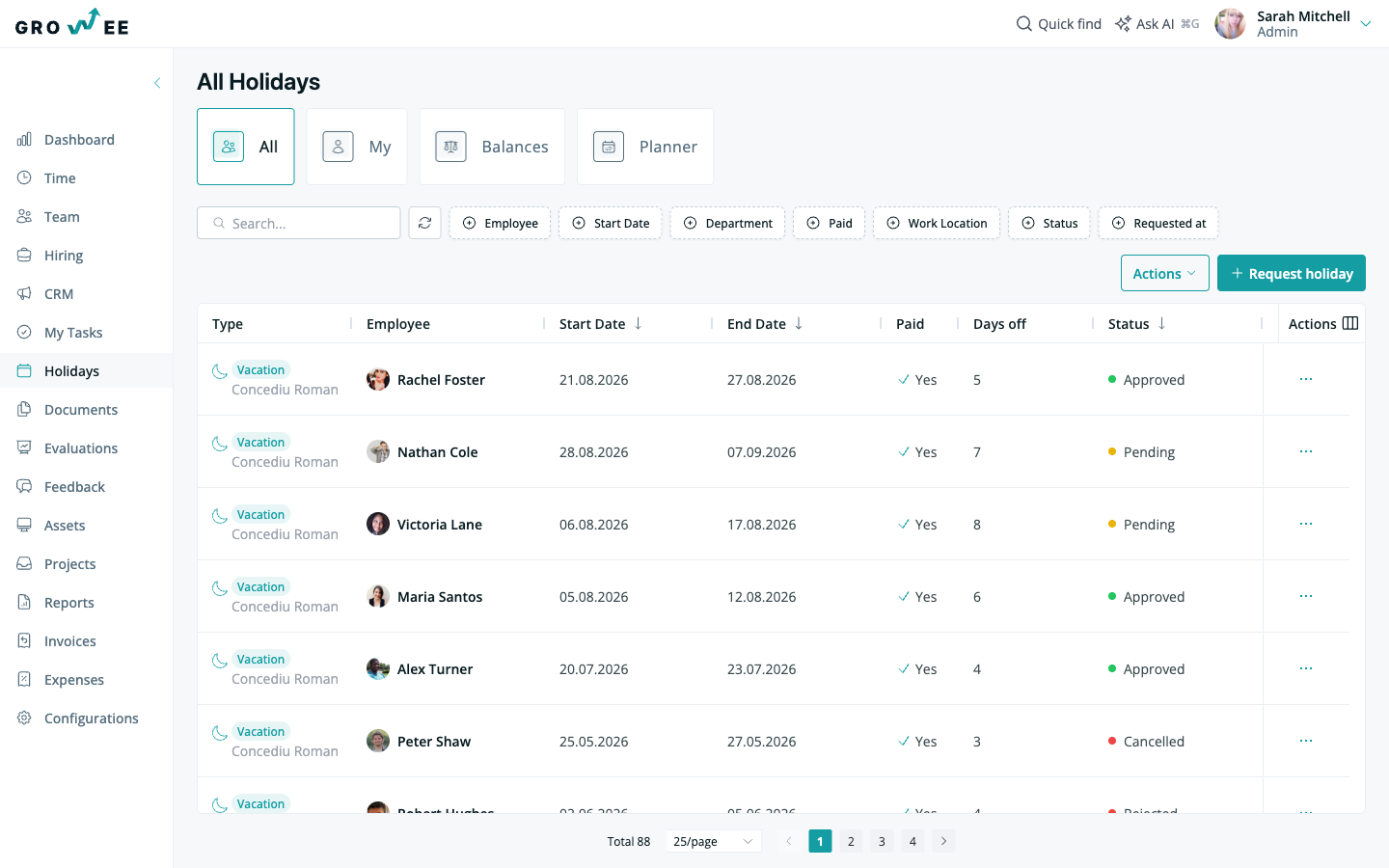
Request time off
- Open the Holidays module.
- Click the Request Time Off button.
- Select a holiday type (for example paid leave, sick leave, or unpaid leave).
- Choose the start and end dates for your time off.
- Select your approver.
- Add a short reason for the request.
- Click Request Holiday to submit.
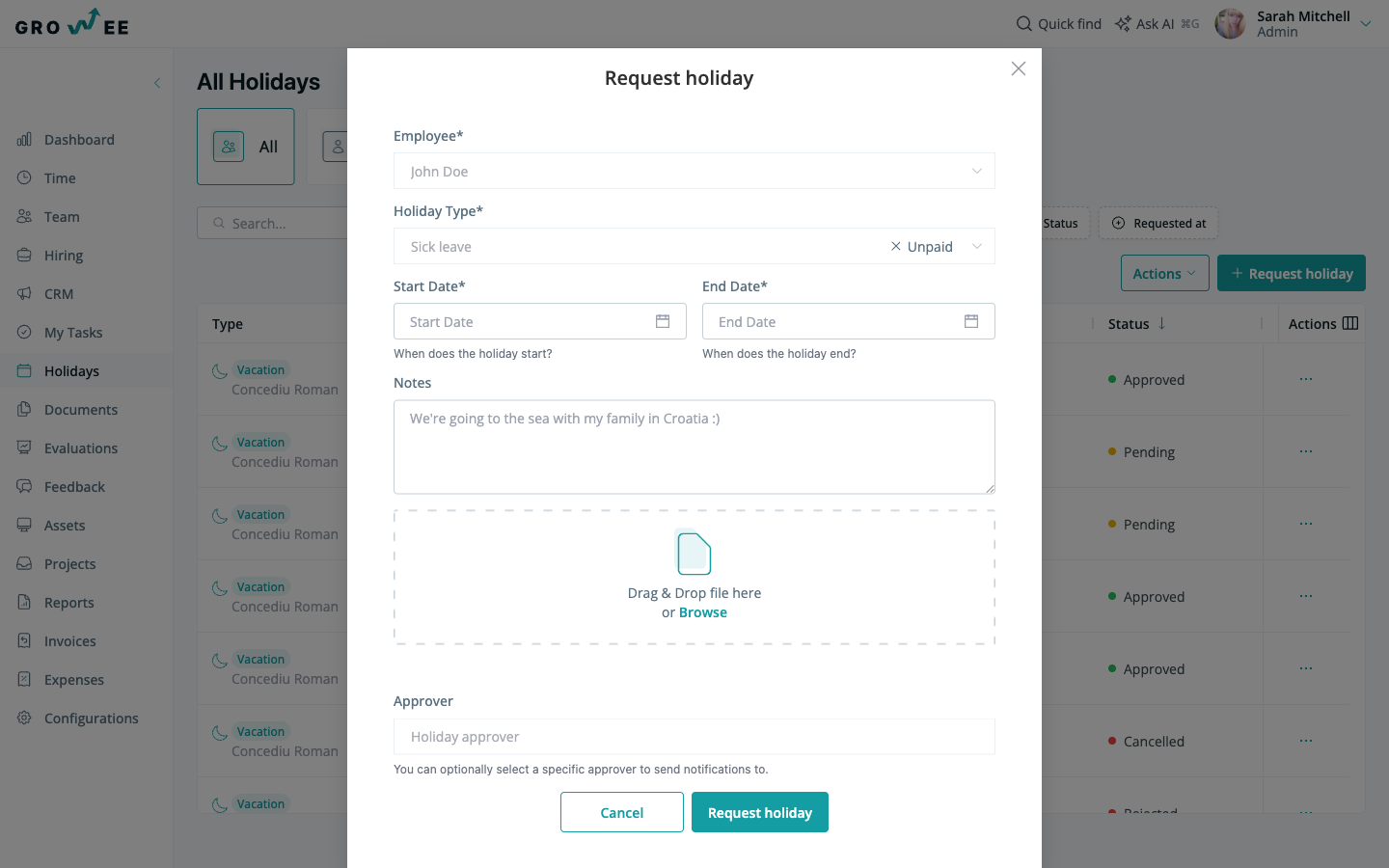
Growee calculates the total number of days for the interval you select, taking weekends and national holidays into account. Once you submit, an email is sent to your approver for final approval.
Choosing a holiday type
The holiday types available to you depend on your company’s configuration. Your organization sets up its own policies, so the list you see can include paid leave, sick leave, parental leave, unpaid leave, or any custom type your company has created.
Most leave types deduct from your available balance when approved. Unpaid leave is the common exception: it does not reduce your paid leave balance. The exact rules for each type depend on how your company configured its policies. See Holiday Types and Balances for how those policies are set up.
Requesting time off for someone else
If you have an HR, Manager, or Admin role, you can submit a request on behalf of another employee. The flow is the same: open the Holidays module, click Request Time Off, then select the employee, the holiday type, the dates, and the approver before submitting.
What happens after you submit
Growee uses hierarchical approvals, so the request goes to the manager or team lead responsible for you. That approver receives an email notification and can approve or reject the request in one click. When the request is handled, balances, attendance records, and calendars update automatically.
Check your remaining balance
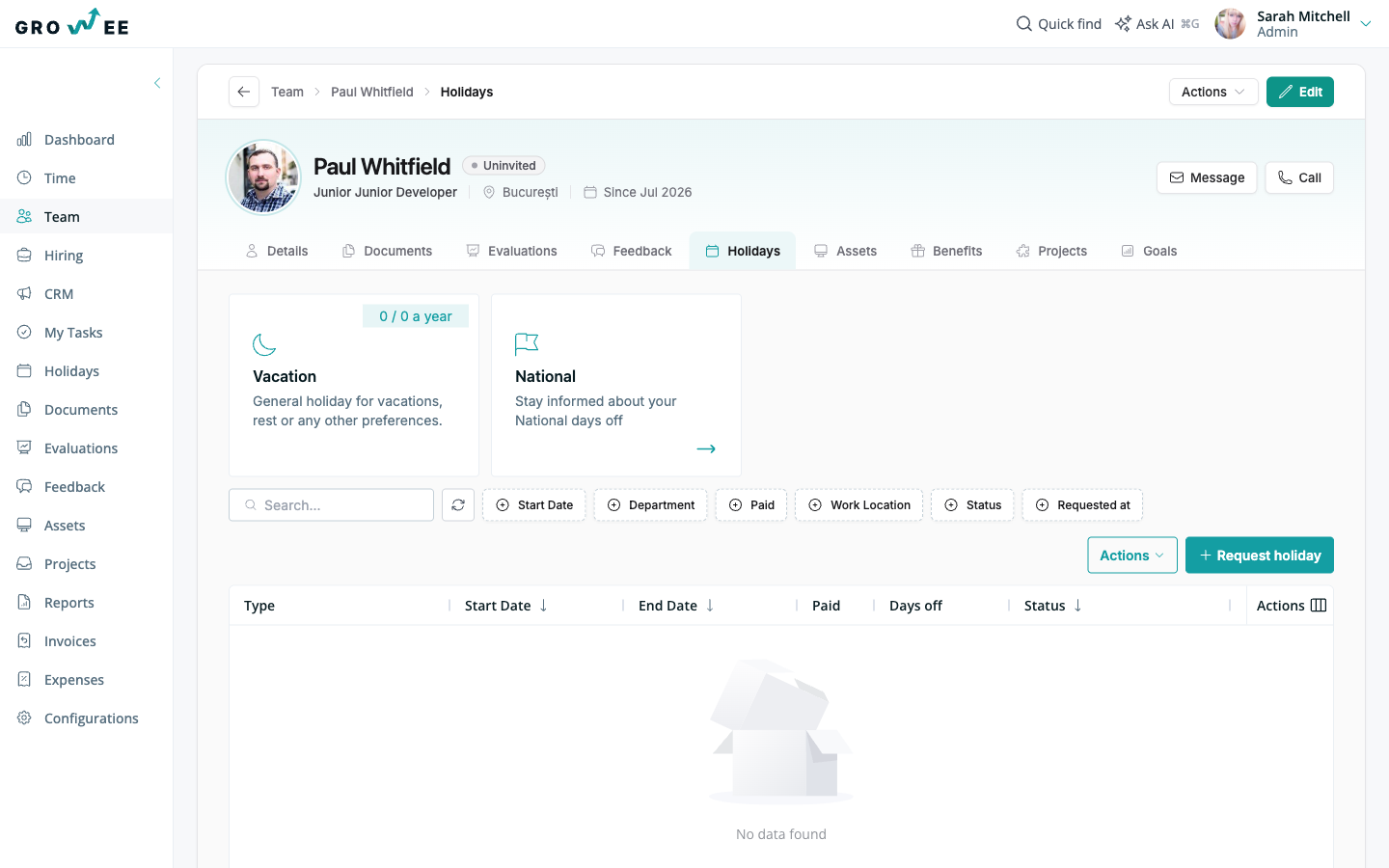
After a request is approved, you can review your leave history and remaining days in the Holidays module, under the My tab. Your remaining balance is also shown on your employee profile. This keeps your approved and rejected requests, and your current balance, in one place.
Related articles
Need more help? Contact support or email support@growee.net.