Browse all articles
Birthday Boards
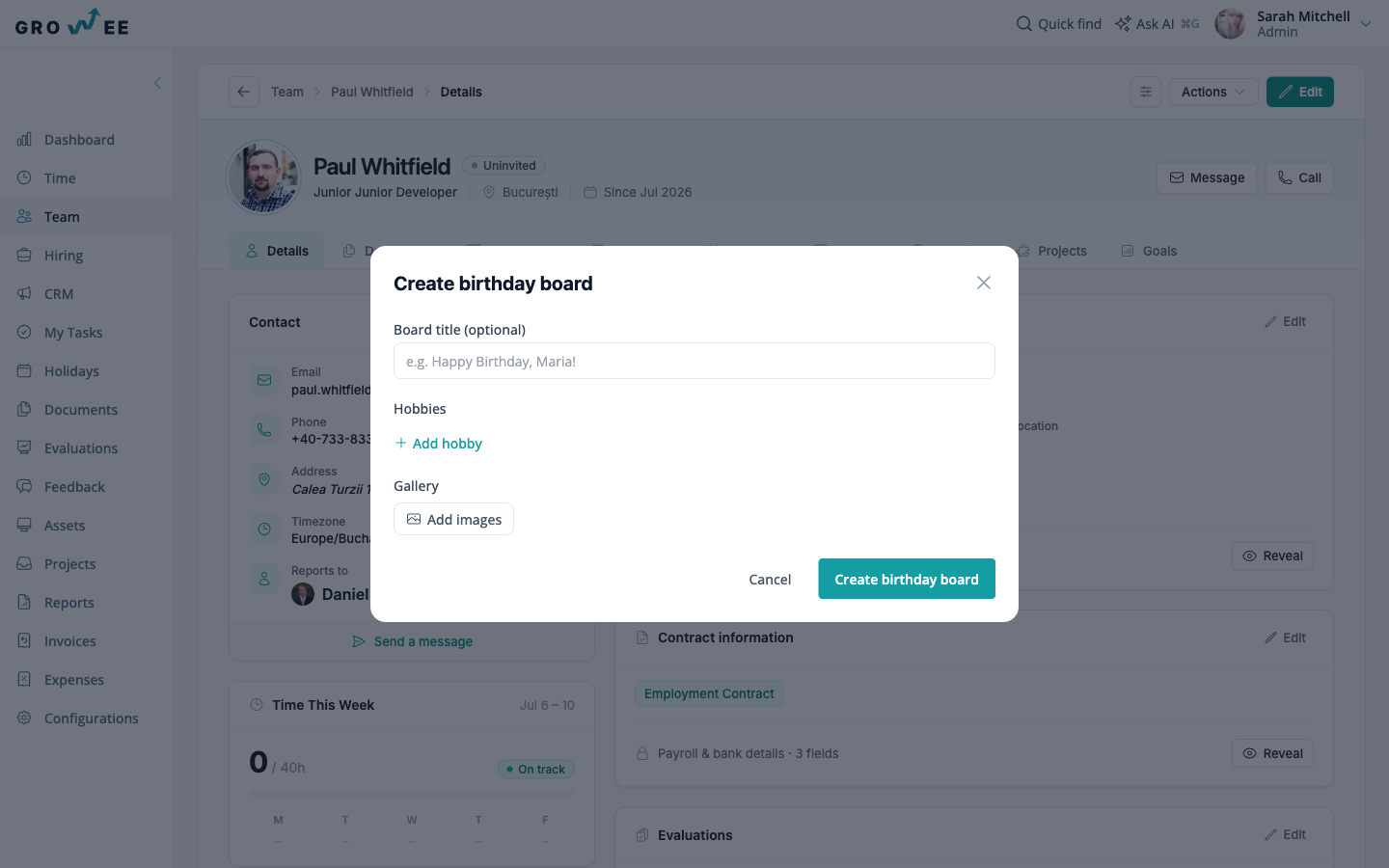
Open the employee’s profile from the Team module, go to the Details tab, and click Create birthday board on the Birthday board card. You can set a board title, add hobbies, and add images to the gallery. Once the board exists, use Copy public link to share it with the team. No Growee account is required to open the board or post a wish.
This article covers creating a board, sharing it, and how teammates add their wishes.
Create a birthday board
Every profile shows an upcoming birthday on the Details tab.
- Open the employee’s profile from the Team module.
- On the Details tab, find the Birthday board card.
- Click Create birthday board.
- Optionally set a Board title (for example, “Happy Birthday, Maria!”), add Hobbies, and add images to the Gallery.
- Click Create birthday board.
Share the board
Once the board exists, the Birthday board card on the profile shows the board title and the number of cards received, along with these actions:
- Open public view to see the board as teammates will.
- Copy public link to share it. The link has the form
/birthday-board/<id>and works for anyone who has it. - Edit to change the title, hobbies, or gallery.
- Delete to remove the board.
Share the public link with the team so they can add their wishes. No Growee account is required to open the board or post to it.
What is on the board
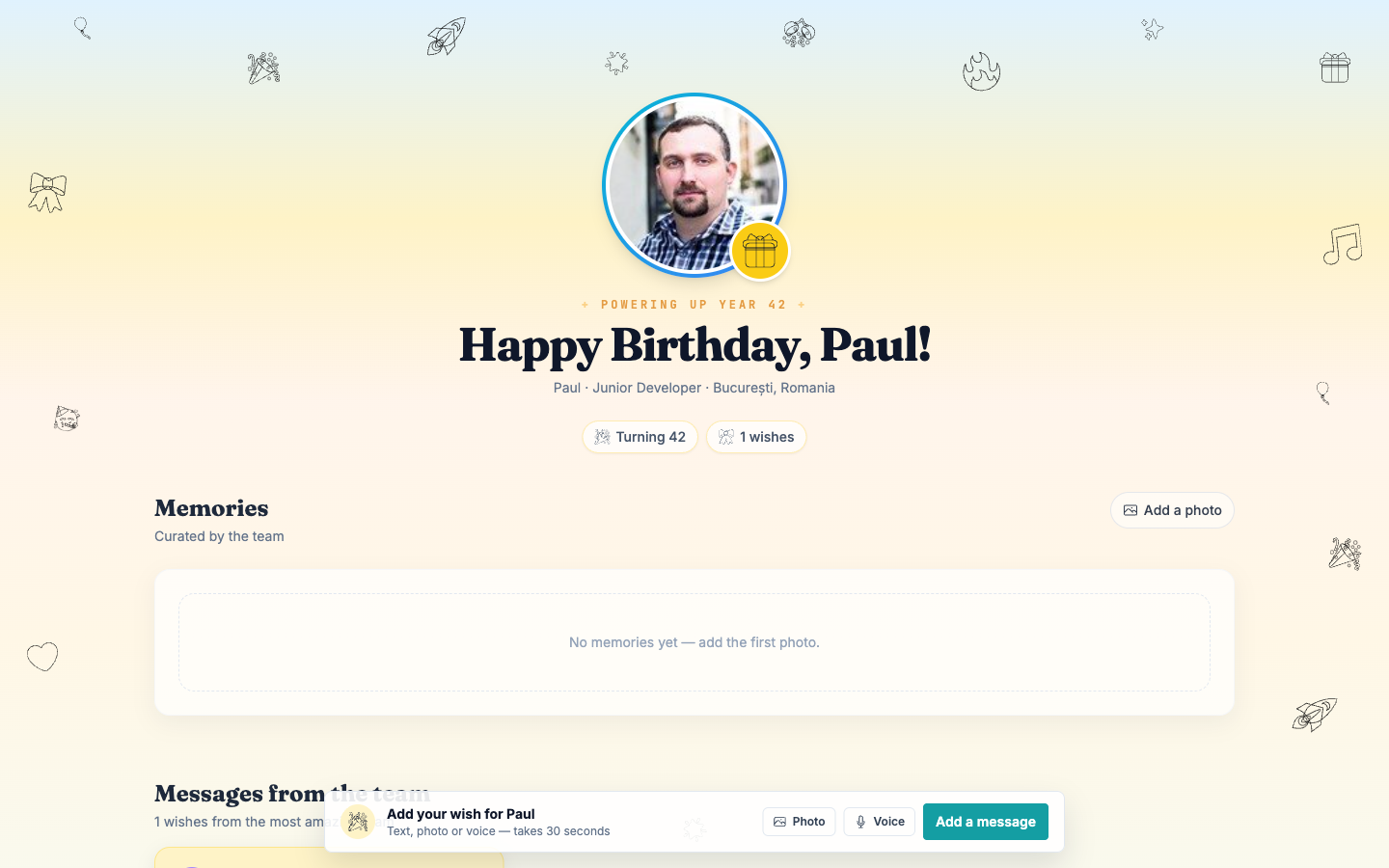
The public board leads with the person’s photo, a “Turning N” badge, and a running count of wishes. Below that are two sections:
- Memories: a photo gallery curated by the team, with an Add a photo button.
- Messages from the team: the written and media wishes people have left.
Add a wish
Anyone with the link can add a wish from the board:
- Click Add a message (or the Photo or Voice shortcut).
- Enter Your name.
- Write Your message in the rich-text editor. You can make text bold or italic and insert emoji, up to 1,000 characters.
- Optionally attach a photo with Add photo or record a clip with Record voice.
- Click Send message.
The wish appears in Messages from the team and the board’s wish count goes up.
Related articles
Need more help? Contact support or email support@growee.net.