Browse all articles
Managing Team Time
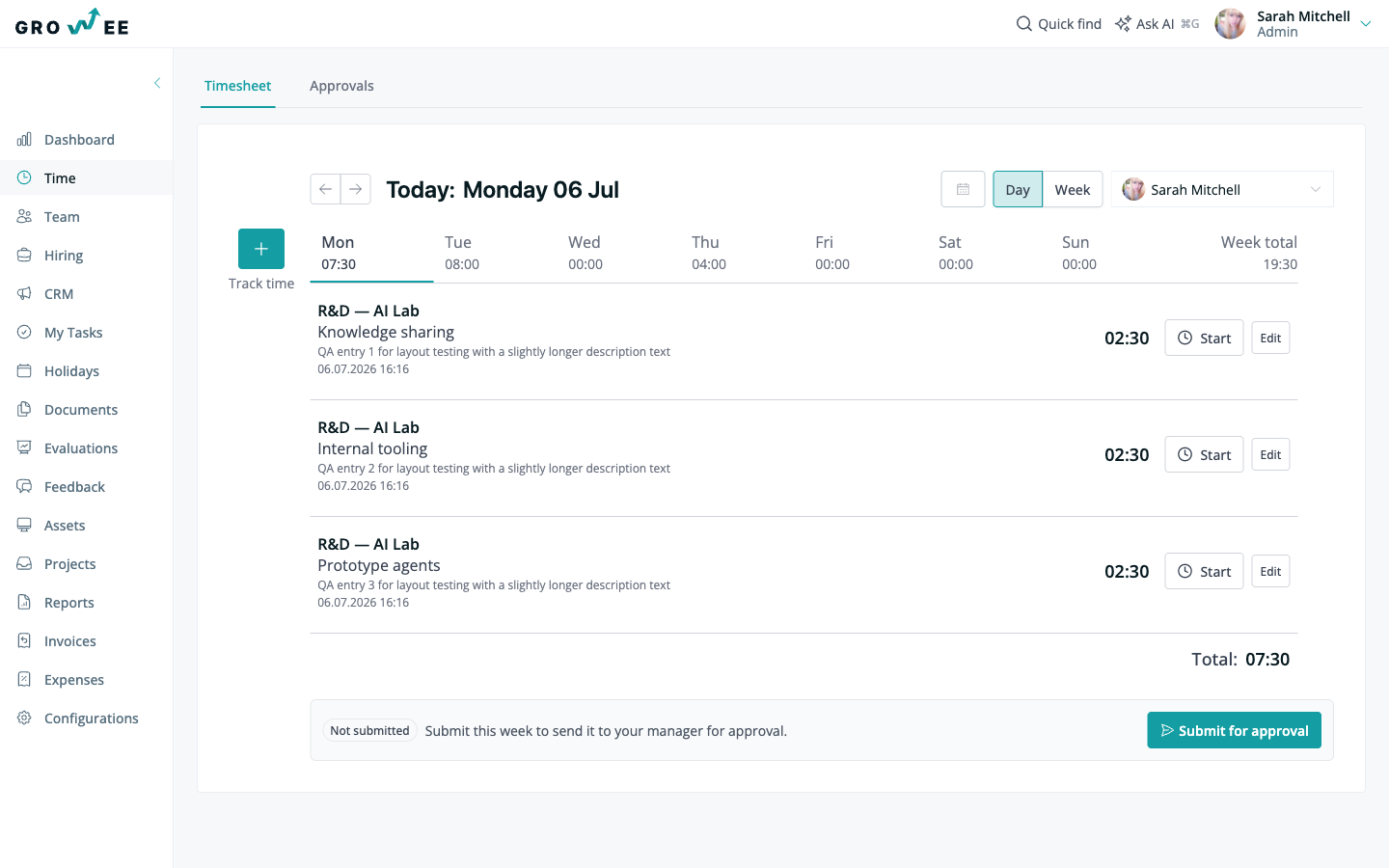
Yes. If you are signed in as an Admin, Manager, or HR, open the Time module, pick the person in the selector next to the Day and Week toggle, choose the date, then select the project and task, add notes, enter the hours, and save. You can enter time for a past or future day, and edit or delete any entry you logged for them afterwards.
This article covers adding time for an employee, editing or deleting their entries, and copying rows from a recent timesheet to avoid re-entering the same work. Adding time for someone else requires the right role, so see Roles and Permissions if you are not sure what you can access.
Add time for an employee
If you are signed in as an Admin, Manager, or HR, you can create a time entry for another employee. This keeps records accurate and avoids gaps when someone cannot log their own hours.
- Open the Time module.
- Select the employee in the person selector next to the Day and Week toggle.
- Choose the date. You can enter time for a past or future day if needed.
- Select the Project and Task, add any notes, enter the hours, and save the entry.
Edit or delete an employee’s time
You can update or remove an entry you logged for a team member the same way you manage your own.
To edit an entry:
- Select the date using the calendar.
- Select the time entry, then click Edit on the right side of the page.
- Make your changes and save.
To delete an entry:
- Select the date and open the entry.
- Click Edit.
- Click the trash bin icon.
- Confirm the deletion in the window that appears.
Copy entries from a previous timesheet
When the same projects and tasks carry over week after week, you do not have to enter them again. In the Time module, use the button that copies all rows from your most recent timesheet.
This brings the rows from your latest timesheet into the current week in one step. From there you can adjust the hours for each day, or edit and remove rows as needed, instead of building the whole timesheet from scratch. It works for your own timesheet and for an employee’s when you are logging time on their behalf.
Related articles
Need more help? Contact support or email support@growee.net.