Browse all articles
Managing and Configuring Invoices
Your invoices live in the Invoices module on the left side menu, which lists what has been created along with each invoice’s status and balance. Filter the list by status, such as draft, sent, or paid, by issue date to review a specific period, or by client. Combine the filters to answer a question like which invoices for a given client are still unpaid.
This article covers how to find your invoices, the filters available for reviewing them, and where to configure your invoice details. These areas require an admin role.
Access your invoices
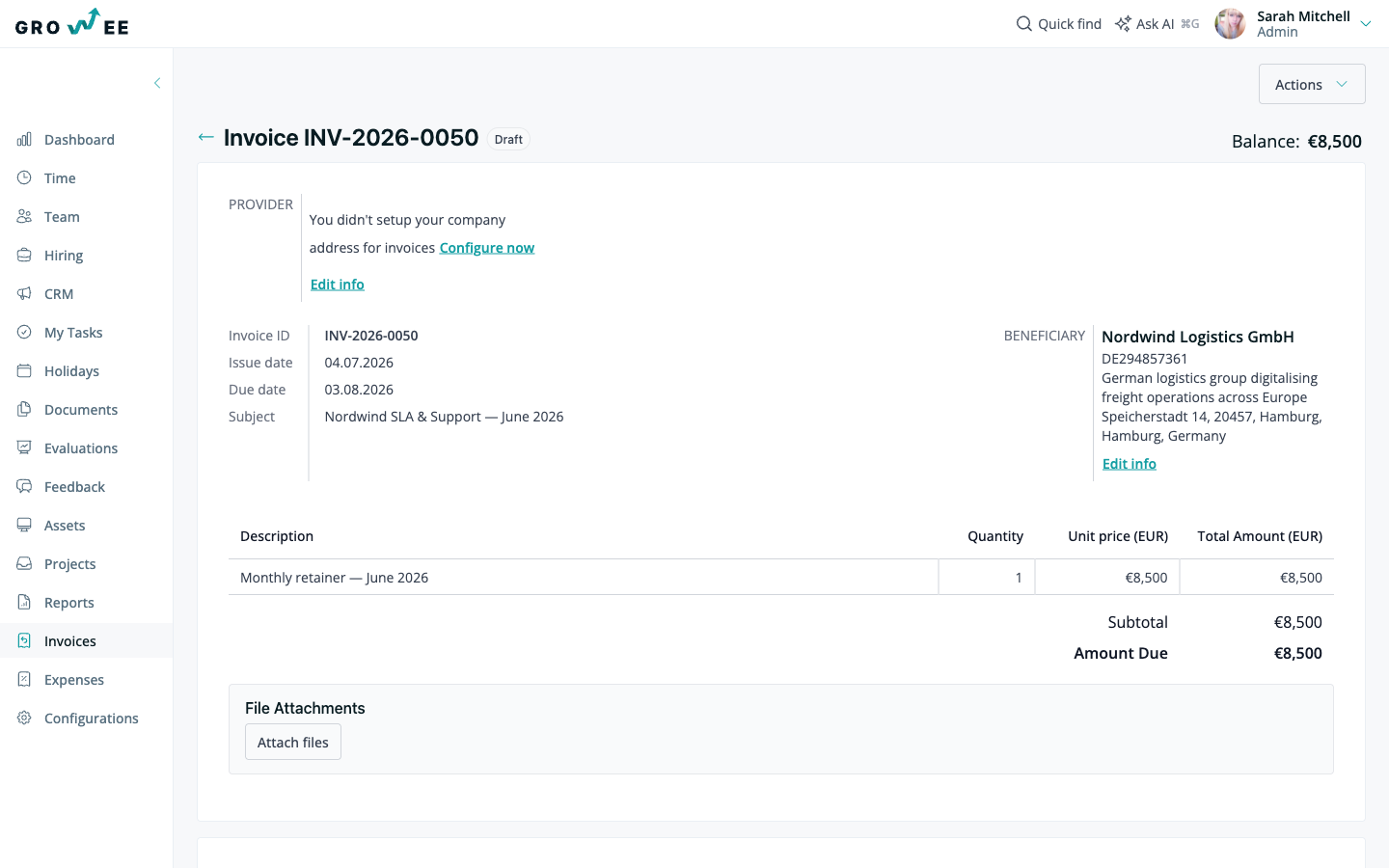
Your invoices live in the Invoices module on the left side menu. Open it to see the invoices that have been created, along with their statuses and balances.
Filter and review invoices
Growee provides filters that help you sort through invoices and find the ones you need. They are useful for reviewing everything that has been created and sent previously.
- Status: narrow the list to invoices in a particular state, such as draft, sent, or paid.
- Issue date: review invoices from a specific period.
- Client: focus on the invoices for one client.
Combine these filters to answer a specific question, for example which invoices for a given client are still unpaid.
Configure your invoice details
The invoice configuration is where you set up the information used when sending out invoices, such as your company address and logo. This information is applied to the invoices you generate, so your documents carry consistent company details. It is also where you control how your invoices are numbered.
Set these details once, and every new invoice picks them up automatically.
Related articles
Need more help? Contact support or email support@growee.net.