Browse all articles
Logging Time
Open the Time module and click Track time, then select the project and task you worked on, add notes, enter your hours, and click Create. Entries are stored against the day you have selected. If you prefer to fill a whole week at once, switch to the Week view, click Add Row, and enter hours for each day. Your weekly total appears on the right.
This article covers how to add a time log, move between days, log a full week, check your weekly total, and edit or delete entries you have already saved. It is for anyone who tracks their own hours.
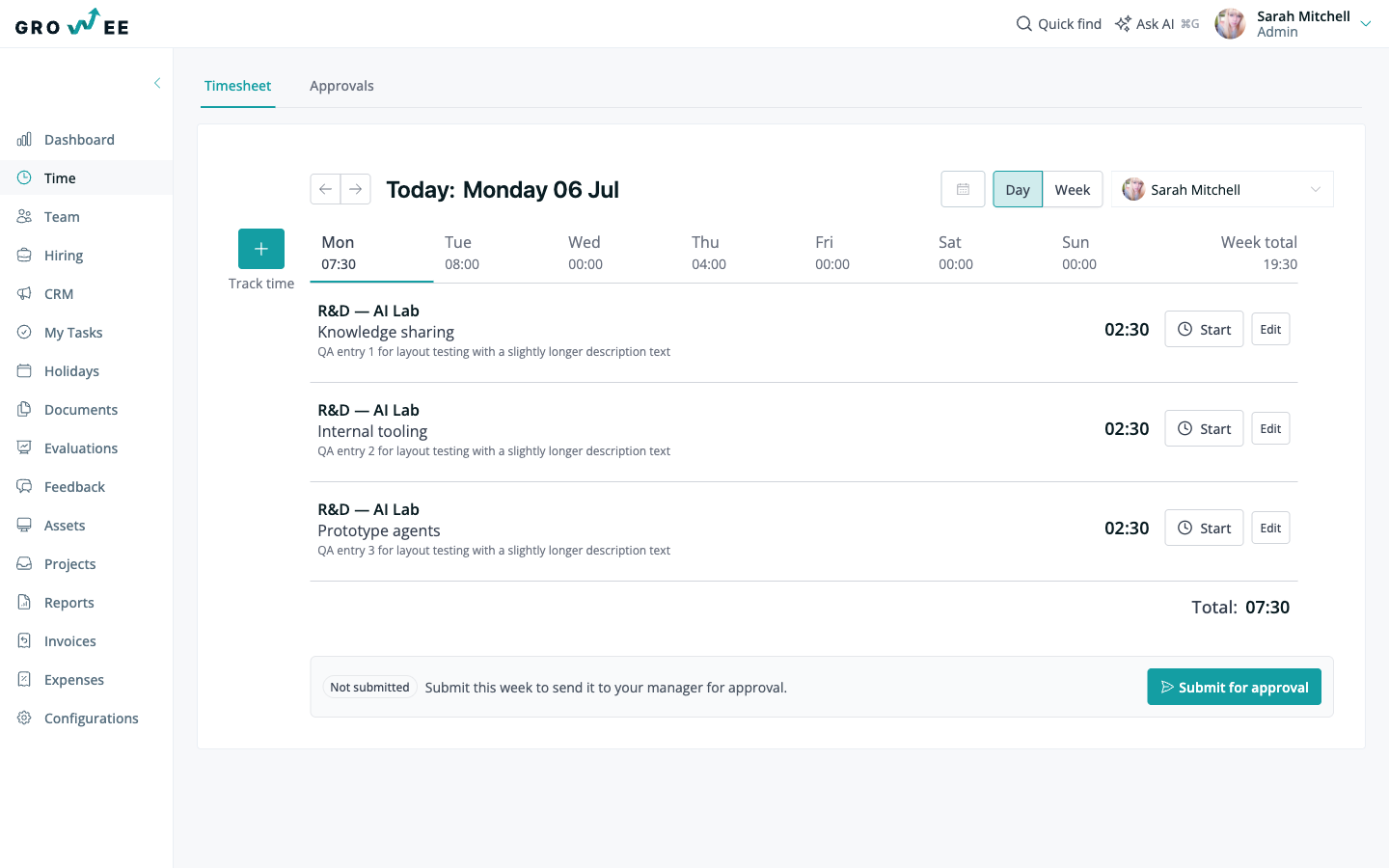
Add a time log
Open the Time module to start recording hours for the current day.
- Click Track time to open the entry form.
- Select the Project and the Task you worked on.
- Add any notes about the work, then enter the number of hours you spent on that task. You can mark the entry as a break to exclude it from worked-time totals, or pull the description from Google Calendar, GitHub, or Jira.
- Click Create to save the entry, or Start timer to start the clock instead.
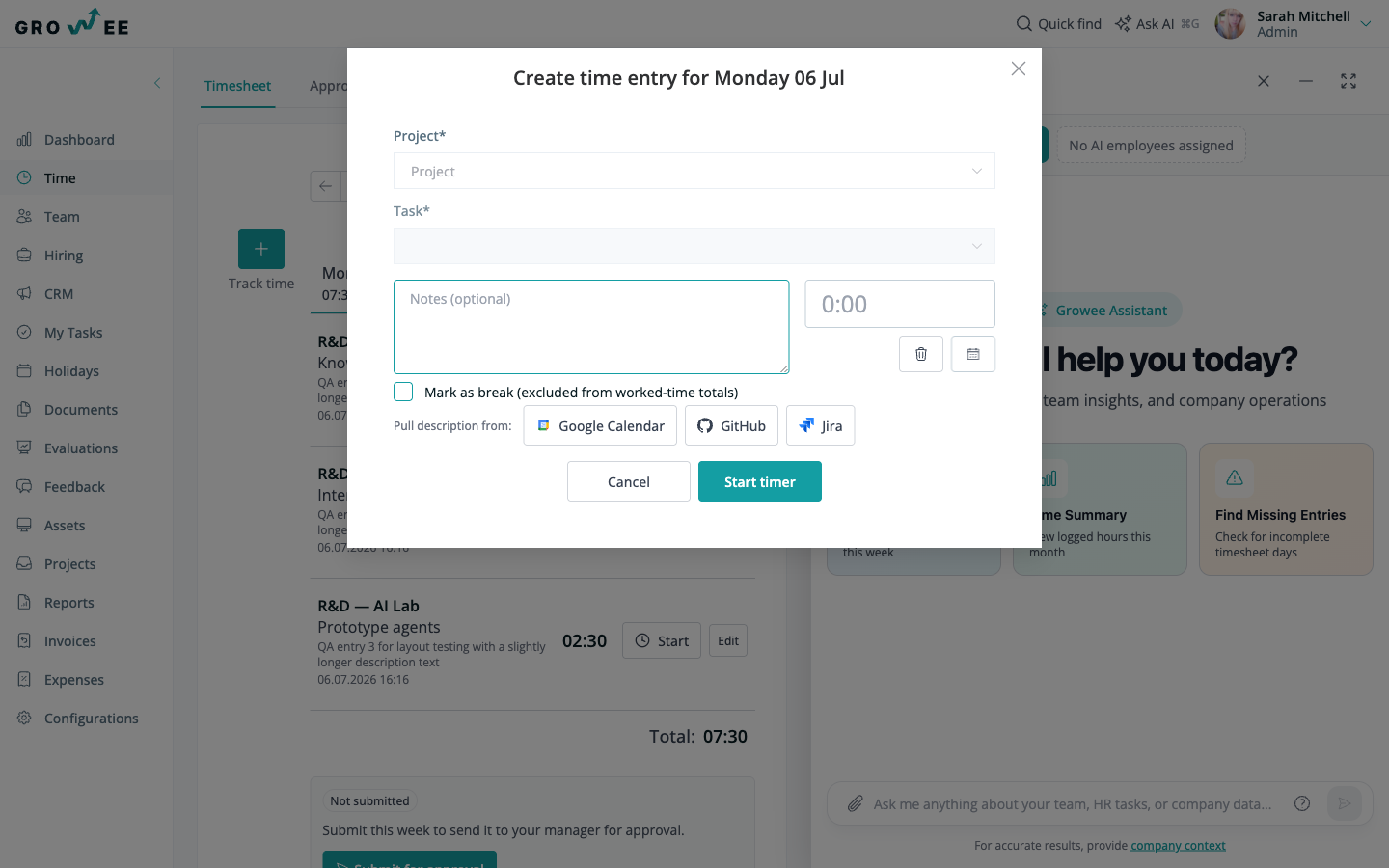
The entry is stored against the selected day. You can add as many entries as you need for a single day, one per project and task.
Move between days
By default the Time module shows the current day. To log or review time for a different day, use any of these:
- Click the day directly.
- Use the left and right arrows to step backward or forward.
- Pick a date from the calendar next to your name.
Log a full week at once
If you prefer to plan ahead, the Week view lets you enter hours for each day of the week in a single place.
- Switch to the Week view.
- Click Add Row.
- Select the Project and the Task for that row.
- Enter the hours worked for each day, then click Save Row.
Each row represents one project and task across the week, so you can fill in the days you worked without creating separate entries for each one.
Tip: If your tasks stay the same from one week to the next, you can copy the rows from your previous timesheet instead of adding them again. See Managing Team Time for how the copy button works.
View your weekly total
After you log time, the total hours for the week appear on the right side of the page. Use this running total to check that your week adds up to the hours you expect before your manager or HR reviews it.
Edit or delete an entry
Any time log can be changed or removed after you save it.
To edit an entry:
- Select the date of the entry using the calendar.
- Select the time entry you want to change.
- Click Edit on the right side of the page.
- Make your changes, then click Update.
To delete an entry:
- Select the date and open the entry.
- Click Edit.
- Click the trash bin icon.
- Confirm the deletion in the window that appears.
Billable time and rates
The hours you log against a project are valued using your billable rate on that project’s team. When you record time on a project and task, Growee applies your rate so the work carries a monetary value, not just a number of hours. See Creating Projects for how rates are configured.
This is what lets your logged time flow into the rest of Growee. The same entries feed Detailed Reports, where you can break hours and value down by project or person, and they can be pulled into Creating Invoices so you bill clients for the work that was tracked.
Related articles
Need more help? Contact support or email support@growee.net.