Browse all articles
Organizations and Contacts
An organization is the company record that groups your contacts, leads, activity, and documents under one account. Where a lead is a single deal and a contact is a single person, the organization is the account they all belong to. Every organization carries a lifecycle stage, from Lead through Marketing qualified, Sales qualified, Customer, and Churned, plus an owner, and its page gathers the account under four tabs: Overview, Timeline, Documents, and Offers.
What is an organization
Organizations sit alongside your contacts and leads. A contact or a lead can be linked to one organization, which lets you roll their activity and files up to the account level. Linking is optional: a standalone lead or contact still works exactly as before, and you only add an organization when you want to group records under a company.
Every organization has a Lifecycle stage that tracks where the account is in your funnel: Lead, Marketing qualified, Sales qualified, Customer, or Churned. Each organization also has an Owner, the teammate responsible for the account.
Open the Organizations section of the CRM module to see the list. You can search by name or domain, and filter the list by lifecycle stage or by owner. Click Add organization to create a new one, giving it a name and any details you have, such as domain, website, industry, company size, city, and country.
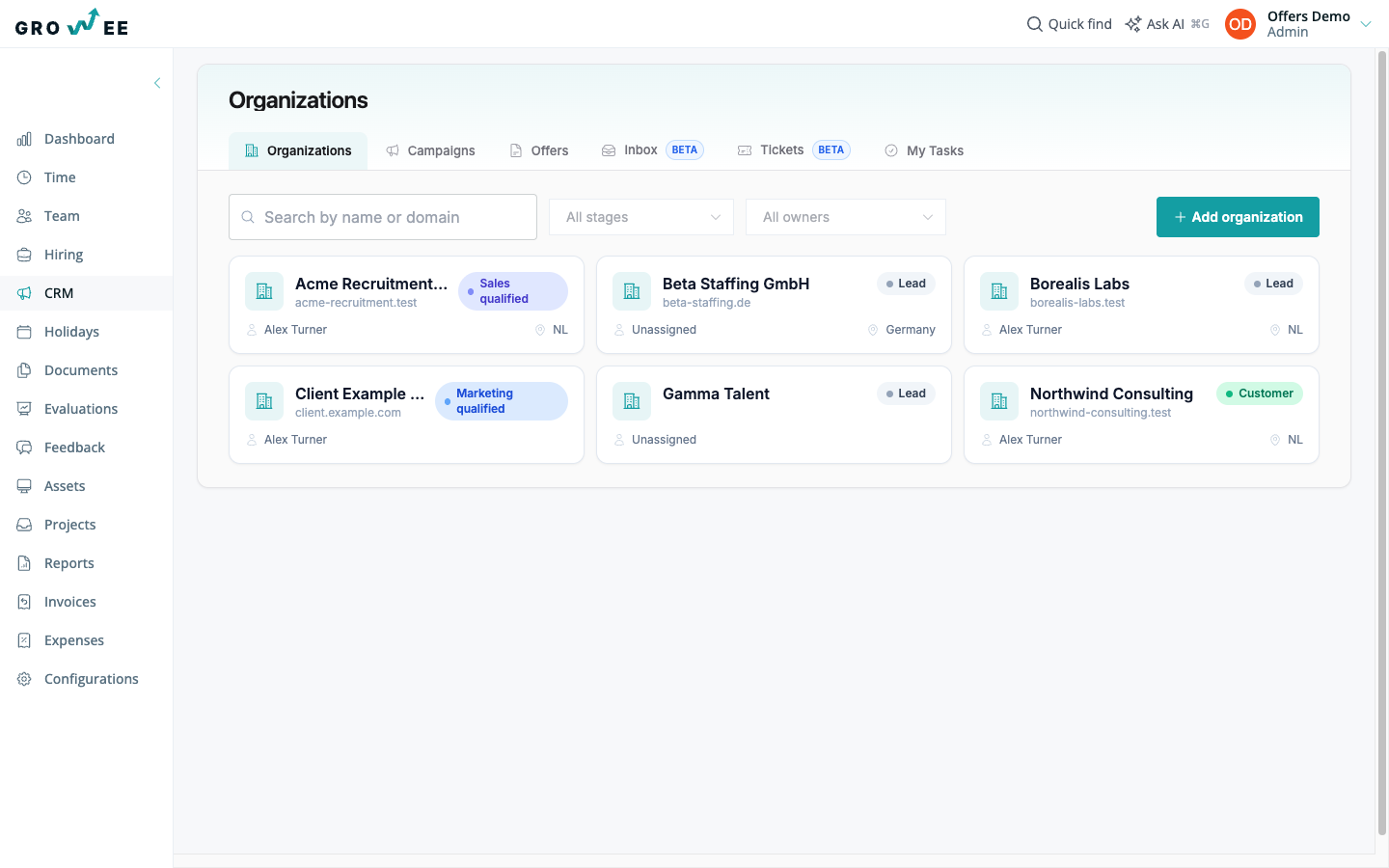
The organization page
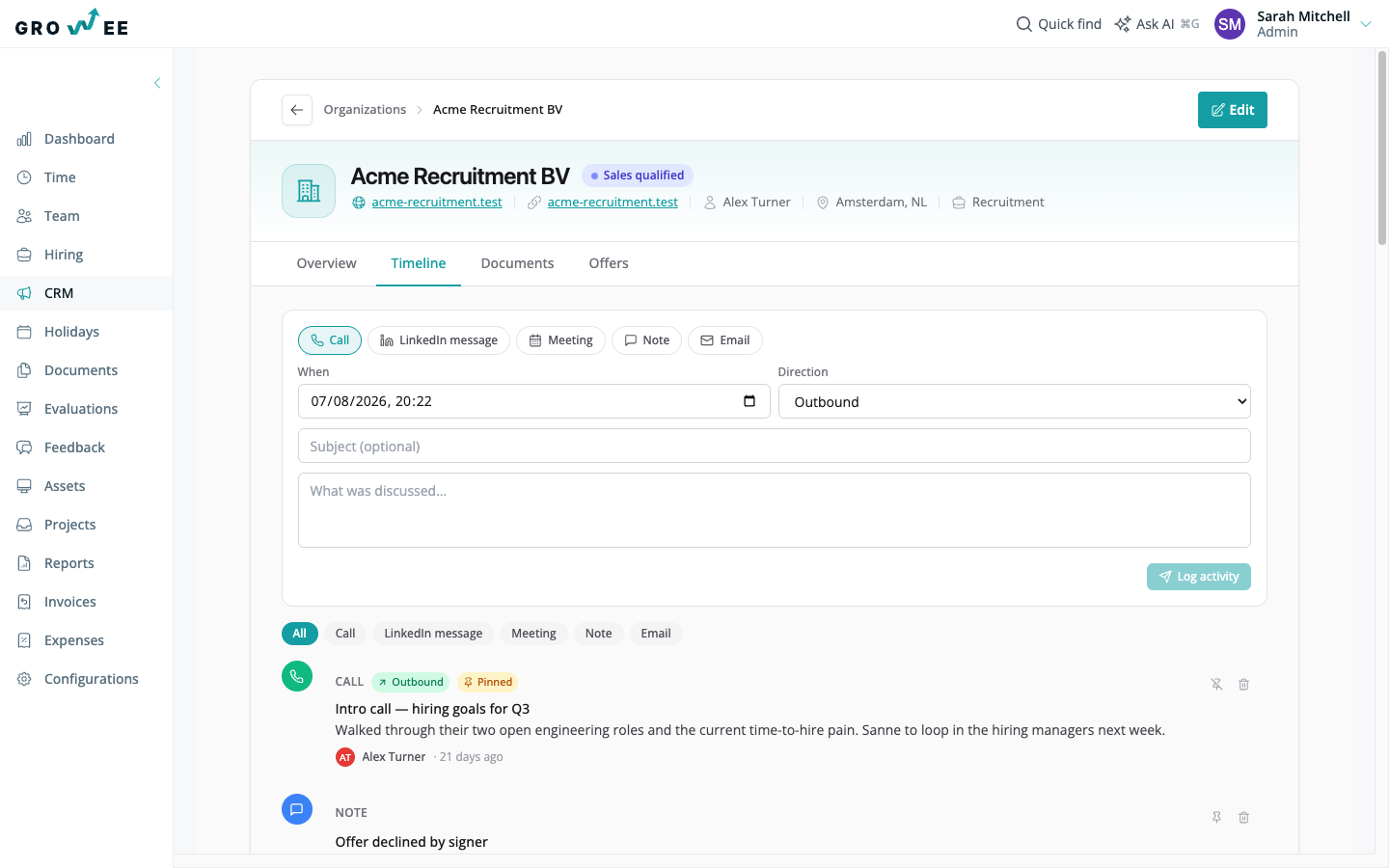
Open any organization to reach its page, which brings the whole account together under a header and four tabs: Overview, Timeline, Documents, and Offers. The Offers tab lists the offers sent to the account, so you can track quotes without leaving the record (see Offers and E-Signatures). Use Edit at the top of the page to change the organization’s details or its lifecycle stage.
Overview
The Overview tab lists the Contacts and Leads linked to the organization at a glance. Each contact shows its name, position, and email addresses; each lead shows its stage and owner, and you can click a lead to open it. This tab also shows any Custom Fields you have added for the account.
Timeline
The Timeline tab is a single feed that rolls up activity across the whole account. It shows the organization’s own activity plus everything logged on any lead or contact linked to it, so no touchpoint is siloed on an individual record. You can filter the feed by activity type using the chips above it, and log a new activity from the composer at the top.
Documents
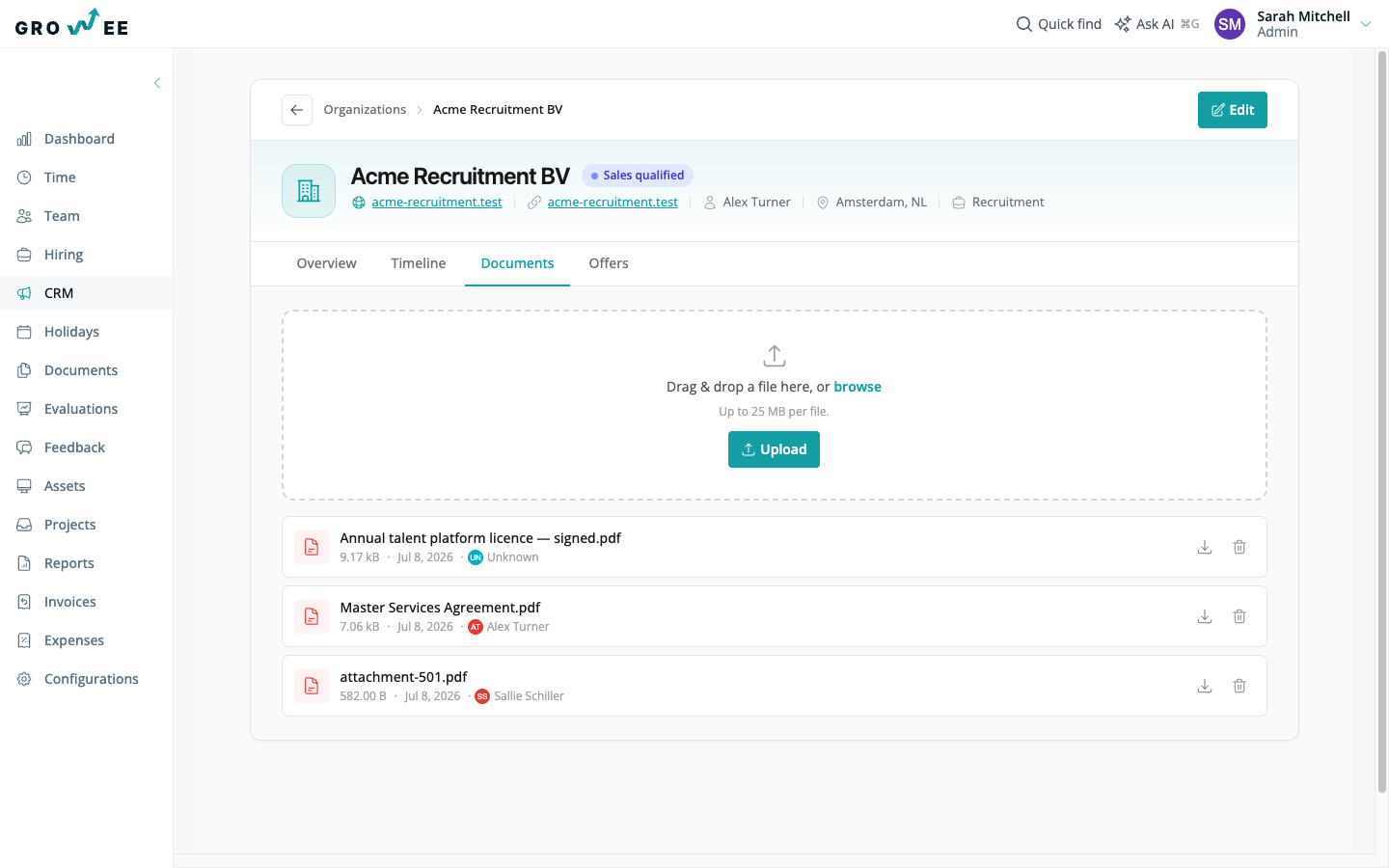
The Documents tab collects every file for the account in one place. It works the same way as the Timeline: a file uploaded on a linked contact or lead also surfaces here, alongside anything uploaded directly to the organization.
Linking contacts and leads to an organization
You link a contact or a lead to an organization from the Organization field on its form, using the Link to an organization picker. Start typing to search your existing organizations and select one.
If the company you need does not exist yet, you can create it without leaving the form. Click the plus button next to the picker, enter the organization name, and click Create. The new organization is created and selected right away, and you can fill in its other details later from its own page.
Note: Linking is only needed when you want a lead or contact grouped under an account. Records without an organization still appear and work as they always have.
Logging activity
Activity is how you keep a record of every touchpoint with an account. You log it from the composer at the top of the Timeline, on an organization, a contact, or a lead. There are five activity types:
- Call: a phone call with the contact.
- LinkedIn message: a message exchanged on LinkedIn.
- Meeting: a meeting you held.
- Note: a free-form note for anything else.
- Email: an email you sent or received.
Pick the type, then fill in the details. For calls, LinkedIn messages, and emails you also set a Direction, either Outbound or Inbound, so you can tell who reached out. Add a subject and a body, then click Log activity.
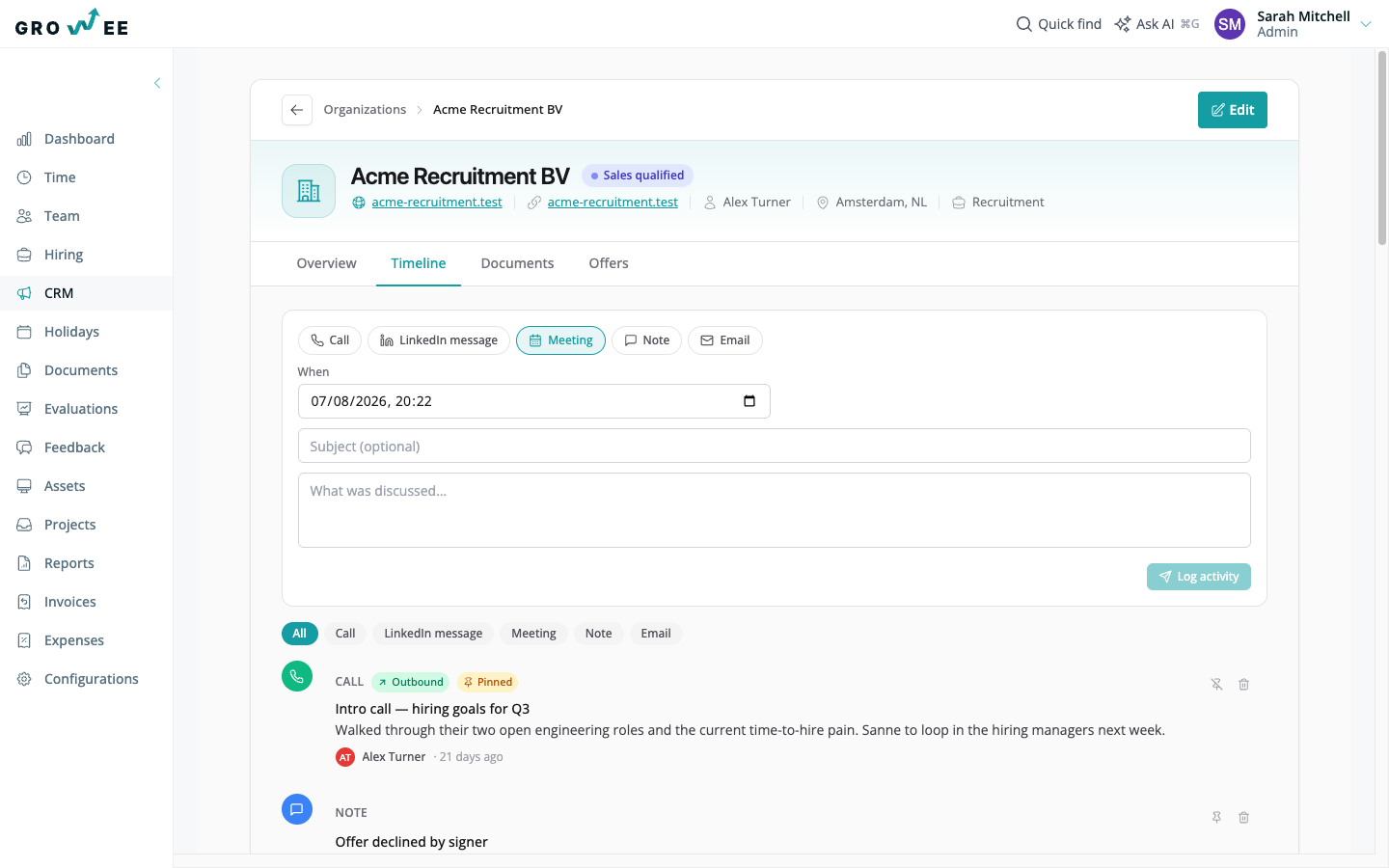
You control when each activity happened and which ones stand out:
- Backdate an activity: the When field defaults to now, but you can set it to any earlier date and time to record something that happened last week or last month with its correct date.
- Pin an activity: use Pin to keep an important activity at the top of the timeline, above the rest of the feed. Use Unpin to return it to its place in the order.
- Filter by type: use the chips above the feed to show only one activity type, or All to see everything.
Custom fields
Custom fields let you capture data specific to your business on an organization, such as an industry, a contract value, or an account tier. Each field is defined once and then filled in per organization, and the values appear in the Overview tab. When an organization has no values yet, you see a prompt to add them; click it to fill the fields in and save.
What is not covered yet
A few things a power user might expect are not part of this release:
- Organizations cannot be merged or deduplicated yet, so avoid creating two records for the same company.
- Contacts are not linked to an organization automatically by matching their email domain. You link them yourself from the contact form. (Inbound email filing does use domain matching, but that is a separate feature covered in Inbox and Tickets.)
- The organizations list does not have saved views or bulk actions yet.
Related articles
Need more help? Contact support or email support@growee.net.