Browse all articles
Custom Fields
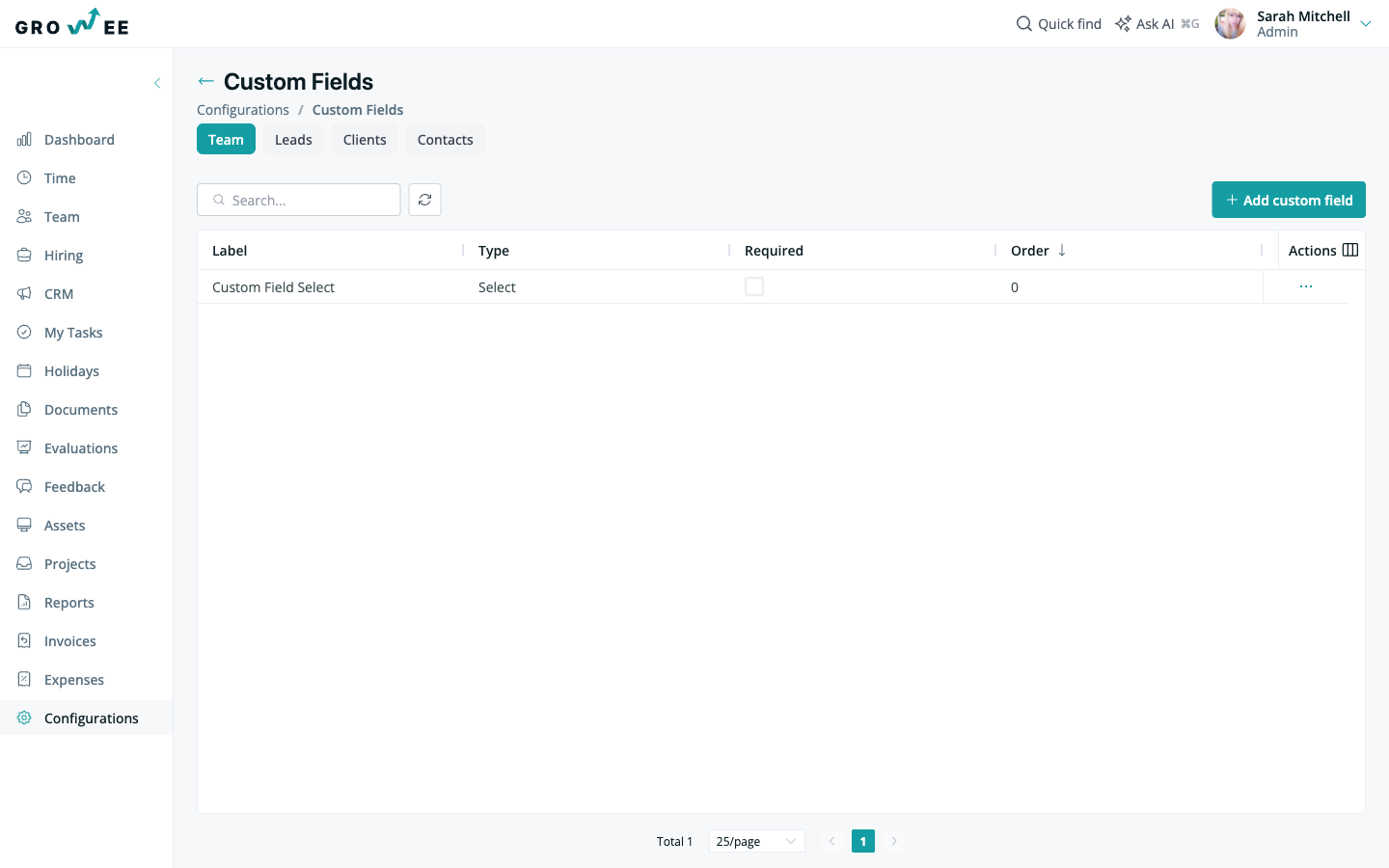
Open Configurations and go to Custom Fields. Select the entity type you want to extend, Team, Leads, Clients, or Contacts, then click Add custom field, fill in the details, and save. Each field records a label, a type such as a select list, whether it is required, and the order it appears in. A field added under Team then shows on employee records.
This article covers where custom fields live and how to add one. Managing custom fields is aimed at admins.
Where custom fields live
Custom fields are part of your company configuration.
- Open Configurations.
- Go to Custom Fields.
Choose an entity type
Custom fields are grouped by the type of record they belong to. Use the buttons at the top to switch between entity types before adding or reviewing fields:
- Team for employee records.
- Leads for CRM leads.
- Clients for clients.
- Contacts for contacts.
A field you add under Team, for example, shows up in the Custom Fields section when you create or edit an employee.
Add a custom field
- Select the entity type you want to extend.
- Click Add custom field.
- Fill in the field details and save.
Each custom field is listed with the following properties:
| Property | What it defines |
|---|---|
| Label | The name shown for the field on the record. |
| Type | The kind of input, such as a select list. |
| Required | Whether the field must be filled in. |
| Order | Where the field appears relative to others. |
Related articles
Need more help? Contact support or email support@growee.net.