Browse all articles
Generating Reports
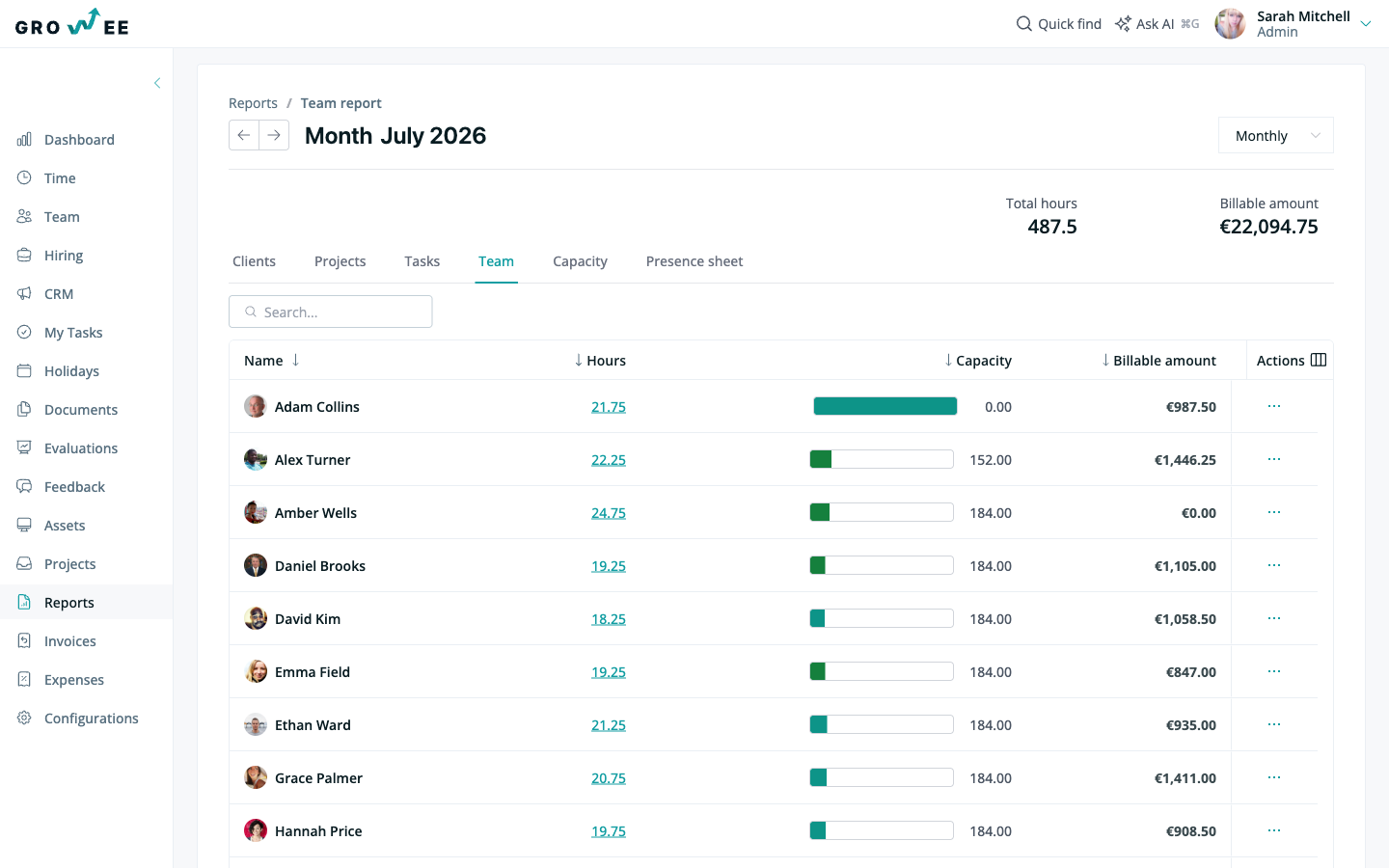
Open the Reports module, select the tab you need, Clients, Projects, Tasks, Team, Capacity, or Presence sheet, then set the period and any other filters. The results update on screen as you adjust the selection. Admins, managers, and HR see reports across the whole company, while employees generate reports for their own logged hours. Detailed reports can be exported as a PDF sent to your email.
This article covers the report types available, how to generate a report, the filters you can apply, and how to export a detailed report. Admins, managers, and HR see reports across the whole company, while employees can generate reports for their own logged hours.
Report types
The Reports module groups reports into tabs at the top of the page. Each tab answers a different question about how time is being spent.
| Tab | What it shows |
|---|---|
| Clients | Hours and value grouped by client. |
| Projects | Hours and value grouped by project. |
| Tasks | Hours and value grouped by task. |
| Team | Hours logged per employee for the selected period. |
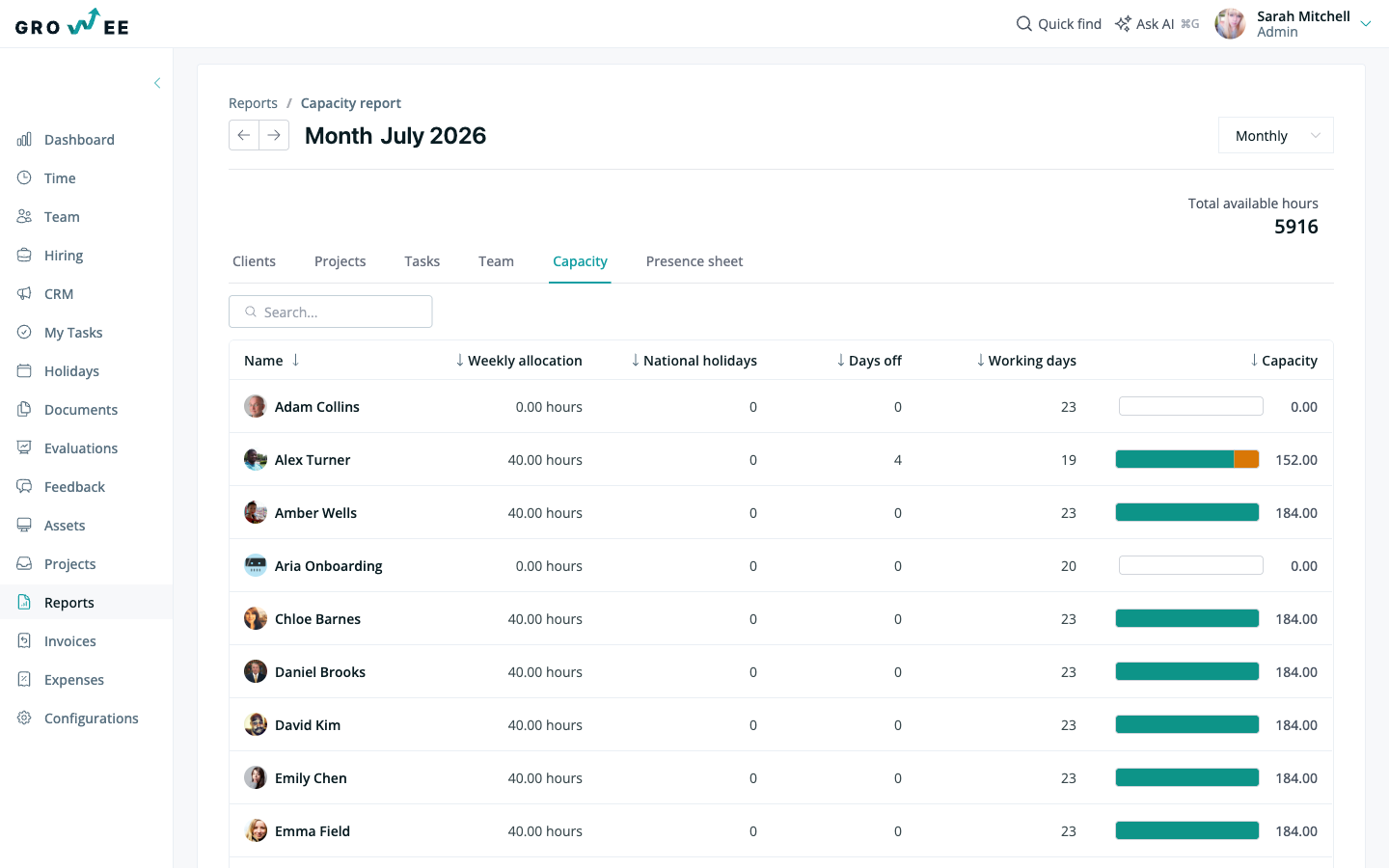
| Capacity | Each employee’s logged workload measured against their available capacity. |
| Presence sheet | A monthly attendance sheet used for payroll and holiday balances. See Presence Sheet Report. |
The Capacity tab helps you spot who is over- or under-loaded across a period.
Tip: Click any hours value in a report to drill into the Detailed report, which lists the individual time entries behind that number.
Generate a report
- Open the Reports module.
- Select the tab for the report you want: Clients, Projects, Tasks, Team, Capacity, or Presence sheet.
- Set the period and any other filters you need (see below).
- Review the results shown on screen.
The data updates to match the filters you apply, so you can adjust the selection until the report shows exactly what you need.
Filtering options
Filters let you refine the data so a report answers a specific question. You can filter by team, task, project, and date range.
- By team member: focus on a single employee to see the hours they logged for their assigned tasks.
- By task: look at a specific task and the people who worked on it.
- By project: see everyone assigned to a project, their tasks, and the hours logged against it.
- By period: filter by week, month, quarter, year, or the entire active period. Set the time frame that matches the analysis you are running.
As an admin, manager, or HR, you can select a broader range of dates, be more precise about which tasks and people are included, and receive the result as a PDF by email. An employee can generate a report for the hours they have logged themselves.
Export a detailed report
Detailed reports can be exported as PDF files and sent to the email of the person running the report.
- Generate the report you want, applying the filters that define the period, people, and tasks.
- Use the export option on the detailed report to send it to your email.
- Open the email you receive. It contains a download link for the generated report.
- Download and save the PDF.
Because the export is delivered by email, you keep a copy of each report you run without having to regenerate it later.
Related articles
Need more help? Contact support or email support@growee.net.