Browse all articles
Creating Invoices
Open the Invoices module from the left side menu, click New Invoice, fill in the client, the invoice lines, and the other required fields, then click Create Invoice. The invoice is saved and opens on its details page, where you can Share a link with the client, Download a PDF, or Send it by email to an address you specify. It moves from Draft to Sent to Paid.
This article covers how to create an invoice, the statuses an invoice moves through, and the actions available once it exists. Creating and managing invoices requires an admin role.
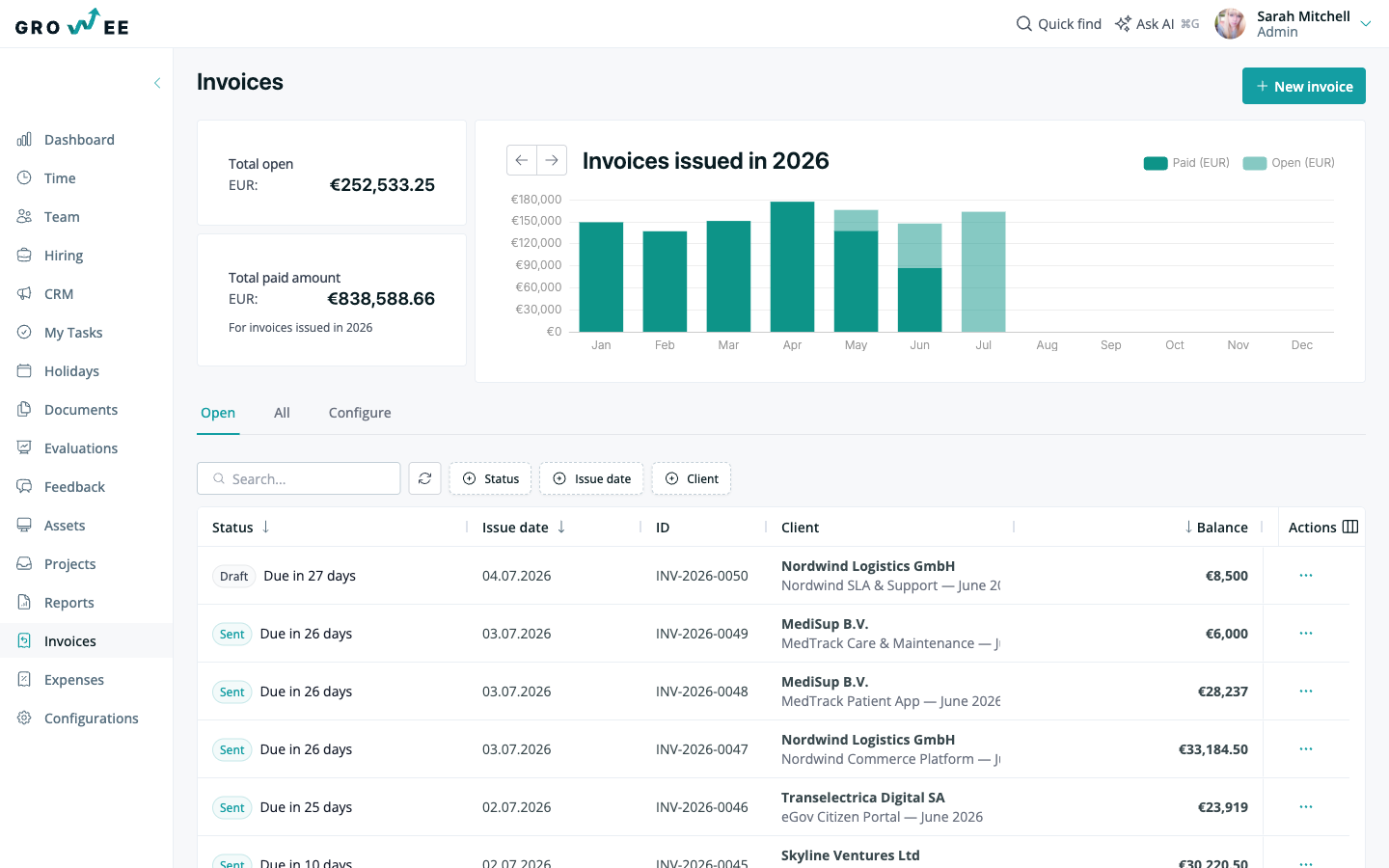
Create an invoice
- Open the Invoices module from the left side menu.
- Click New Invoice.
- Fill in the invoice details in the creation form, including the client, the invoice lines, and any other required fields.
- When all the mandatory fields are complete, click Create Invoice.
The invoice is saved and opens on its details page, where the available actions are shown.
Tip: Link each invoice to a client, and to a project where relevant, so the invoiced amount lines up with the project’s budget and logged time.
Invoice statuses
Every invoice moves through a set of statuses so you always know where it stands. An invoice typically goes from Draft to Sent to Paid, and each invoice tracks its outstanding balance so you can see what is still owed.
Marking an invoice as paid locks it, which keeps your records accurate once a payment has been settled.
Invoice actions
After an invoice is created, several actions are available from its details page.
| Action | What it does |
|---|---|
| Share | Generates a shareable link to the invoice that you can send to your client. |
| Download | Downloads the invoice as a PDF. |
| Send | Emails the invoice to an address you specify. |
| Mark as Paid | Marks the invoice as paid and locks it from further editing. |
| Edit | Reopens the invoice so you can update its details as needed. |
You can also send a payment reminder when a client is late, so following up on unpaid invoices stays inside Growee.
Note: If you bill in Romania, Growee can export ANAF-compliant e-Factura XML for your invoices. This export is optional and depends on your setup.
Related articles
Need more help? Contact support or email support@growee.net.