Browse all articles
Org Chart
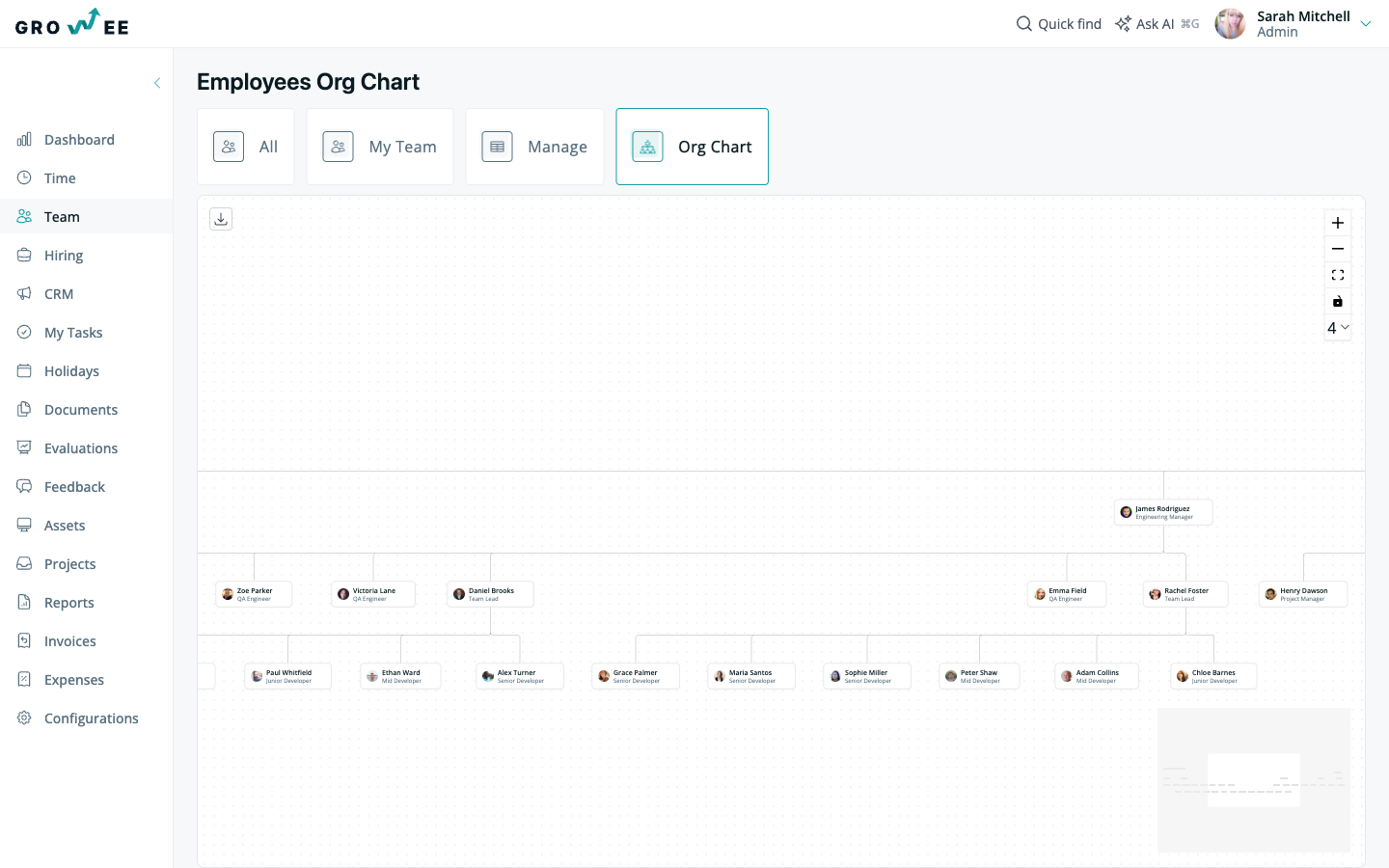
Growee builds the Org Chart automatically from the Reports to relationship on each employee profile, so there is nothing to draw by hand. Setting a person’s manager places them beneath that manager in the chart. Open it from the Team module by clicking Org Chart. To move someone in the hierarchy, edit the Contact card on their profile’s Details tab and change Reports to.
This article covers where to open the Org Chart and how it is built.
Open the org chart
- Open the Team module.
- Click Org Chart.
How the chart is built
The Org Chart is generated automatically from the Reports to relationship on each employee profile. When you set a person’s manager, they appear beneath that manager in the chart.
To change where someone sits in the hierarchy, update the Reports to field on their profile:
- Open the employee’s profile.
- On the Details tab, edit the Contact card.
- Set or change the Reports to person.
The chart updates to reflect the new relationship. Because it reads directly from profiles, the Org Chart stays current as you add people or reorganize.
Related articles
Need more help? Contact support or email support@growee.net.