Browse all articles
Slack
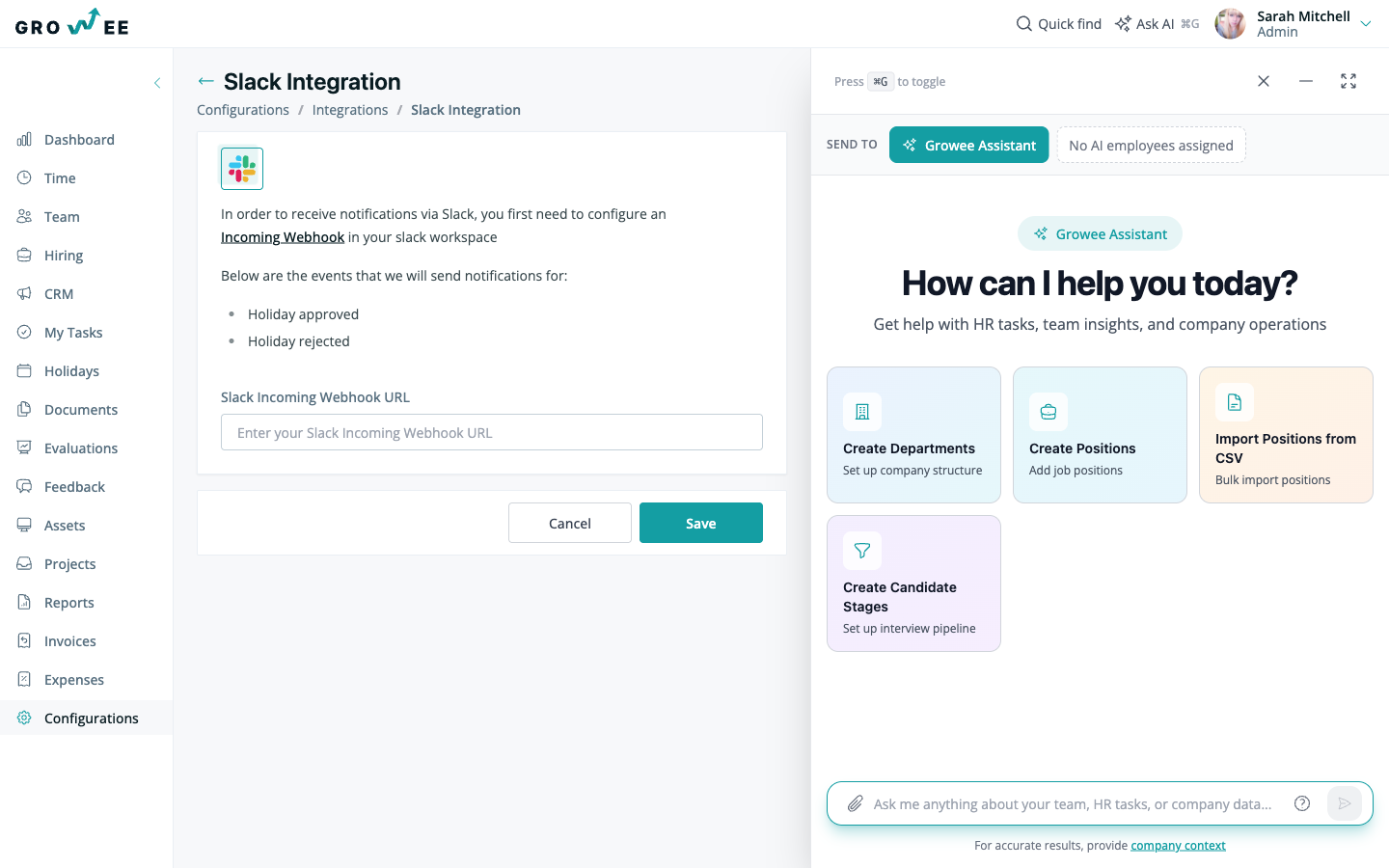
Growee posts a message into a Slack channel you choose when a leave request is approved, rejected, or cancelled, so your team knows who is away without logging into Growee. The messages are notifications only: approving or rejecting a request still happens in Growee. To turn it on, create an incoming webhook in Slack pointing at that channel, copy the webhook URL, then open Configurations → Integrations → Slack in Growee, paste the URL into the Slack Incoming Webhook URL field, and save.
Setup takes a few minutes and works with your existing Slack workspace. You connect the two with an incoming webhook, then paste the webhook URL into Growee.
What notifications you get
Once the integration is active, Growee posts a plain text message to your chosen Slack channel when a leave request is:
- Approved
- Rejected
- Cancelled
A new request that is still waiting for a decision does not post to Slack. The Slack messages carry no buttons; they keep the team informed about availability.
Set up the Slack integration
The setup has two parts: create a webhook in Slack, then add its URL to Growee.
- In Slack, create a new channel where you want to receive the alerts, or pick an existing one.
- In your Slack workspace, configure an incoming webhook pointing at that channel. Slack generates a webhook URL for it.
- Copy the webhook URL.
- In Growee, open Configurations → Integrations and go to the Slack page.
- Paste the webhook URL into the Slack Incoming Webhook URL field and save.
That’s it. From now on, approved, rejected, and cancelled leave requests from your organization post to the Slack channel you chose.
Tip: Point the webhook at a channel the right people already watch, such as a team or HR channel, so leave updates reach everyone who needs them.
Related articles
Need more help? Contact support or email support@growee.net.