Browse all articles
Detailed Reports
Open the Reports module, choose a tab such as Clients, Projects, Tasks, or Team, then click the hours value you want to inspect. Growee opens the Detailed Report scoped to the employee and period you clicked, listing every entry with its project, task, person, timestamp, and duration, grouped by day. You can filter the list and export it as a PDF.
This article is for admins, managers, and HR who need to audit logged hours or answer questions about a specific total. It covers how to open the detailed report, what it shows, how to filter it, and how to export it.
Open the detailed report
The detailed report opens when you drill into a total from another report.
- Open the Reports module and choose a report tab, such as Clients, Projects, Tasks, or Team.
- Find the hours value you want to inspect.
- Click that hours value.
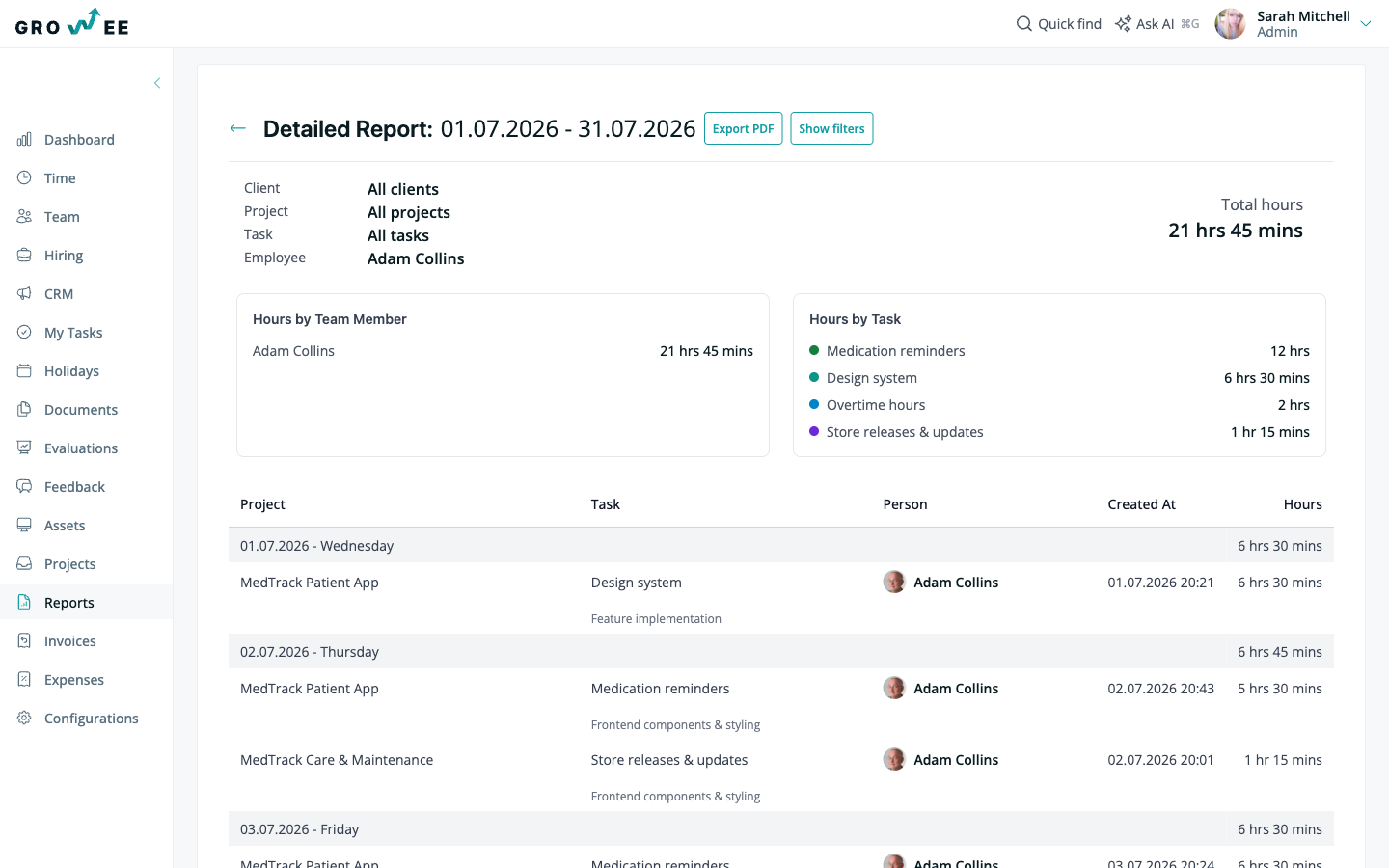
Growee opens the Detailed Report view, scoped to the employee and period you clicked. The header shows the report title and the date range it covers.
What the detailed report shows
At the top, the report displays the active Client, Project, Task, and Employee filters, along with the Total hours for the current selection.
Below the filters, two breakdown sections summarize the same entries in different ways:
- Hours by Team Member: total hours per person in the selection.
- Hours by Task: total hours per task, from the largest to the smallest.
The main table lists each individual entry with these columns:
| Column | What it shows |
|---|---|
| Project | The project the entry was logged against. |
| Task | The task the time was logged on. |
| Person | The employee who logged the entry. |
| Created At | The date and time the entry was recorded. |
| Hours | The duration of the entry. |
Entries are grouped by day, with a subtotal for each day and a Total hours row at the bottom. If the selection spans many entries, use the pagination controls below the table to move between pages.
Filter the entries
Click Show filters to narrow the list. You can filter by Client, Project, Task, and Employee. Adjust any filter and the table, breakdown sections, and total update to match your selection.
Tip: Set Employee to a single person to review one team member’s entries, or clear it to see everyone’s time within the same project or task.
Export the detailed report
Click Export PDF to generate a PDF of the current view. The export keeps the filters and period you have applied, so the file matches exactly what is on screen. See Generating Reports for how detailed report exports are delivered.
Related articles
Need more help? Contact support or email support@growee.net.