Browse all articles
Approving and Managing Leave
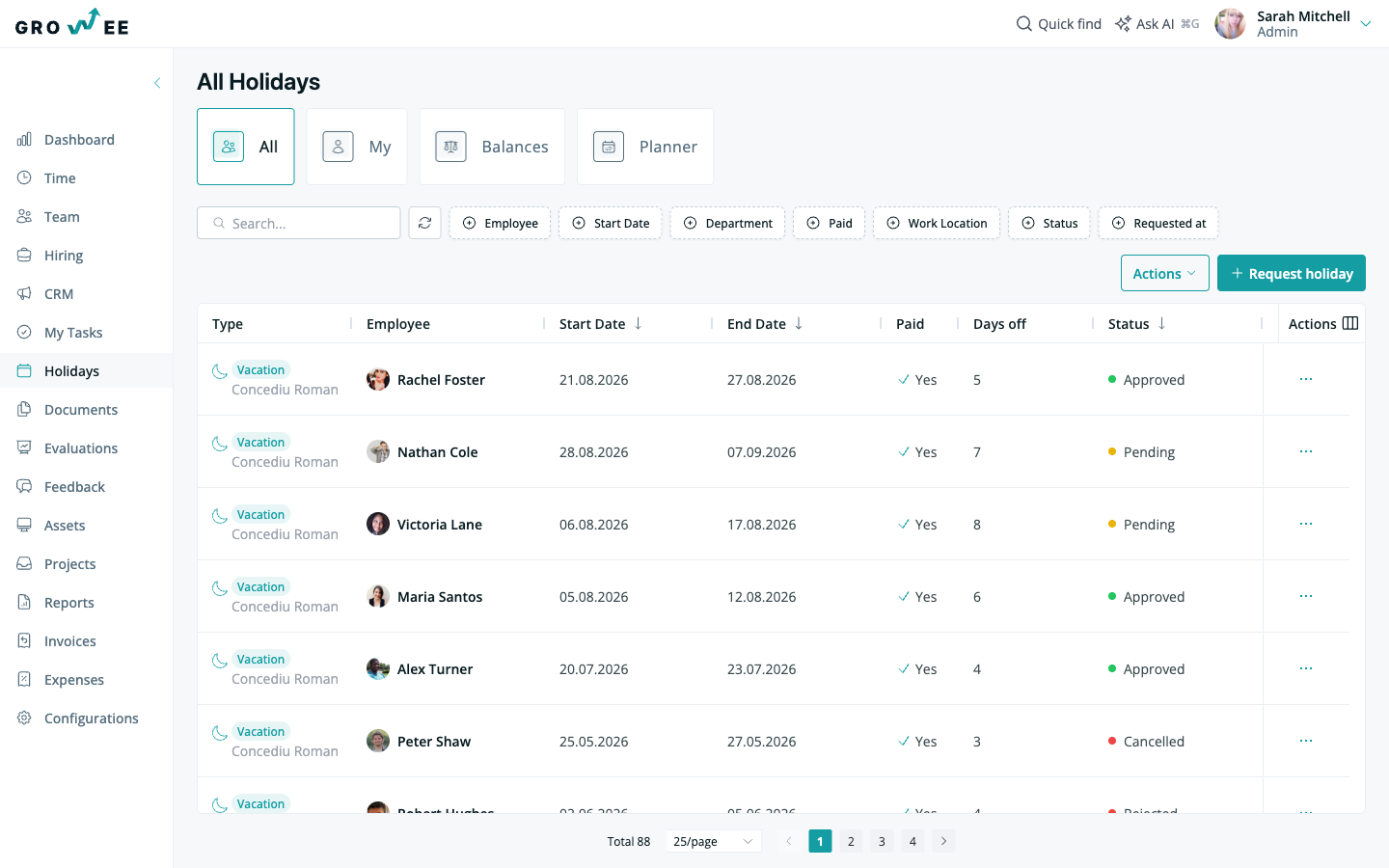
Open the Holidays module to see submitted requests, find the one you want to handle, and click Approve or Reject Request. Growee uses hierarchical approvals, so the direct manager or team lead responsible for an employee approves that employee’s time off, and users with HR, Manager, or Admin roles also have approval permissions. When a request is approved for a paid leave type with a yearly allowance, Growee deducts the days from the employee’s leave balance as part of the approval. Growee then adds the leave to the employee’s timeline and, if your company has connected a Google Calendar for leave, to that calendar.
This article is for users with a Manager, HR, or Admin role. If you are requesting your own time off, see Requesting Time Off.
Approve or reject a request
Growee uses hierarchical approvals: the direct manager or team lead responsible for an employee approves that employee’s time off. Users with HR, Manager, or Admin roles also have approval permissions.
- Open the Holidays module to see submitted requests.
- Find the request you want to handle.
- Click Approve or Reject Request.
Approving or rejecting takes one click. When a request is approved for a paid leave type with a yearly allowance, Growee deducts the days from the employee’s leave balance as part of the approval. Growee then adds the leave to the employee’s timeline and, if your company has connected a Google Calendar for leave, to that calendar.
Tip: Use Reject Request in situations where the time off cannot go ahead, such as an impending project deadline or a lack of backup coverage.
Plan around team availability
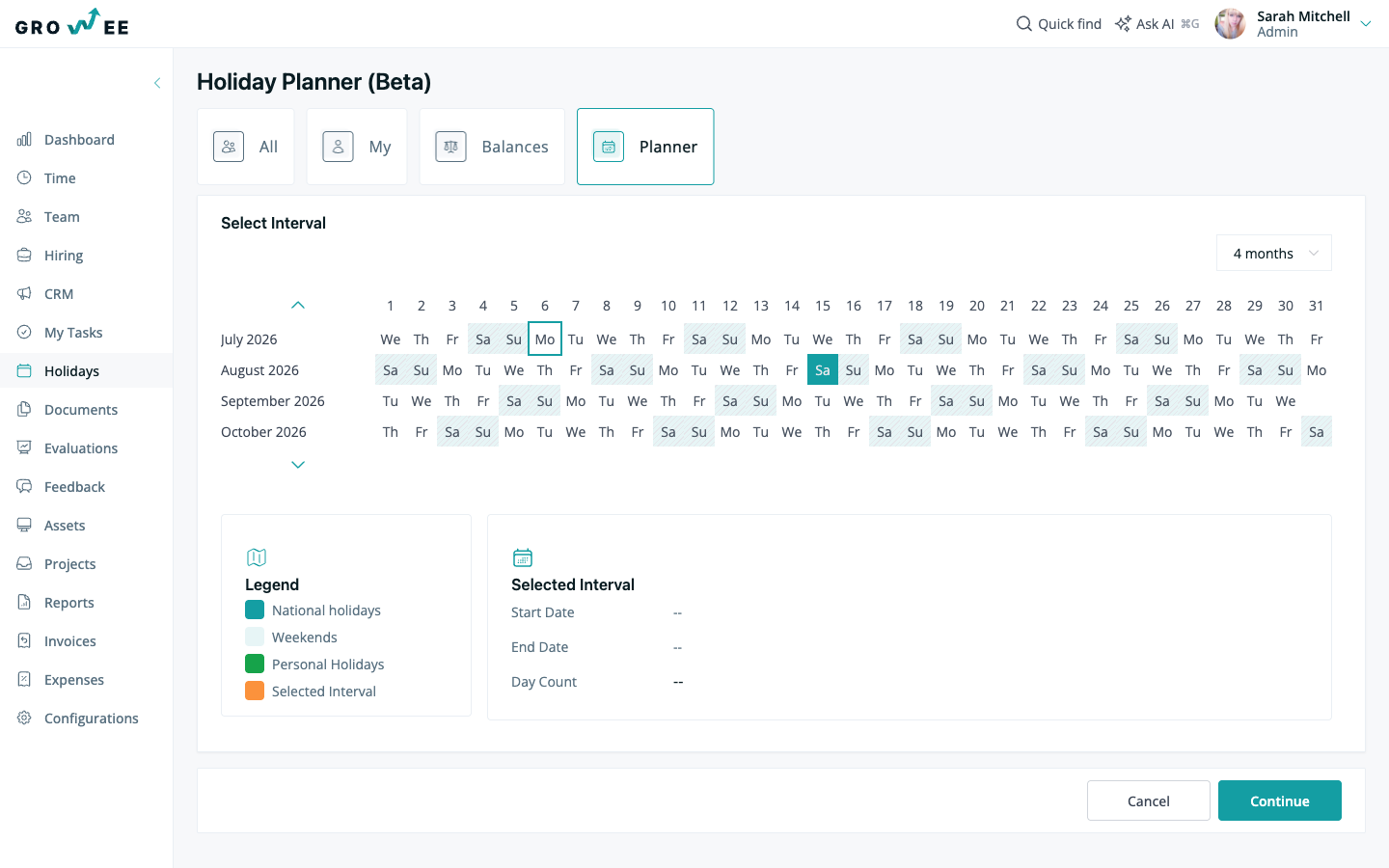
The Holidays module also has a Planner view that shows everyone’s leave on a shared timeline, so you can check coverage before approving overlapping requests.
Edit a pending request
A request can be edited only while it is in Pending status.
- Confirm the holiday is still in Pending status.
- Click Edit to open the holiday request dialog.
- Update the details and save.
If a request has already been approved, it cannot be edited directly. Cancel the approved request and submit a new one instead. Employees who need a change to an approved holiday should ask an Admin, Manager, or HR user to cancel it and create a replacement.
Cancel or reject a holiday
There are two ways to reverse a request, depending on who initiates it:
- Cancel Request: the employee cancels their own request if their plans change.
- Reject Request: a Manager, Admin, or HR user rejects a request, for example when coverage is not available.
Employees receive a notification when a holiday request is cancelled, so everyone stays aware of the change.
Cancellation rules
You control how and when leave can be cancelled. Cancellation rules can allow or restrict cancellations before a chosen start date, which keeps the process consistent across departments while still giving employees flexibility when plans change. These rules are part of your company’s leave configuration.
Who gets notified
Notifications keep both sides informed in real time:
| Event | Who is notified |
|---|---|
| A request is submitted | The responsible approver (direct manager or team lead), by email |
| A request is approved or rejected | The employee who submitted it |
| A request is cancelled | The employee whose holiday was cancelled |
Related articles
Need more help? Contact support or email support@growee.net.